# Classic UI
Documentation pertaining to the old Adhese UI.
# Navigation
Access the main screens using the **main navigation** on the left. You can collapse the menu by clicking the left arrow at the top of the bar, leaving only the icons visible.
[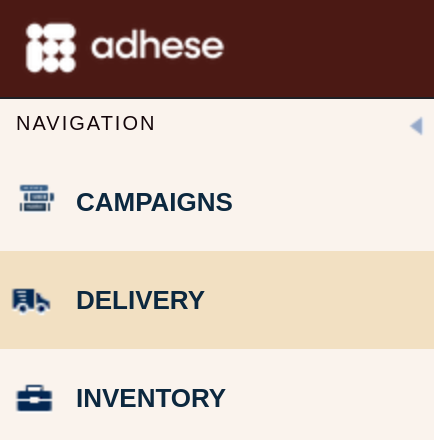](https://documentation.adhese.org/uploads/images/gallery/2024-10/pLxadYrAOKLp8Lfb-iycci7qwzypmalpv-schermafdruk-van-2024-10-22-17-01-55.png) [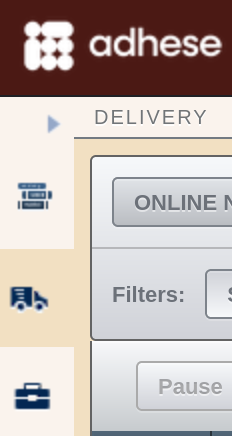](https://documentation.adhese.org/uploads/images/gallery/2024-10/YIIo3KLHHTI6DkgH-sjlcpmqxcxawstvu-schermafdruk-van-2024-10-22-17-02-23.png)
The Adhese interface offers a **breadcrumb** trail to show you where you are in the navigation structure. Click on any breadcrumb to navigate to the corresponding screen.
[](https://documentation.adhese.org/uploads/images/gallery/2024-10/SrTgQlWRDaxvLkdZ-0j2kkdan1x2izwo5-schermafdruk-van-2024-10-22-17-03-01.png)
[](https://documentation.adhese.org/uploads/images/gallery/2024-10/0DZG1TvcxxC2bNAE-glw8f1qx8ykusfvy-schermafdruk-van-2024-10-22-17-03-27.png)
[](https://documentation.adhese.org/uploads/images/gallery/2024-10/erMxqvoE0OCaA6MK-mbay9enczp0wied1-schermafdruk-van-2024-10-22-17-03-50.png)
[](https://documentation.adhese.org/uploads/images/gallery/2024-10/LM2ie07Fv3Lh9S3V-myimpcceaokbto1b-schermafdruk-van-2024-10-22-17-04-12.png)
[](https://documentation.adhese.org/uploads/images/gallery/2024-10/ftnh5TTfmWXG4onb-qulrbmbhlrdozklc-schermafdruk-van-2024-10-22-17-04-33.png)
To switch between campaigns, bookings, or creatives, simply use the **drop-down** menu located in the upper right corner of each overview. Click inside the box to reveal the available options.
[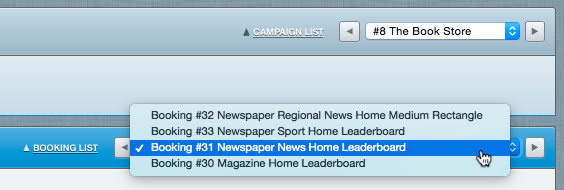](https://documentation.adhese.org/uploads/images/gallery/2024-06/C4BKqLR2OmpBOA1A-navigation3.png)
Click the arrows next to the drop-down menu to go to the next or previous campaign, booking, or creative.
If you have filtered the Campaign overview through the campaign filter, the Campaign drop-down menu will only show the filtered campaigns.
Next to the above drop-down menu, you will find a link that says *Campaign list*, *Booking list*, or *Creatives list*. Click this link to go back to the *Campaign* overview, *Booking* overview, or *Creative* overview, respectively.
# Searching
You can search for campaigns, bookings and creatives within your Adhese account by two different means: the **quick search** and the **search bar**.
1. The **quick search** is at the top of each Adhese screen, to the right of the Adhese logo. Use the quick search function to easily navigate to a specific campaign, booking, or creative by entering a search term and **pressing Enter**.
[](https://documentation.adhese.org/uploads/images/gallery/2024-10/OsuLJsalRHTaUpWS-schermafdruk-van-2024-10-29-10-42-23.png)
[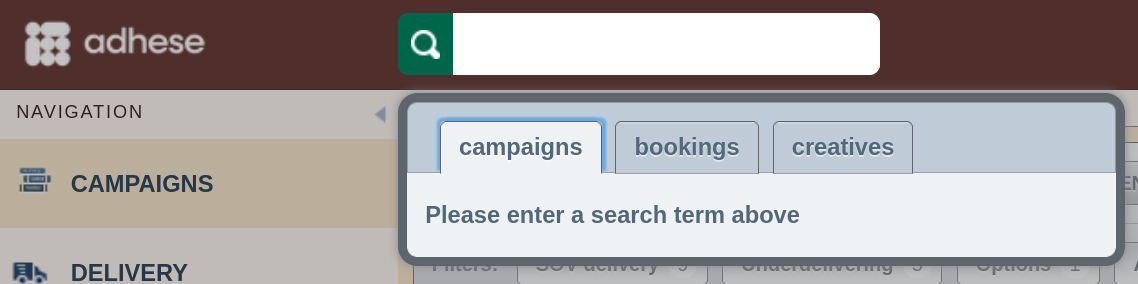](https://documentation.adhese.org/uploads/images/gallery/2024-10/gK3wV0N2rkRXwnal-schermafdruk-van-2024-10-29-10-41-58.png)
The following list provides an overview of the search terms you can use in the quick search.
- Campaigns
- Campaign ID
- Campaign name
- Advertiser name
- Bookings
- Campaign ID
- Campaign name
- Campaign comments
- Advertiser name
- Invoice company name
- Booking ID
- Position name
- Location name
- Location URL
- Publication name
- Publication quote
- Format name
- Creative
- Creative ID
- Creative name
- The ID of the click track link URL
2. To search for specific keywords in the *Campaign* and *Delivery* overview, simply use the **search bar** located in the upper right corner of the campaign filter. For example, by typing *paying* into the search bar, you can easily display all campaigns booked at the paying priority level.
[](https://documentation.adhese.org/uploads/images/gallery/2024-06/b584jHndNfdorVek-searching3.png)
# The Administration Screen
[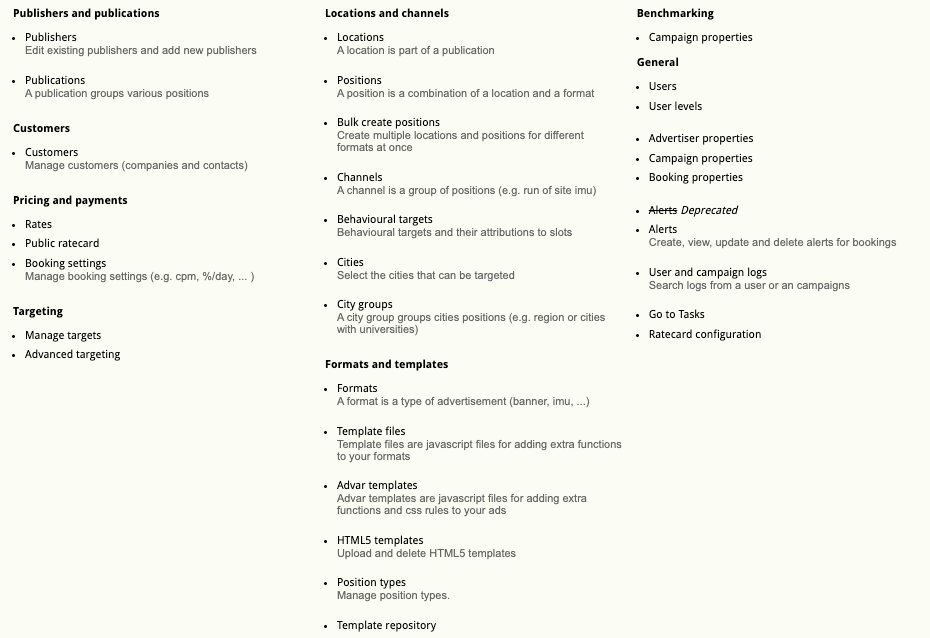](https://documentation.adhese.org/uploads/images/gallery/2024-06/4tqZyU4hLODBa1tf-afbeelding.png)
# Publishers and publications
## Publishers
A publisher distributes content through one or more media platforms, such as a website or mobile application. Within one company, several publishers and sub-publishers can exist.
The *Publishers* screen displays all publishers and sub-publishers associated with your account.
[This page](https://documentation.adhese.org/books/inventory-management/page/publishers) explains how to create and edit publishers within your account.
## Publications
A publisher maintains online publications such as a website, blog, video channel, newsletter, smartphone app or webshop.
The *Publications* screen displays the various publications associated with your account.
More information on creating and managing your publications can be found [here](https://documentation.adhese.org/books/inventory-management/page/publications).
# Customers
The customers screen is considered legacy functionality.
To add a new client go to add a new client in the header of a campaign
## Customers
The *Customers* screen lists all available companies to add in the Client part of the campaign *Header* tab.
[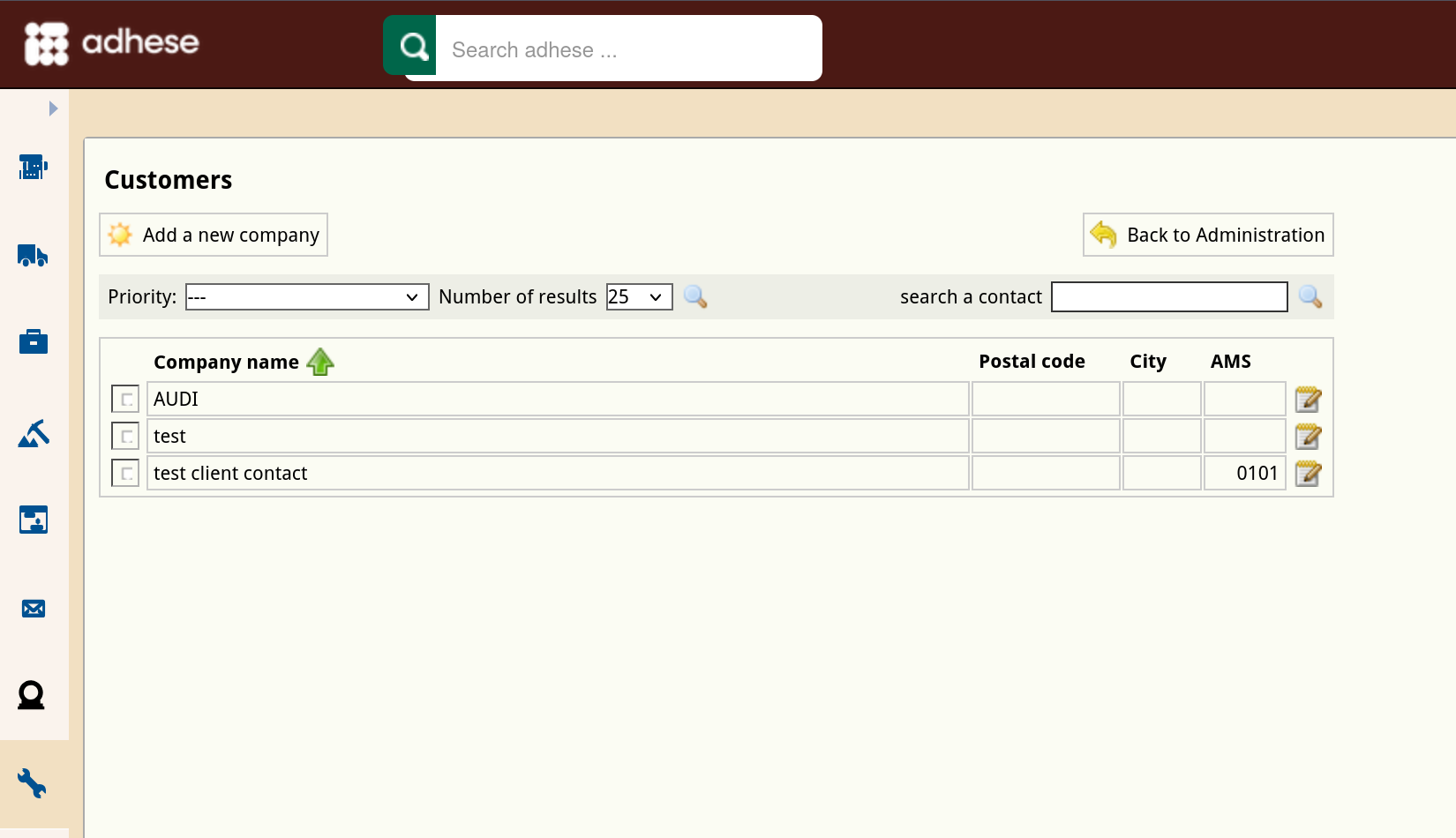](https://documentation.adhese.org/uploads/images/gallery/2024-10/JsnqBhgepA1dLkxz-schermafdruk-van-2024-10-29-11-06-10.png)
The *Customers* screen presents a table with four columns:
1. The *Company name* column specifies the name of the client or company.
2. The *Postal code* column details the postal code of the city where the company is located.
3. The *City* column shows the city where the company is located.
4. The *AMS* column shows the AMS ID of the company.
Use the **Invoice Type** drop-down to filter the list of companies by the way they are invoiced. Determine the number of results to display from the **Number of results** drop-down. Use the **search a contact** bar to search for a specific company. Sort the list with companies by the *Company name* column.
To add a new client or add an new contact click the *Add a new company* button.
To edit a company, click the company's name you want to modify or use the edit icon.
For proper reporting of advertisers in BQ/Lookerstudio, make sure to fill in a valid domain in the quote field when you add or edit an advertiser (ex. example.com). Valid domains cannot contain spaces and most special characters.
# Pricing and payments
## Rates
The Rates screen is no longer of significance.
## Public rate card
The Public rate card screen works in much the same way as the Rate cards screen but is less comprehensive. The Rate cards screen and the Financial tab of a campaign are operational in the Adhese interface, making the Public rate card screen no longer relevant.
## Booking settings
The Booking settings screen is no longer of significance.
# Targets
To manage targets in Adhese, click the Targets - Manage targets link in the administration screen.
More information on managing targets can be found [here](https://documentation.adhese.org/books/inventory-management/page/targeting).
General information on targeting can be found on [this page](https://documentation.adhese.org/books/campaign-management/page/bookings#bkmrk-targeting).
## View Logs
All changes made to the targets are logged and become visible by clicking the *View logs* link.
[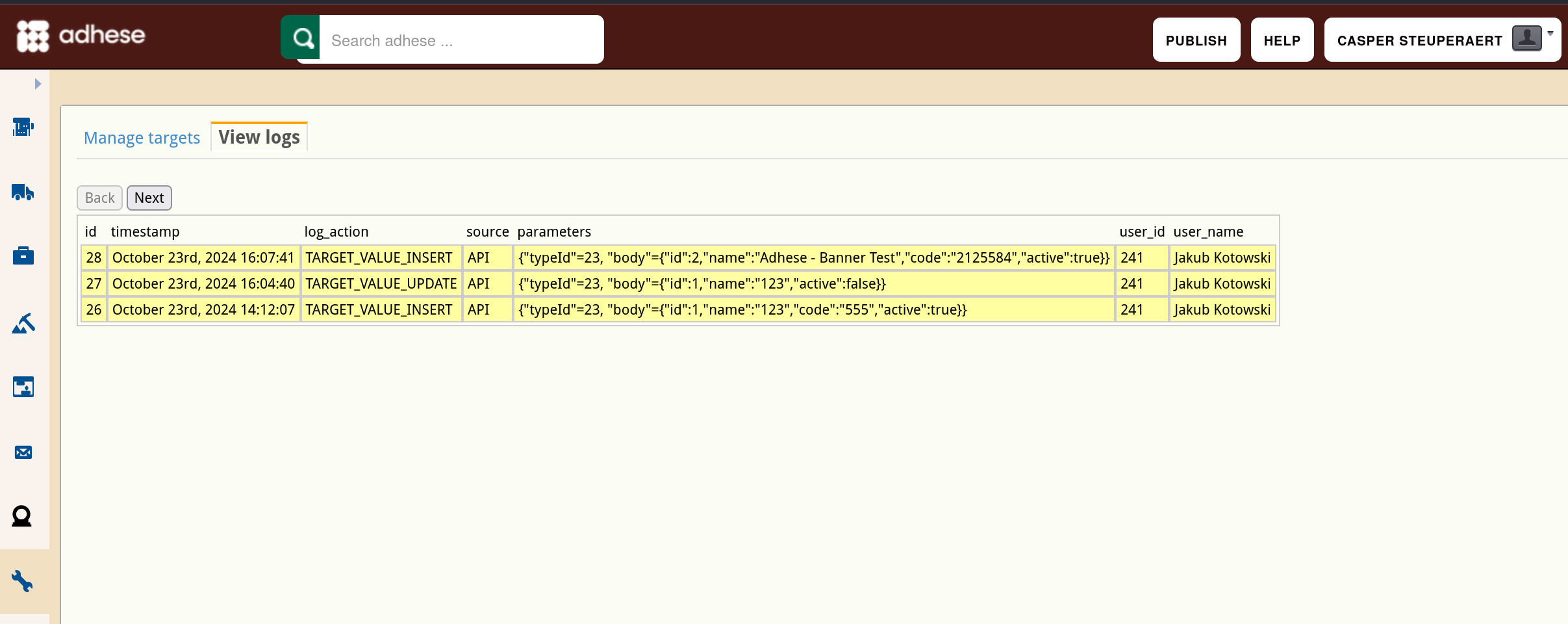](https://documentation.adhese.org/uploads/images/gallery/2024-10/SbEKFSW8TGcTW3PW-schermafdruk-van-2024-10-29-11-06-48.png)
## Locations and channels
### Locations
A location is a (sub)section within a publication, like the homepage, the lifestyle section, or the daily newsletter.
The *Locations* screen shows the different locations associated with your account.
For more information on creating and managing locations, visit [this page.](https://documentation.adhese.org/books/inventory-management/page/locations)
### Positions
A position is the combination of a location and format.
The *Positions* screen shows the different positions associated with your account.
[This page](https://documentation.adhese.org/books/inventory-management/page/positions) gives more information on creating and editing positions.
## Bulk create positions (deprecated)
The Bulk create positions screen is not in use at the moment.
## Channels
Channels are a collection of positions within a publication (e.g. run-of-site) or across your network of publications (e.g. run-of-network). Channels group identical formats in different locations and make it easy to target ads on similar web pages.
The *Channels* screen shows the different channels associated with your account.
Visit [this page](https://documentation.adhese.org/books/inventory-management/page/channels) if you would like to know more about creating and managing channels.
## Behavioural targets
Behavioural targeting allows a publisher to target ads to visitors who show a higher level of interest in a particular section of a publication (for example, sports or economy).
The *Behavioural targets* screen lists the behavioural targets that are available within your account.
Visit [this page](https://documentation.adhese.org/books/campaign-management/page/bookings#bkmrk-behavioural-targetin) for more information on behavioural targets.
## Cities
The Cities screen enables you to specify which cities are available for targeting.
[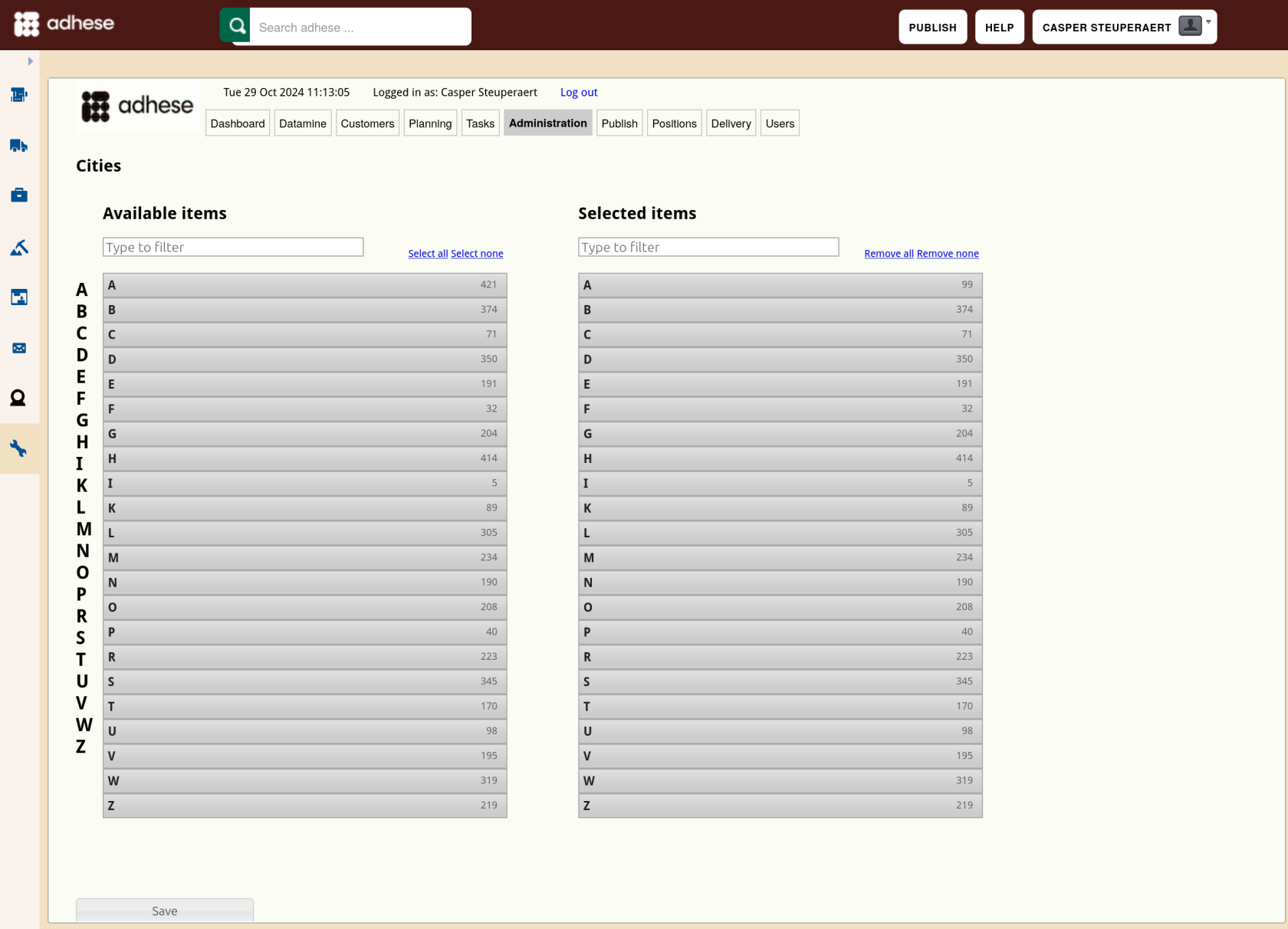](https://documentation.adhese.org/uploads/images/gallery/2024-10/HXjle5SPa0hRSiyt-schermafdruk-van-2024-10-29-11-13-23.png)
To add a city:
1. Click an initial letter from the left *Available items* list or filter the list and type in the search bar.
2. Select the cities you wish to target. The selected cities from the *Available items* list will appear in the right list of *Selected items*.
3. Click the *Save* button to save your changes. You can now target a campaign by the selected cities.
## City groups
A City Group is a collection of identical cities, such as university cities.
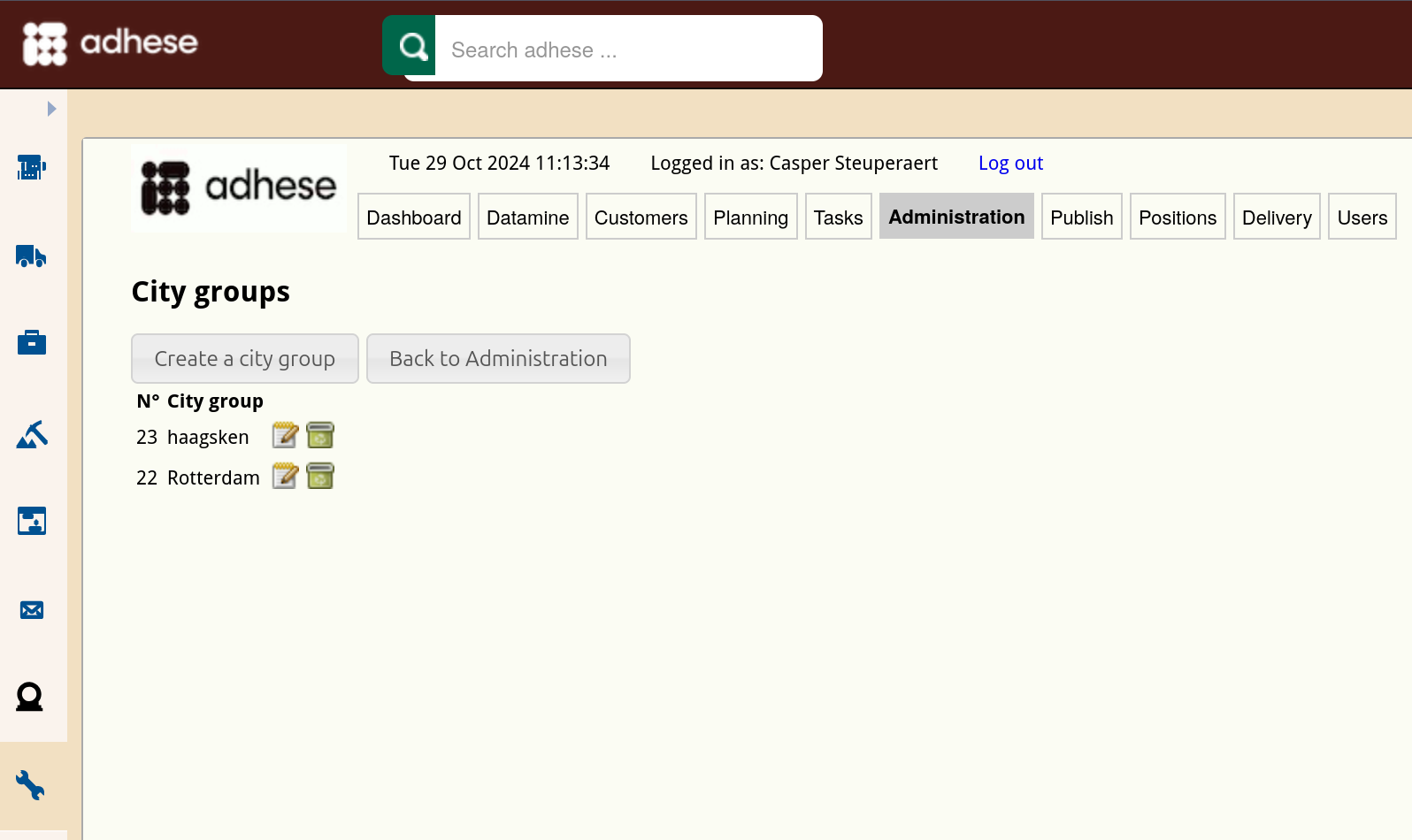
The *City groups* screen lists all available city groups.
[](https://documentation.adhese.org/uploads/images/gallery/2024-10/qK1OdulgbCgbUYDK-schermafdruk-van-2024-10-29-11-13-54.png)
The *City groups* screen displays the ID and the name of the city group.
To create a city group, click the *Create a city group* button.
To edit a city group, click the edit icon [](https://documentation.adhese.org/uploads/images/gallery/2024-06/8DuAkeX8Dlo5jG96-edit.png) for the city group you want to modify. Click the trash can icon [](https://documentation.adhese.org/uploads/images/gallery/2024-06/OeBdUfZSf30MgYnT-delete.png) to delete a city group.
# Formats and templates
## Formats
A format defines the conditions of an ad creative, such as its file size and dimensions.
The *Formats* screen lists all available formats.
To find out more about managing formats in Adhese, go [here](https://documentation.adhese.org/books/inventory-management/page/formats).
## Template files
Adhese does not restrict advertising to the use of IAB standard formats. The Adhese templates solution makes it possible to wrap more complex creatives (e.g. an overlayer, takeover or floor ad) by using advanced functionalities such as JavaScript, HTML and CSS.
There are two ways to manage templates: either directly through the Admin UI or your own Git repository. UI management is unavailable when using the Git repository. The Git repository is recommended for advanced users with many complex templates. The UI can only be used for read-only consultation of the existing templates. The content and features of templates do not differ for each approach.
## UI Managed templates
When using the UI for managing templates, you can edit the files directly through the text editor on the screen.
Changes in a template or advar template will be applied to all creatives using the updated templates at the next publishing cycle.
### Format Templates
Adhese does not restrict advertising to the use of IAB Standard Formats only. The Adhese Templates solution allows you to wrap more complex creatives such as overlayers, takeovers or floor ads by adding advanced functionality using JavaScript, HTML and CSS.
The *Template files* screen lists all templates that are available within your account.
For more information on templates, visit [this page](https://documentation.adhese.org/books/inventory-management/page/templates).
### Advar templates
Adhese introduced its own template format: Advar. Advar templates are pre-defined creatives consisting of Javascript, CSS, custom JSON objects, etc. Advar templates produce pre-made ads, such as text ads including a small image.
The *Advar templates* screen lists all available Advar templates.
To learn more about advar templates, go [here](https://documentation.adhese.org/books/inventory-management/page/templates#bkmrk-advar-templates)
### HTML5 templates
The HTML5 templates mentioned above can be found in the creative screens in an Advar form in the *Add Advar Template* dropdown list.
For more information on HTML5 Templates, go [here](https://documentation.adhese.org/books/inventory-management/page/templates#bkmrk-html5-templates)
## Position types
Position types add additional functionality to a position. The main purpose of a position type is to define the MIME type of the response and the possible templates wrapped around the output.
The *Position types* screen lists all available position types.
Go to the [positions page](https://documentation.adhese.org/books/inventory-management/page/positions#bkmrk-position-types) to learn more about position types.
## Template Repository
The Template Repository lets you control Template files and Advar templates using a Git version control system.
For more information on the template repository, visit [this page](https://documentation.adhese.org/books/inventory-management/page/templates#bkmrk-template-repository).
# Benchmarking
## Campaign properties
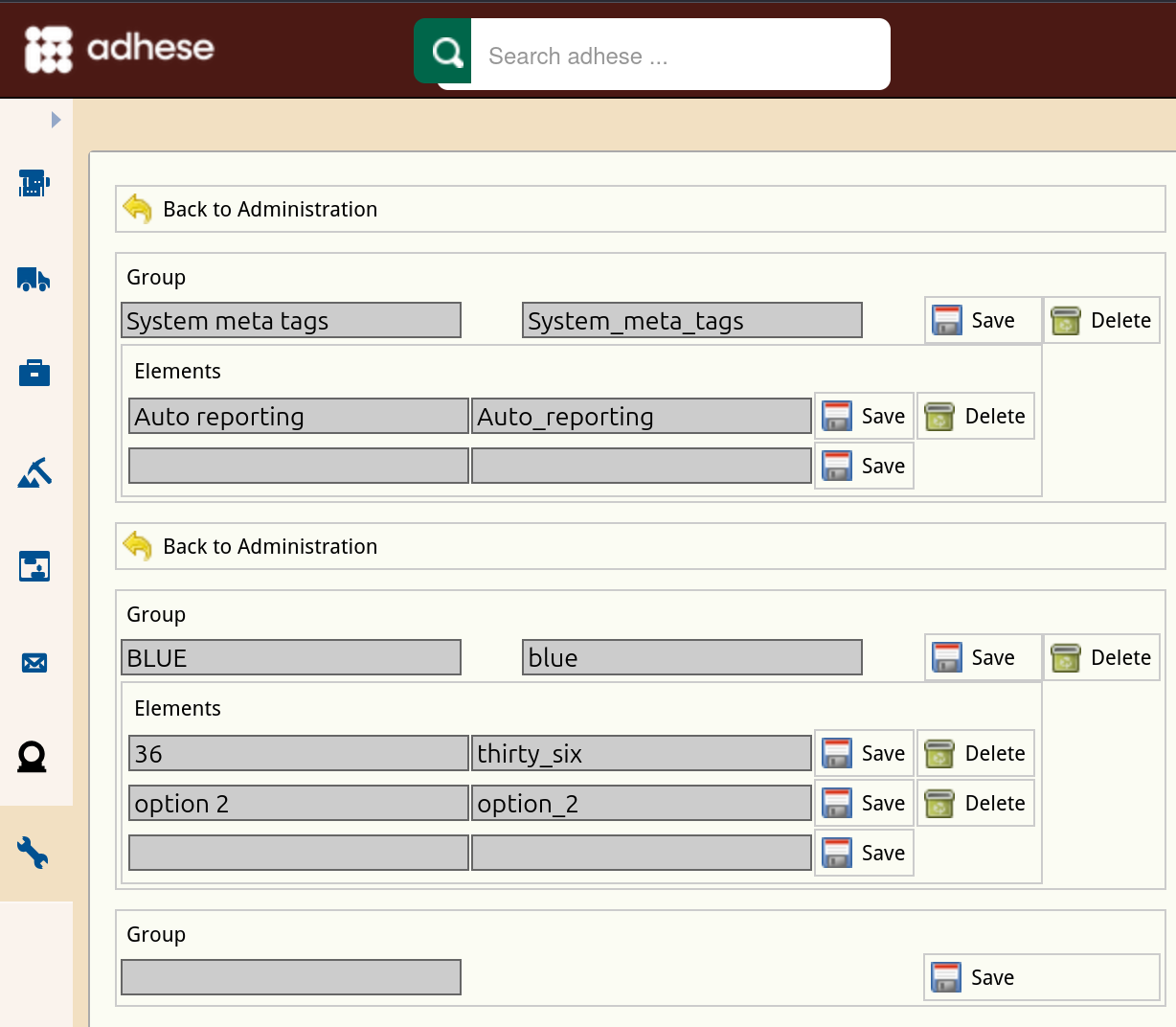
The *Campaign properties* screen enables you to add custom metadata properties to a campaign. Metadata provides additional information about a campaign, such as the sector in which an advertiser operates (e.g. car manufacturers or financial institutions).
[](https://documentation.adhese.org/uploads/images/gallery/2024-10/nxyNy9W1e07JUdxu-schermafdruk-van-2024-10-29-11-14-39.png)
To add a campaign property, select a name that identifies the metadata campaign property and specify the different elements. For more information, refer to [Metadata](https://documentation.adhese.org/books/campaign-management/page/campaigns#bkmrk-metadata).
# General
## Users
For user management, we refer to the following User Management page
## Messages
The Messages screen is no longer significant.
## Advertiser properties
The *Advertiser properties* screen enables you to add custom metadata to a company in the[ Add a new company screen](https://documentation.adhese.org/books/campaign-management/page/campaigns#bkmrk-client).
To add an advertiser property, select a name that identifies the metadata property and specify its different elements.
## Booking properties
The *Booking properties* screen lets you add custom metadata properties to a booking in the *Header* tab of a booking. Metadata provides additional information about a booking.
To [add a booking property](https://documentation.adhese.org/books/campaign-management/page/bookings#bkmrk-add-a-booking), choose a name that identifies the metadata booking property and specify the different elements. For more information, refer to [Metadata](https://documentation.adhese.org/books/campaign-management/page/bookings#bkmrk-metadata).
## Alerts
Alerts are email notifications about a specific type of booking or campaign
The *Alerting screen* displays all the alerts defined in your account. At the top, there are four function buttons along with a filter field. You can create a new alert using the *Add button*. The other three buttons, *Duplicate*, *Run*, and *Remove*, are available when one or more alerts are specified.
For more information on alerts, check the [Alerting page](https://documentation.adhese.org/books/campaign-management/page/alerting)
## User and campaign logs
The *Users and campaign logs* screen allows searching for logs from a specific user or campaign.
For more information about user logs, visit [this page](https://documentation.adhese.org/books/troubleshooting/page/user-logs)
## Creative 3rd party regular expressions
The Creative 3rd party, regular expressions screen, is no longer of significance.
## Go to Tasks
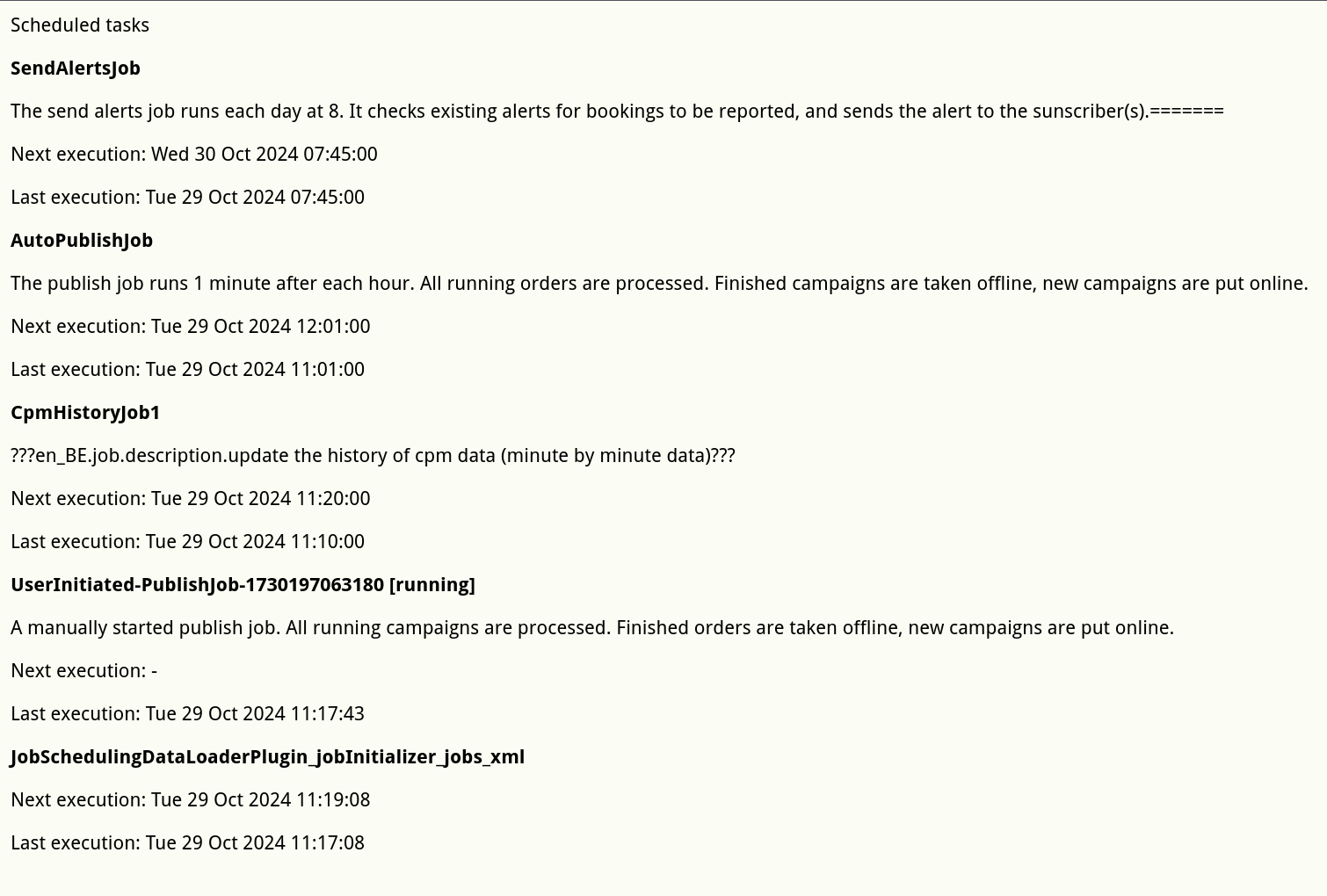
The *Tasks* screen displays information about Adhese's specific actions, such as publishing or sending alerts.
[](https://documentation.adhese.org/uploads/images/gallery/2024-10/vFrPbQpUGe6lyUWw-schermafdruk-van-2024-10-29-11-18-07.png)
## Ratecard configuration
The *Rate cards* screen details all rate cards and lets you create, duplicate, activate or deactivate a rate card.
For more information, visit the [Rate Cards page](https://documentation.adhese.org/books/campaign-management/page/rate-cards).
# Inventory Screen/Forecasting
When the implementation of all the tags is complete (see [Adhese setup and implementation](https://documentation.adhese.org/books/integration-setup)), they start measuring and collecting data for each position of the inventory (see [Measure](https://documentation.adhese.org/books/monitoring-and-reporting-d0S/page/measure)). These figures give you an overview of the daily inventory volume available to you. This practice is called forecasting and allows you to manage your daily inventory.
# Inventory/forecasting
The Adhese interface has a clear forecast overview: *Inventory*. The inventory forecasting tool provides all the data needed to plan campaigns with a high degree of accuracy.
# Running a forecast report
To forecast your inventory (positions and channels):
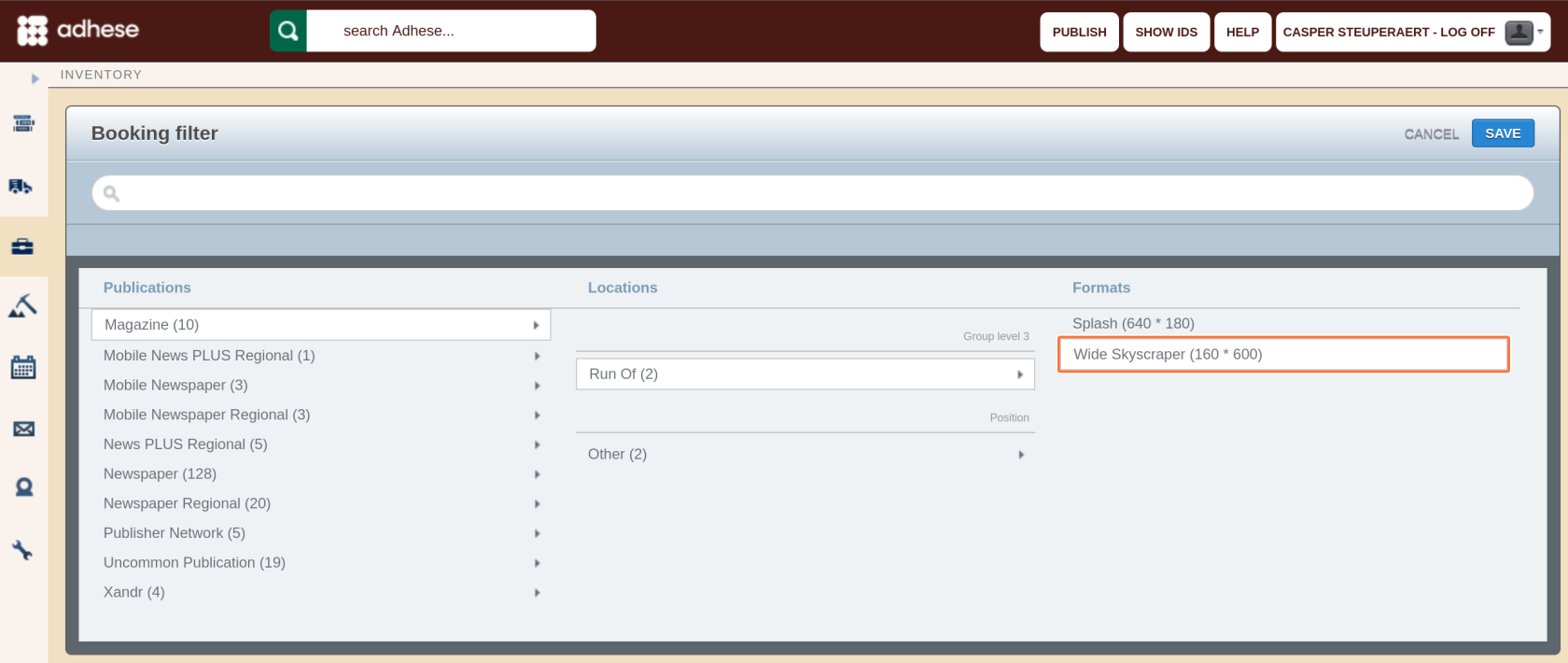
1. Go to the *Inventory* screen. Click *Inventory* in the left navigation menu of Adhese.
2. Search for a position or select a position by choosing a publication, location and format.
[](https://documentation.adhese.org/uploads/images/gallery/2024-10/s5ojVEL2g0MZSxbt-schermafdruk-van-2024-10-29-10-52-23.png)
3. Click the *Save* button. By default, the forecast report shows the last 30 days (impressions already delivered) and the next 30 days (expected volume). By changing the time of a forecast report, you can gain insight into both historical and forecasted volumes of inventory.
[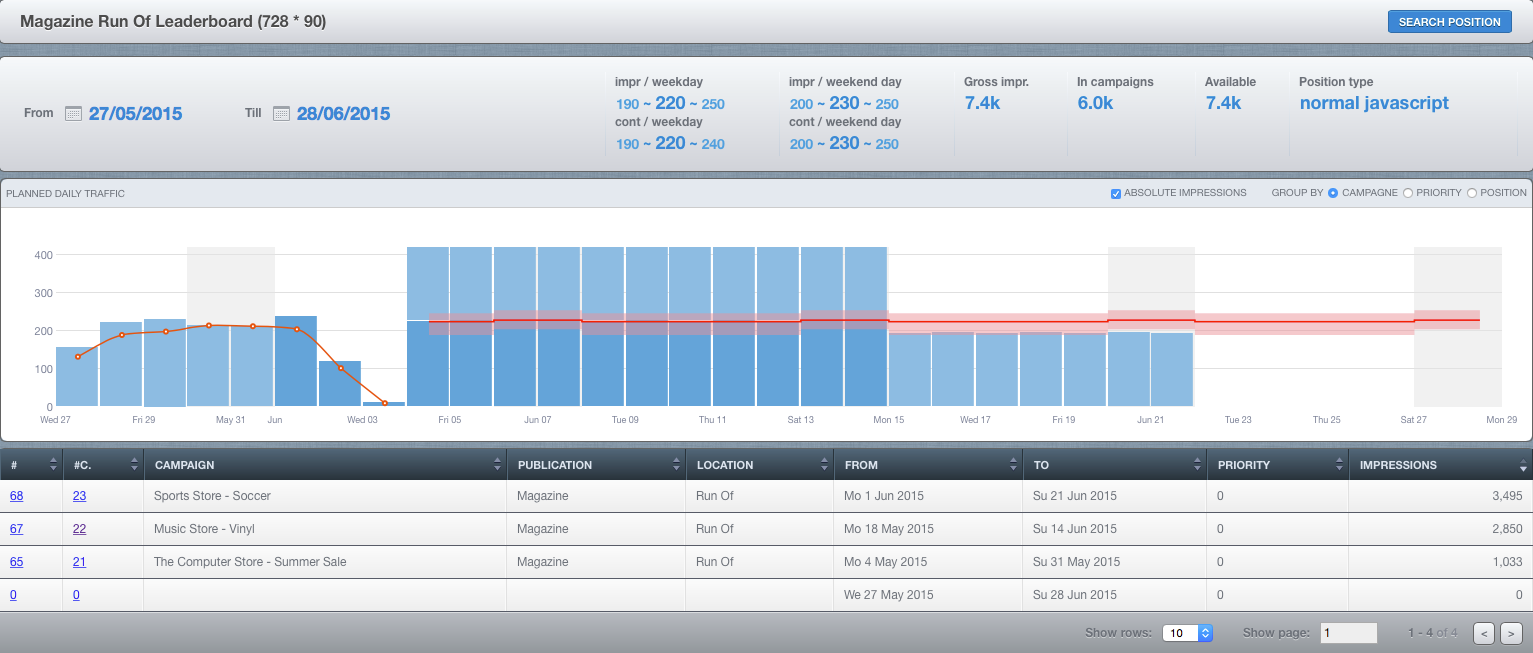](https://documentation.adhese.org/uploads/images/gallery/2024-10/CteO5sETWPAXa3Pq-uqooytmnqaxeejn1-inventory-forecasting2.png)
# Overview of the forecasting report
In the forecast report you will find:
- a summary of important forecasting figures
- the planned daily traffic bar chart
- an overview of future bookings
The forecast report shows the following figures for the selected position or channel and period (using past performance data):
- The number of daily impressions, from Monday to Friday (position average);
- The number of unique daily visitors, from Monday to Friday (position average);
- The number of daily impressions in the weekend (position average);
- The number of unique daily visitors in the weekend (position average);
- The number of gross impressions or the volume of available impressions that you can book during the selected period;
- The number of booked impressions;
- The number of available impressions. This metric is equal to the number of gross impressions minus the number of booked impressions.
Example:
The inventory shows [180 - 240k - 340] impressions on a weekday.
This interval represents the range of total daily impressions that the selected position can achieve with 95% certainty. The middle number is the median. Adhese can predict with 95% certainty that more than 180,000 and less than 340,000 impressions will be delivered; the median of the last 30 days was 240,000 impressions.
The estimated figures are available for the complete network, including clusters of positions such as run of site, run of network, and custom channels, as well as creative templates like main and sub formats. Some of the above figures are also available in the individual *Booking* overview. For more information, refer to [Forecasting figures](https://documentation.adhese.org/books/campaign-management/page/bookings#bkmrk-forecasting-figures-) and [Position averages](https://documentation.adhese.org/books/campaign-management/page/bookings#bkmrk-forecasting-figures-).
Alongside these figures, the forecast report shows the *planned daily traffic graph*. Each bar represents the daily volume of booked impressions for the position and compares it with its expected daily traffic. The position averages indicate the expected daily traffic. The expected volume range for the position is highlighted in red. A dark red curve indicates the median.
If the height of the bar chart exceeds the curve, the position is overbooked. This happens when the number of impressions booked is greater than the number of impressions available.
The daily volume of each individual booking is displayed as a percentage or absolute impressions within a single bar. Bookings with a higher priority will appear lower in the bar. The bookings can be grouped by campaign or ordered by priority level.
When hovering over the bar chart, the graph highlights each individual booking and shows the booking's delivered or expected volume of daily impressions.
[](https://documentation.adhese.org/uploads/images/gallery/2024-06/ql8LDTOCQ2m5oNBF-inventory-forecasting3.png)
Below the *planned daily traffic bar chart*, there is a list or table that displays all future bookings. Clicking on any of these bookings will change the booked impressions to orange in the bar chart. This provides an indication of whether the scheduled impressions will be delivered - before the campaign even starts running.
The *Inventory* tool enables you to modify or select a different period, allowing you to monitor daily traffic and compare delivery to that of competitive bookings. A red curve indicates the daily traffic for the position, while each bar represents the daily volume of delivered impressions. Hovering over the bar chart highlights each individual booking at the selected position and shows the volume of daily impressions delivered by the booking.
Please note that you can not add up unique visitors. The number of unique visitors of a channel position is not equal to the sum of unique visitors of all the individual positions of that channel.
# Delivery screen
The *Delivery* overview lets you monitor the delivery of all bookings using the delivery rate. To access the *Delivery* overview, click *Delivery* in the left navigation menu.
[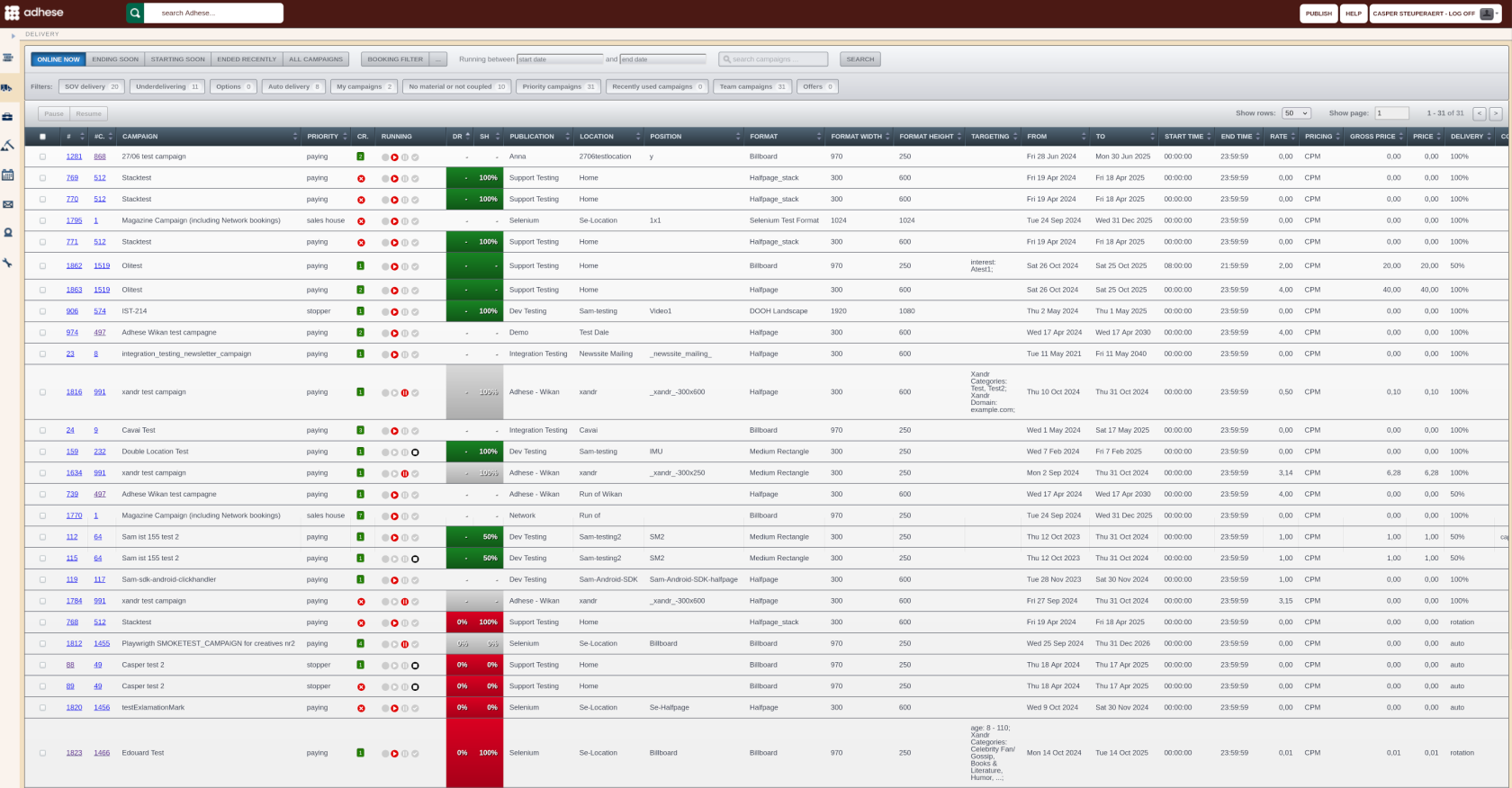](https://documentation.adhese.org/uploads/images/gallery/2024-10/ZiU8106vudik1Cam-schermafdruk-van-2024-10-29-11-25-30.png)
## Delivery rate
The *Delivery* overview provides a detailed view of *how* a booking is delivered by showing the **delivery rate** (DR) in a distinct table column. The delivery rate serves as a key indicator of a booking's health. It reveals whether the delivery of a booking is on schedule and whether it will achieve its goal.
Adhese uses a colour scale to provide a rapid overview of the delivery status. A green colour indicates that a booking is totally fine: the delivery is on schedule and there are no anticipated issues. As the colour shifts from green to yellow to red, Adhese considers the booking delivery more problematic or less "healthy".
[](https://documentation.adhese.org/uploads/images/gallery/2024-06/Fie6usNJlfVYIbMw-delivery-overview2.png)
Adhese computes the health of a booking, considering a range of factors, including:
- How much longer will the booking run? A low delivery rate does not pose a threat if the delivery period has just started or will last for a couple of weeks. Conversely, a low delivery rate may be an issue if the booking runs for a short period or gets close to its end date.
Adhese prioritises bookings that end sooner over bookings that end later.
- What is the current inventory status for the booked position, and how many impressions are available? How much of the inventory has been allocated to competing bookings? When multiple bookings with varying priority levels are booked for the same position, bookings with a higher priority will be delivered first.
- What is the inventory share, or what percentage of the position's expected inventory does the booking take up? If a booking uses a small percentage of the total inventory, it can easily receive more impressions. In contrast, bookings that use a significant share of the total inventory may require close monitoring.
A 100% delivery rate is considered optimal, indicating the delivery is on schedule. Rates between 90% and 110% are also considered healthy. These factors should be taken into account when evaluating the delivery rate.
A campaign that is underdelivering delivers fewer impressions than specified for a period of time. This may be due to a fall in traffic or an overbooked position. If a booking is underperforming, Adhese will try to expedite delivery. Conversely, if a booking is overdelivering, Adhese will slow down the delivery, working towards a delivery rate of 100%.
Adhese continually monitors all active campaigns and adjusts delivery as needed. Adhese strives to achieve the best possible outcome for all campaigns, even when a position is overbooked.
## Components and actions of the Delivery overview UI
### Campaign filter
You can change the content of the *Delivery* overview by
- activating and deactivating several [filters](https://documentation.adhese.org/books/campaign-management/page/campaign-screen#bkmrk-campaign-filter),
- adjusting the calendar settings, and
- using the search tool.
### Pause and resume
- To **pause** the delivery of a booking, select one or more running bookings and click the *Pause* button located above the booking list.
- To **resume** delivery, select one or more paused bookings and click the *Resume* button.
### Clicking a table row
Clicking a booking from the overview redirects you to its *Booking* header tab.
# Datamine
Data mining is a process that transforms raw data into easily digestible information, allowing users to identify patterns and profiles.
Several data mining reports are available via the *Datamine* tab of the Adhese interface. These reports are exported to a file that can be read in Excel.
To generate a data mining report, click *Datamine* in the left navigation menu. The *Datamine* screen opens.
[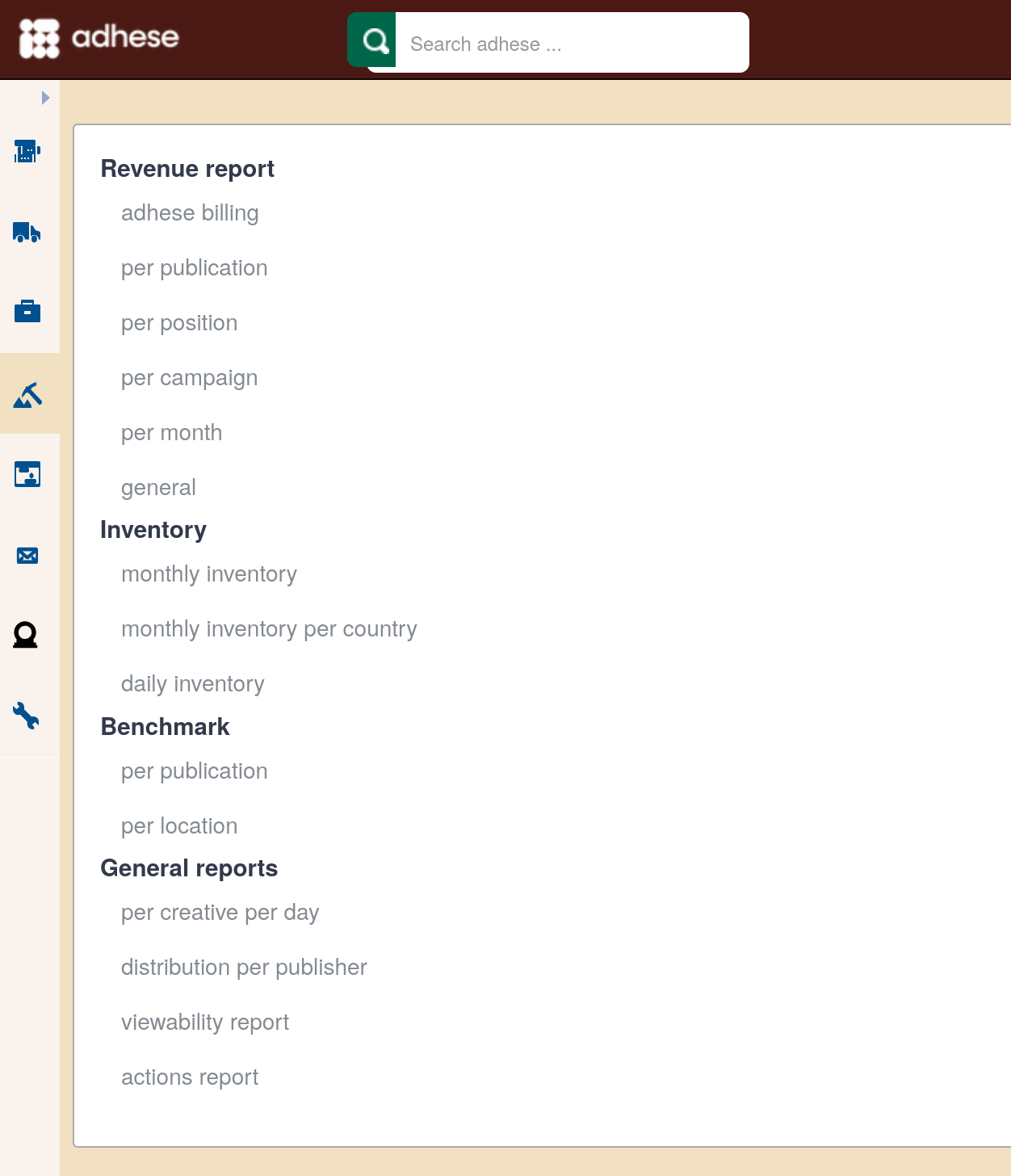](https://documentation.adhese.org/uploads/images/gallery/2024-10/jn3sZLzBsKtEajZZ-schermafdruk-van-2024-10-29-11-28-01.png)
Refer to [Table columns in the data mining reports ](https://documentation.adhese.org/books/adhese-ui/page/table-columns-in-the-data-mining-reports)to overview and define the data mining report table columns.
Adhese will only retrieve basic information if nothing is returned to the browser in response to a request to serve an ad. Consequently, some table cells in the reports will display an empty value.
To customise the header background colour of Excel reports, contact Support.
# Revenue report
## Adhese billing
You can create an invoice report for each month. This report provides insight into the number of impressions and clicks for each publication and priority combination.
To create an *Adhese billing* revenue report:
1. Click *Datamine* in the left navigation menu. The *Datamine* screen opens.
2. Click *Adhese billing*.
3. In the **Period** field, select one or more months from the list and click the *Save* button.
4. Click the *Download as Excel file* button.
There are several priorities or invoice types, like paying or inhouse. Therefore, the same publication can appear multiple times in the list, depending on the different priority types employed per publication. The Invoice type column can also have the value empty. Unfortunately, an empty request is one for which there were no booked positions at the time; so, no ad was delivered.
The last row of the Adhese billing report shows the number of erroneous requests. Erroneous requests are ad requests for which no corresponding position (i.e., the combination of a location and a format) exists in Adhese. In most cases, the location in question does not exist within the Adhese database. To create a missing location, click here. It is also possible that the client has changed the location URL structure, which affects how the page is recognised.
## Per publication
The revenue report per publication contains the total reports for each selected publication within the selected month(s). If a booking ran on the selected publication and began or ended outside the selected period, only impressions and clicks served within the specified period will be included in the report.
To create a *Per publication* revenue report:
1. Click *Datamine* in the left navigation menu. The *Datamine* screen opens.
2. Click *Per publication*.
3. In the **Period** field, select one or more months from the list and click the *Save* button.
4. In the **Publication** field, select one or more publications from the list and click the *Save* button.
5. Click the *Download as Excel file* button.
This report contains information about the number of impressions and clicks for each combination of a selected publication and invoice type (invoice type is the same as the priority of a campaign).
Bookings running on a channel of positions spanning more than one publication are attributed to each specific publication for its taken share.
## Per position
The revenue report per position contains essential performance figures, such as click-through rate (CTR) and revenue, for each position on the selected publication(s) and within the selected month(s). This means that if a booking was made on the selected publication and began before the end of the selected month or ended after the start of the first month chosen, its impressions and clicks served in the selected period will be included in the report.
To create a *Per position* revenue report:
1. Click *Datamine* in the left navigation menu. The *Datamine* screen opens.
2. Click *Per position*.
3. In the **Period** field, select one or more months from the list and click the *Save* button.
4. In the **Publication** field, select one or more publications from the list and click the *Save* button.
5. Click the *Download as Excel file* button.
Bookings that run on a channel of positions spanning more than one publication are attributed to each specific publication for its taken share.
## Per campaign
The revenue report per campaign contains booking reports for each selected publication within the selected month(s). This means that when a booking ran on the selected publication and started before the end of the selected months or ended after the start of the first selected month, its booking data and reached impressions and clicks served in the selected period are included in the report. Bookings spanning multiple months are reported per month.
To create a *Per campaign* revenue report:
1. Click *Datamine* in the left navigation menu. This opens the *Datamine* screen.
2. Click *Per campaign*.
3. In the **Period** field, select one or more months from the list and click the *Save* button.
4. In the **Publication** field, select one or more publications from the list and click the *Save* button.
5. Click the *Download as Excel file* button.
This report displays the same variables and metrics as the previous report, the *revenue report per position*.
## Per month
This report shows the number of daily visitors, daily impressions, and daily clicks for each creative and position of the selected publications.
To create a revenue report *Per month*:
1. Click *Datamine* in the left navigation menu. This opens the *Datamine* screen.
2. Click *Per month*.
3. In the **Period** field, select one or more months from the list and click the *Save* button.
4. In the **Publication** field, select one or more publications from the list and click the *Save* button.
5. Click the *Download as Excel file* button.
## General revenue report
This general report provides a general overview of essential performance figures per device type for each booked position of a campaign.
To create a *general* revenue report:
1. Click *Datamine* in the left navigation menu. This opens the *Datamine* screen.
2. Click *general*.
3. Click the **Date range** field. This opens a calendar. Select a start and end date.
4. In the **Publication** field, select one or more publications from the list and click the *Save* button.
5. Click the *Download as Excel file* button.
# Inventory report
## Monthly inventory
This report shows the number of unique visitors, available impressions, reached impressions, and clicks for each format of the selected publication(s) and the selected month(s). The number of impressions, contacts, and clicks is also distributed separately according to the priority (for example, paying, exchange, or inhouse).
To create a *Monthly inventory* report:
1. Click *Datamine* in the left navigation menu. This opens the *Datamine* screen.
2. Click *Monthly inventory*.
3. In the **Publication** field, select one or more publications from the list and click the *Save* button.
4. Choose a month from the **Period** drop-down.
5. Tick the box to include channels in the report.
6. Click the *Download as Excel file* button.
This report enables you to calculate a position's fill rate, the percentage of its sold volume. Do not tick the Include channels in the report box when creating the report. To calculate the fill rate, divide the number of sold impressions (column X) by the position's volume (column F).
## Monthly inventory per country
The *Monthly inventory per country* report divides the number of monthly impressions by the selected countries and aggregates the non-selected countries' impressions. The report also shows the average daily contacts for the specified period.
To create a *Monthly inventory per country* report:
1. Click *Datamine* in the left navigation menu. This opens the *Datamine* screen.
2. Click *Monthly inventory per country*.
3. In the **Publication** field, select one or more publications from the list and click the *Save* button.
4. Choose a month from the **Period** drop-down.
5. Tick the box to include channels in the report.
6. Select or search for one or more countries from the drop-down and click the *Save* button.
7. Click the *Download as Excel file* button.
## Daily inventory
This report details the number of daily impressions and contacts for the selected month(s) and each format in the selected publication.
To create a *Daily inventory* report:
1. Click *Datamine* in the left navigation menu. This opens the *Datamine* screen.
2. Click *Daily inventory*.
3. In the **Period** field, select one or more months from the list and click the *Save* button.
4. In the **Publication** field, select one or more publications from the list and click the *Save* button.
5. Click the *Download as Excel file* button.
# Benchmark reports
Sometimes, it is not possible to track clicks from third-party creatives. Therefore, these third-party creatives are not considered when creating the datamine benchmarking reports.
## Per publication
This report shows the overall average CTR per contact and impression for the selected formats and publications. It also displays the number of impressions, contacts, and clicks.
To create a *Per publication* CTR benchmark report:
1. Click *Datamine* in the left navigation menu. This opens the *Datamine* screen.
2. Click *Per publication*.
3. In the **Publication** field, select one or more publications from the list and click the *Save* button.
4. In the **Format** field, select one or more Formats from the list and click the *Save* button.
5. Click the *Download as Excel file* button.
## Per location
This report shows the average CTR per contact and impression for the selected formats and all selected publications' locations.
To create a *Per location* CTR benchmark report:
1. Click *Datamine* in the left navigation menu. This opens the *Datamine* screen.
2. Click *Per location*.
3. In the **Publication** field, select one or more publications from the list and click the *Save* button.
4. In the **Format** field, select one or more Formats from the list and click the *Save* button.
5. Click the *Download as Excel file* button.
# General reports
## Per creative per day
This report renders daily performance figures for each creative in the selected period.
To create a *Per creative per day* general report:
1. Click *Datamine* in the left navigation menu. This opens the *Datamine* screen.
2. Click *Per creative per day*.
3. Click the **Date range** field. This opens a calendar. Select a start and end date.
4. Click the *Download as Excel file* button.
The number of impressions delivered is reported for each position. Positions that did not have any impressions delivered are not included in the report, even if they were booked on one of the selected dates.
There are no channels in this report; only the individual positions of a channel are reported.
If the amount of generated lines exceeds the standard limit of a spreadsheet, the report is cut off at that limit, and the filename is appended by .partial.
## Distribution per publisher
The *Distribution per publisher* report provides a comprehensive overview of campaign performance by publisher, showcasing delivery metrics for each campaign between the specified start and end date. The report includes the most important figures for each booking.
To create a Distribution per publisher report:
1. Click *Datamine* in the left navigation menu. This opens the *Datamine* screen.
2. Click *Distribution per publisher*.
3. Click the **Date range** field. This opens a calendar. Select a start and end date.
4. Click the *Download as Excel file* button.
The Distribution per publisher report differentiates between the details of a booked position and that of a delivered position. This information is useful when a campaign is booked on a channel. The report indicates the precise location where the campaign was delivered.
## Viewability report
The *Viewability* report shows the impressions and contacts per event and action for a given date range.
To create a Viewability report:
1. Click *Datamine* in the left navigation menu. This opens the *Datamine* screen.
2. Click *Viewability report*.
3. Click the **Date range** field. This opens a calendar. Select a start and end date.
4. Select one or more publications
5. Click the *Download as Excel file* button.
## Action report
The *Action* report shows the impressions and contacts per event and action for a given date range.
To create an *Action* report:
1. Click *Datamine* in the left navigation menu. This opens the *Datamine* screen.
2. Click *Action report*.
3. Click the **Date range** field. This opens a calendar. Select a start and end date.
4. Select one or more publications
5. Click the *Download as Excel file* button.
# Create custom reports with Excel PivotTables
This chapter outlines a basic road map for creating custom Excel reports, as the data mining reports can be used to create custom reports and charts in Excel.
We will use the per creative per day report as an example throughout the chapter. It is essential to read this chapter in its entirety, as the various exercises follow each other.
### Create a basic report spreadsheet
To create a basic spreadsheet for the *Per creative per day* report:
1. Click *Datamine* in the left navigation menu. The *Datamine* screen opens.
2. In the menu, under General reports, click *Per creative per day*.
3. Click the **From** field, a small calendar opens.
- First, select the first date of the period you wish to create a report for.
- Select the last date of the period you wish to create a report for.
4. Click the *Download as excel-file* button to generate and download the *Per creative per day* report.
5. Open the file in Microsoft Excel. The spreadsheet lists the daily number of contacts, impressions, and clicks and the daily click-through rate for all bookings a creative is combined with.
### Create a pivot table
A **pivot table** summarizes data and reveals patterns and trends.
To create a pivot table:
1. Click any cell that contains text or numbers.
2. Click the *PivotTable* button in Excel.
[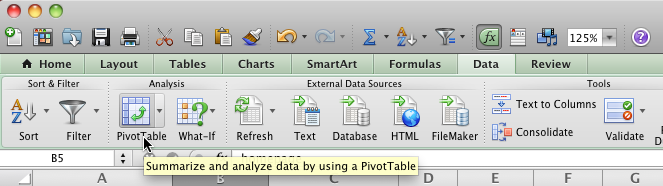](https://documentation.adhese.org/uploads/images/gallery/2024-06/cSscjKmMOjskesqB-create-custom-reports-with-excel-pivottables2.png)
3. Depending on your Excel version, a dialogue window may ask you to confirm which data you want to analyze and where you want to place the pivot table. If you see the Create PivotTable dialogue, click *OK* to confirm the default values.
4. Excel creates a pivot table based on all data in the current worksheet and places it in a new worksheet. Depending on the Excel version, your new pivot table may be empty or filled with default parameters.
### Change the content of a pivot table
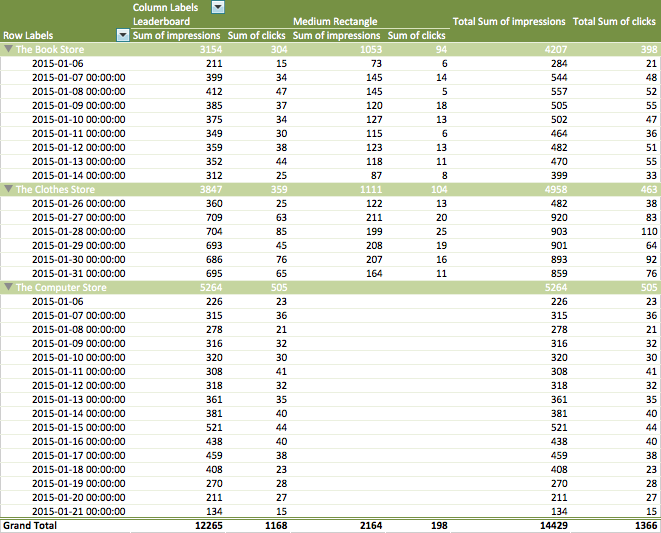
The pivot table we are going to recreate is quite basic. It shows you the daily number of impressions and clicks for each type of format.
[](https://documentation.adhese.org/uploads/images/gallery/2024-06/dxZ2f9cYl3rF83ON-create-custom-reports-with-excel-pivottables3.png)
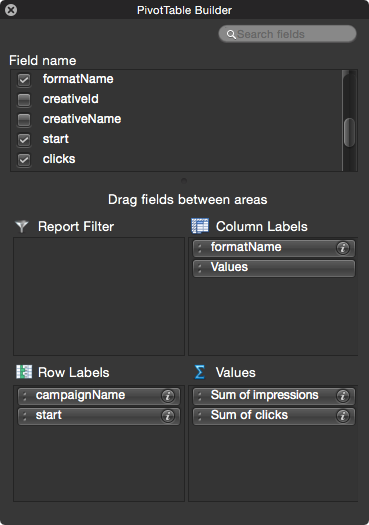
To recreate the above pivot table, we need to change it by dragging items between the Row Labels, Column Labels, and Values areas in the PivotTable Builder.
To change the pivot table:
1. Go to the PivotTable builder.
2. Select the following variables in the **Field name** section:
- campaignName,
- formatName,
- start,
- clicks,
- impressions.
3. Drag the *campaignName* and *start* variable in the **Row Labels** area. Put the *start* variable under the *campaignName* variable.
4. Drag the *formatName* variable to the **Column Labels** area.
5. Drag the *clicks* and *impressions* variable to the **Values** area.
[](https://documentation.adhese.org/uploads/images/gallery/2024-06/EYcsMrjjtvjrqndQ-create-custom-reports-with-excel-pivottables4.png)
Add new variables or drag variables from area to area to get acquainted with pivot tables' intricacies. The content of the pivot table will change according to the adjustments in the PivotTable Builder.
### Other uses of a pivot table
Data mining reports allow you to produce more than pivot tables alone. For example, you can use the pivot table's data to plot graphs or make comparisons.
### Plot a graph
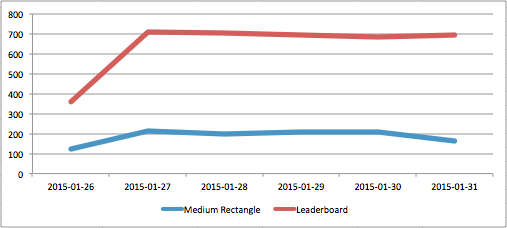
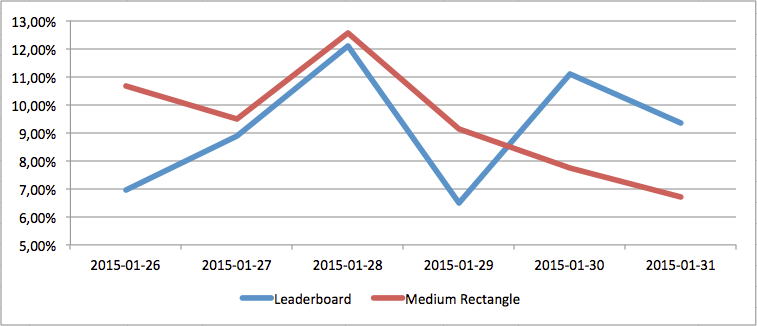
We will graph the evolution of a campaign's daily impressions for the leaderboard and medium rectangle format.
[](https://documentation.adhese.org/uploads/images/gallery/2024-06/V8N0MvdAUxZoJvVD-create-custom-reports-with-excel-pivottables5.png)
To get the above graph, create a pivot table first (see Create a PivotTable and Change the content of a PivotTable).
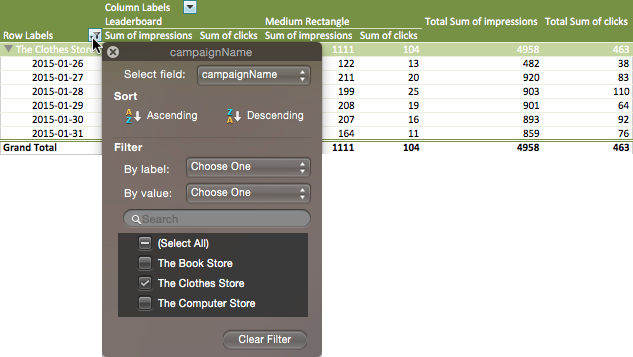
To restrict the report to an individual campaign, click the filter icon next to *Row Labels* and deselect the campaigns you do not want to see in the report.
[](https://documentation.adhese.org/uploads/images/gallery/2024-06/dI8qZkcmaENRMN6k-create-custom-reports-with-excel-pivottables6.png)
Then, select the values from the *Sum of impressions* columns and insert a chart.
### Compare the daily click-through rate of formats
To compare the click-through rates for the various formats of a campaign:
1. Add a calculated field to the pivot table. Go to the *Insert* menu and click *Calculated Field* …. The *Insert Calculated Field* dialogue window opens.
2. Provide a name in the **Name** field, for example, Click-rate.
3. Insert the formula in the **Formula** field.
4. Click the *Add* button to save the calculated field.
5. Click the *Ok button*.
6. To add the newly created calculated field to the pivot table, drag the *Click-rate* variable to the **PivotTable Builder's Values section**.
7. Select the values and
- Add a conditional formatting rule (Format > Conditional Formatting …) to highlight high and low values in the pivot table, and/or
- Plot a chart to visualize the comparison.
[](https://documentation.adhese.org/uploads/images/gallery/2024-06/axAMSamuzLWLzQ5b-create-custom-reports-with-excel-pivottables7.png)
[](https://documentation.adhese.org/uploads/images/gallery/2024-06/B9wBQGx8YEvsb9Bh-afbeelding.png)
# Table columns in the Adhese interface
This page describes the table columns of the different screens within the interface of Adhese.
# Campaign overview
|
**Column name**
|
**Description**
|
|---|
| Advertiser company (Advertiser)
| The name of the advertiser
|
| Budget
| The available amount of money
|
| Campaign name
| The name of the campaign
|
| Clicks today
| Today's number of clicks
|
| Competing with RTB (RTB) | Denotes whether the campaign competes with Real-Time Bidding revenue
|
| Created by
| The user who created the campaign in Adhese
|
| Creation date (Created)
| The date the campaign is created in Adhese
|
| Creatives status (C.)
| The creative status of the campaign indicates the number of uploaded creatives
|
| CTR vs benchmark (CTR/Benchmark)
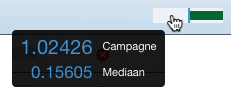
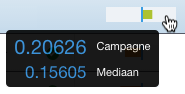
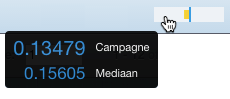
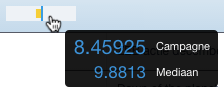
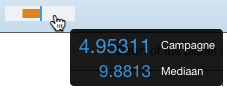
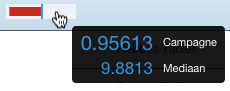
| Compares the CTR of the campaign to the CTR of all other campaigns. This column presents a small horizontal bar chart with the median CTR of similar campaigns indicating the centre. The distance of the campaign CTR to the median is indicated by the coloured bar. See the following images for more information.
|
|
[](https://documentation.adhese.org/uploads/images/gallery/2024-06/BeNs9395KJNSJw6S-table-columns-in-the-adhese-interface1.png)
| The bar is green as the campaign CTR is far higher than the median
|
|
[](https://documentation.adhese.org/uploads/images/gallery/2024-06/v8AMakxM0ASv36d4-table-columns-in-the-adhese-interface2.png)
| The bar is light green, as the campaign CTR is slightly higher than the median
|
|
[](https://documentation.adhese.org/uploads/images/gallery/2024-06/IIeYoZXZxTxDOUWc-table-columns-in-the-adhese-interface3.png)
| The bar is yellow as the campaign CTR is somewhat less than the median
|
|
[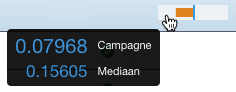](https://documentation.adhese.org/uploads/images/gallery/2024-06/tfQmcF0gfYhSDE24-table-columns-in-the-adhese-interface4.png)
| The bar is orange as the campaign CTR is less than the median
|
|
[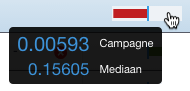](https://documentation.adhese.org/uploads/images/gallery/2024-06/XhKgPNB9X5duLuis-table-columns-in-the-adhese-interface5.png)
| The bar is red as the campaign CTR is far less than the median
|
| Delivery rate (DR)
| The total number of impressions already served as a percentage of the expected impressions until now
|
| eCPM vs benchmark (eCPM/Benchmark)
| The eCPM of the campaign compared to the eCPM of all other campaigns. This column presents a small horizontal bar chart. The median eCPM of all similar campaigns indicates the centre. The distance of the campaign eCPM to the median is indicated by the coloured bar. See the following images for more information.
|
|
[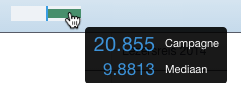](https://documentation.adhese.org/uploads/images/gallery/2024-06/9BoabF9UW3iQR5Gx-table-columns-in-the-adhese-interface6.png)
| The bar is green as the campaign eCPM is far higher than the median
|
|
[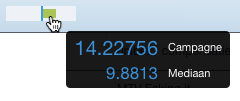](https://documentation.adhese.org/uploads/images/gallery/2024-06/ljQZeCUuoixW7H3e-table-columns-in-the-adhese-interface7.png)
| The bar is light green as the campaign eCPM is slightly higher than the median
|
|
[](https://documentation.adhese.org/uploads/images/gallery/2024-06/QuaipstlxbRM7D4R-table-columns-in-the-adhese-interface8.png)
| The bar is yellow as the campaign eCPM is slightly less than the median
|
|
[](https://documentation.adhese.org/uploads/images/gallery/2024-06/t4VzR7gfRLnyvAOT-table-columns-in-the-adhese-interface9.png)
| The bar is orange as the campaign eCPM is less than the median
|
|
[](https://documentation.adhese.org/uploads/images/gallery/2024-06/yED5dcleoDqvG0AE-table-columns-in-the-adhese-interface10.png)
| The bar is red as the campaign eCPM is far less than the median
|
| External key
| External key of the campaign
|
| From date (From)
| Start date of the earliest starting booking
|
| Header status (H.)
|
The Header status of a campaign denotes if there are any problems with the *Campaign* header, such as a missing value
|
| Impressions today
| Today's number of impressions
|
| Intermediary company
| Name of the intermediate party
|
| Internal ID
| Internal ID of the campaign
|
| Invoice client company (Invoice client)
| The name of the company to whom the campaign is billed
|
| Last edited date (Last edited)
| The date the campaign is edited in Adhese for the last time
|
| Media company
| Name of the media company
|
| Priority
| The priority level of the campaign
|
| Progress status (Progr.)
| The Campaign progress status, the number of served impressions to the total number of desired impressions
|
| Reached clicks
| Total number of clicks already delivered
|
| Reached impressions (Reached impr.)
| Total number of impressions that are already served
|
| RTB | A button is shown when one or more bookings are in competition with RTB revenue. The button is light blue if only a selection of the campaign's bookings is in competition. The button is dark blue if all campaign's bookings are in competition. |
| Running status (Running)
| The status of the campaign denotes the health of a campaign's bookings
|
| Stars status (S.) | The star status of a campaign |
| To date (To)
| The end date of the latest ending booking
|
| To reach unit (Unit)
| Unit of the campaign's objective
|
| To reach volume (Volume)
| The volume the campaign should reach
|
| Traffic status (Tr.)
| Summary of traffic statuses checks if everything is correct concerning the attachment of a booking to a creative
|
| Valid till
| The date until an option is valid
|
# Booking overview
|
**Column name**
|
**Description**
|
|---|
| Booked unit
| The unit of the booking's objective
|
| Clicks today
| Today's number of clicks
|
| Clicks/Impressions (CTR)
| The number of clicks as a percentage of the total number of impressions
|
| Competing with RTB (RTB) |
Signifies whether a booking is in competition with RTB revenue by denoting *yes* or *no*.
|
| Creatives status (Cr.)
| Indicates the number of creatives that are attached to the booking
|
| Daily end time (End time)
| The daily end time of the booking
|
| Daily start time (Start time)
| The daily start time of the booking
|
| Delivery constraint (Constraint)
| The applied frequency cap
|
| Delivery method (Delivery)
| The chosen delivery method for a booking
|
| Delivery rate (DR)
| The number of impressions already served as a percentage of the expected impressions until now
|
| Effective CPM (eCPM)
| The effective cost per thousand impressions of the booking
|
| External key
| External key of the booking
|
| Format height
| The height (in pixels) of the format's dimension
|
| Format ID (Form. ID)
| The ID of the format
|
| Format name
| Name of the format
|
| Format width
| The width (in pixels) of the format's dimension
|
| From date (From)
| Delivery start date of the booking
|
| Gross price
| The gross price of the booking
|
| Impressions today
| Today's number of impressions
|
| Inventory share (SH)
| The percentage of the position's expected inventory that the booking takes up at the current hour of the day
|
| Location
| Name of the location
|
| Location ID (Loc. ID)
| The ID of the location
|
| Position
| Name of the booked position
|
| Position ID (Pos. ID)
| The ID of the booked position
|
| Price
| The unit price of the booking
|
| Pricing calculation unit (Pricing)
| The pricing type of the booking, such as CPM or CPC
|
| Publication
| Name of the publication
|
| Publication ID (Pub. ID)
| The ID of the publication
|
| Rate
| The applied commission percentage
|
| Reached clicks
| Total number of clicks already delivered
|
| Reached impressions (Reached)
| The number of impressions already served
|
| Running status (Running)
| The status of a booking denotes the health of a booking
|
| Stars status (S.) | The star status of a booking |
| Targeting
| The applied targeting parameters
|
| To date (To)
| The delivery end date of the booking
|
| To reach volume (Booked)
| The volume the booking should reach
|
| Wave
| The ID of the rate where the commercial products belong to
The *Wave* functionality is client-specific.
|
# Creative overview
|
**Column name**
|
**Description**
|
|---|
| Clicks today
| Today's number of clicks
|
| Clicks/Impressions (CTR)
| The number of clicks as a percentage of the total number of impressions
|
| Format
| The type of format
|
| Format ID (Form. ID)
| The ID of the format
|
| Height
| The creative's height (in pixels)
|
| Impressions today
| Today's number of impressions
|
| Last modified
| The last time the creative was edited
|
| Name
| Name of the creative
|
| Size
| The file size of the creative
|
| Stars status (S.) | The star status of a creative |
| Width
| The creative's width (in pixels)
|
# Traffic tab
|
**Column name**
|
**Description**
|
|---|
| # | The ID of the booking |
| Position | Position's name of the booking |
| Targeting | Targeting properties of the booking |
| Start | Start date |
| End | End date |
| Ext. key | External key |
| # | The ID of the creative |
| Name | Name of the creative |
| Format | Format of the creative |
| Last modified | Last modification date |
# Delivery overview
|
**Column name**
|
**Description**
|
|---|
| Booked unit
| The unit of the booking's objective
|
| Campaign
| Name of the campaign
|
| Campaign ID (#C.)
| The ID of the campaign
|
| Clicks/Impressions (CTR)
| The number of clicks as a percentage of the total number of impressions
|
| Competing with RTB (RTB) |
Signifies whether a booking is in competition with RTB revenue by denoting *yes* or *no*.
|
| Creatives status (Cr.)
| Indicates the number of creatives that are attached to the booking
|
| CTR/benchmark
| The CTR of the booking is compared to the CTR of bookings booked at the same position.
|
| Daily end time (End time)
| The daily end time of the booking
|
| Daily start time (Start time)
| The daily start time of the booking
|
| Delivery constraint (Constraint)
| The applied frequency cap
|
| Delivery method (Delivery)
| The chosen delivery method for a booking
|
| Delivery rate (DR)
| The number of impressions already served as a percentage of the expected impressions
|
| eCPM/benchmark
| The eCPM of the booking is compared to the eCPM of bookings booked at the same position.
|
| Effective CPM (eCPM)
| The effective cost per thousand impressions of the booking
|
| External key
| External key of the booking
|
| Format height
| Height of the format's dimension (in pixels)
|
| Format ID (Form. ID)
| The ID of the format
|
| Format name (Format)
| Type of format
|
| Format width
| Width of the format's dimension (in pixels)
|
| From date (From)
| Delivery start date of the booking
|
| Gross price
| The gross price of the booking
|
| Inventory share (SH)
| The percentage of the position's expected inventory volume that the booking takes up at the current hour of the day
|
| Location
| Name of the location
|
| Location ID (Loc. ID)
| The ID of the location
|
| Position
| Name of the booked position
|
| Position ID (Pos. ID)
| The ID of the booked position
|
| Price
| The unit price of the booking
|
| Pricing calculation unit (Pricing)
| The pricing type of the booking, for example, CPM
|
| Priority
| The priority level of the campaign
|
| Publication
| Name of the publication
|
| Publication ID (Pub. ID)
| The ID of the publication
|
| Rate
| The applied commission percentage
|
| Reached clicks
| Total number of clicks already delivered
|
| Reached impressions (Reached)
| The number of impressions already served
|
| Running status (Running)
| The status of the booking denotes the health of the booking
|
| Stars status (S.) | The star status of a booking |
| Targeting
| Applied targeting parameters
|
| To date (To)
| The delivery end date of the booking
|
| To reach volume (Booked)
| The volume of impressions or traffic the booking should reach
|
# Inventory overview
|
**Column name**
|
**Description**
|
|---|
| Campaign
| Name of the campaign
|
| Campaign ID (#C.)
| The ID of the campaign
|
| Cumulative impressions (Cumulative)
| The number of impressions (of a competitive booking with a higher campaign priority) that gets delivered first before the selected campaign will deliver
|
| Format ID (Form. ID)
| The ID of the format
|
| Format name (Format)
| Type of format
|
| From date (From)
| Start date of the booking's delivery
|
| Impressions
| Total number of impressions that are already served
|
| Location
| Name of the location
|
| Location ID (Loc. ID)
| The ID of the location
|
| Position ID (Pos. ID)
| The ID of the position
|
| Priority
| The priority level of the campaign
|
| Publication
| Name of the publication
|
| Publication ID (Pub. ID)
| The ID of the publication
|
| To date (To)
| The end date of the booking's delivery
|
# Rate cards
## Administration screen
### Rate cards screen
|
**Column name**
|
**Description**
|
|---|
| Name | Name of the rate card |
| Active | Status of the rate card |
| Valid from | Start date of the rate card's validity period |
| Valid till | The end date of the rate card's validity period |
### Rates screen
|
**Column name**
|
**Description**
|
|---|
| UMA id | A shortened code for a specific rate or tariff that is used as an agreement between agencies and publishers |
| Name | Name of the rate |
| Formats | Formats that belong to the rate |
| Unit | The to reach unit, e.g., impressions or clicks, of the rate's objective |
| Pricing | The pricing model, e.g., CPM or CPP |
| Tariff | The tariff of the pricing model |
### Commercial products table
|
**Column name**
|
**Description**
|
|---|
| Publication | Name of the publication |
| Position | Name of the location |
| Format | Name of the format |
| Share | The distribution of impressions relative to other commercial products within the rate |
| To Reach Unit (Unit) | The objective's unit, e.g., clicks or impressions |
| Minimum volume (Min vol.) | The minimum volume of impressions, clicks, etc., the commercial product should obtain |
| Maximum volume (Max vol.) | The maximum volume of impressions, clicks, etc., the commercial product should obtain |
| Delivery method (Delivery) | The chosen delivery method, e.g., AUTO or SOV |
| Delivery parameter (Param.) | The delivery percentage, if SOV is the delivery method |
| Minimum hours (Min h.)
| The minimum duration of the validity period |
| Maximum hours (Max h.) | The minimum duration of the validity period |
## Offer and option screen
### Financial tab
|
**Table column**
|
**Description**
|
|---|
| Wave ID | The ID of the wave |
| Rate | Name of the rate |
| UMA id | A shortened code for a specific rate or tariff that is used as an agreement between agencies and publishers |
| Tariff | The applied tariff of the pricing model |
| Pricing | The pricing model, e.g., CPM or CPP |
| Time period | For the CPP pricing model, the pricing time value and unit |
| Start date | Start date of the campaign |
| End date | The end date of the campaign |
| Quantity | Quantity of the rate |
| Budget | The amount of the rate multiplied by the tariff |
### Available rates table
|
**Table column**
|
**Description**
|
|---|
| UMA id | A shortened code for a specific rate or tariff that is used as an agreement between agencies and publishers |
| Name | Name of the rate |
| Format | Formats that belong to the rate |
| To Reach Unit | The to reach unit, e.g., impressions or clicks, of the rate's objective |
| Pricing | The pricing model, e.g., CPM or CPP |
| Tariff | The applied tariff of the pricing model |
| Time value | For the CCP pricing model, the pricing time value |
| Time unit | For the CCP pricing model, the pricing time unit, i.e., day or hours |
# Alerts
## Alerting overview
|
**Table column**
|
**Description**
|
|---|
| ID | The ID of the alert |
| Recipients | Persons who will receive the alert |
| Name | Name of the alert |
| When | When an alert is checked |
| Triggers | What event triggers the alert |
## Mail template overview
|
**Table column**
|
**Description**
|
|---|
| ID | The ID of the template |
| Name | Name of the mail template |
| Uses | The number of times the template is applied to an alert |
# Table columns in the data mining reports
This page describes the table columns of the Adhese data mining reports.
Adhese distinguishes between four different types of data mining reports:
For more information about the reports, please refer to [Datamine](https://documentation.adhese.org/books/adhese-ui/page/datamine).
# Revenue reports
## Adhese billing
|
**Column name**
|
**Description**
|
|---|
| Publication
| Name of the publication
|
| Start date
| Start date
|
| End date
| End date
|
| Reached impressions
| Total number of impressions
|
| Reached clicks
| Total number of clicks
|
| Invoice type
| Type of priority, for instance, exchange or inhouse
|
| Type
| Type of format: normal or stack
|
There are several kinds of priorities or invoice types, like paying or inhouse. Therefore, the same publication can appear multiple times in the list, depending on the different priority types that have been employed per publication. The Invoice type column can also have the value empty. An empty request is one for which there are no booked positions at the time, therefore no ad is delivered.
The final row of the Adhese billing report reports the number of erroneous requests. Erroneous requests are ad requests for which no corresponding position (i.e., the combination of a location and a format) exists in Adhese.
## Per publication
|
**Column name**
|
**Description**
|
|---|
| Publication
| Name of the publication
|
| Start date
| Start date
|
| End date
| End date
|
| Reached impressions
| Total number of impressions
|
| Reached clicks
| Total number of clicks
|
| Invoice type
| Type of priority, for instance, exchange or inhouse
|
| Type
| Type of format: normal or stacked
|
## Per position
|
**Column name**
|
**Description**
|
|---|
| Publication
| Name of the publication
|
| Location
| Name of the location
|
| Format
| Type of format
|
| Campaign name
| Name of the campaign
|
| Campaign Key
| External key or ID of the campaign
|
| Sector
| The sector in which the advertiser is operative
|
| Booking Key
| External key or ID of the booking
|
| Start date
| Start date
|
| End date
| End date
|
| Pricing type
| The way the advertiser is billed, for example, CPC or CPM
|
| Rate
| The rate of the campaign
|
| Booked volume
| Total number of booked impressions for the booked position
|
| Reached impressions
| Total number of impressions
|
| Reached clicks
| Total number of clicks
|
| CTR
| The number of clicks as a percentage of the total number of impressions
|
| Reached contacts
| Total number of unique visitors
|
| CTR/contact
| The number of clicks as a percentage of the total number of unique visitors
|
| Revenue
| The booking's profit
|
| eCPM
| Effective Cost per Thousand Impressions
|
| Advertiser
| Name of the advertiser
|
| Invoice customer
| The party to whom the campaign should be billed
|
| Advertiser
| Name of the advertiser
|
| Invoice type
| The type of priority, such as paying, exchange or inhouse
|
| User
| The person that created the campaign
|
## Per campaign
|
**Column name**
|
**Description**
|
|---|
| Publication
| Name of the publication
|
| Location
| Name of the location
|
| Format
| Name of the format
|
| Campaign Name
| Name of the campaign
|
| Campaign key
| External key or ID of the campaign
|
| Sector
| The sector in which the advertiser is operative
|
| Booking Key
| External key or ID of the booking
|
| Start date
| Start date
|
| End date
| End date
|
| Pricing type
| The way the advertiser is billed, like CPC or CPM
|
| Rate
| The rate of the campaign
|
| Booked volume
| Total number of booked impressions for the booking
|
| Reached impressions
| Total number of impressions
|
| Reached clicks
| Total number of clicks
|
| CTR
| The number of clicks as a percentage of the impressions
|
| Reached contacts
| Total number of unique visitors
|
| CTR/contact
| The number of clicks as a percentage of the unique visitors
|
| Revenue
| The campaign's profit
|
| eCPM
| The effective cost per thousand impressions
|
| Advertiser
| Name of the advertiser
|
| Invoice customer
| The party to whom the campaign should be billed
|
| Priority
| The type of priority, for example, paying, exchange or inhouse
|
| User
| The person that created the campaign
|
| Position Active | Whether the position is still active or not |
| Wave ID | Wave ID, if applicable |
| Publisher | Name of the publisher |
## Per month
|
**Column name**
|
**Description**
|
|---|
| Date
| Date of the day of the month
|
| Campaign ID
| The ID of the campaign
|
| Campaign Name
| Name of the campaign
|
| Booked Publication ID
| The ID of the booked publication
|
| Booked Publication Name
| Name of the booked publication
|
| Booked Location ID
| The ID of the booked location
|
| Booked Location Name
| Name of the booked location
|
| Booked Position ID
| The ID of the booked position
|
| Booked Position Name
| Name of the booked position
|
| Booked Format ID
| The ID of the booked format
|
| Booked Format Name
| Name of the booked format
|
| Delivery Publication ID
| The ID of the delivered publication
|
| Delivery Publication Name
| Name of the delivered publication
|
| Delivery Location ID
| The ID of the delivered location
|
| Delivery Location Name
| Name of the delivered location
|
| Delivery Position ID
| The ID of the delivered position
|
| Delivery Position Name
| Name of the delivered position
|
| Delivery Format ID
| The ID of the delivered format
|
| Delivery Format Name
| Name of the delivered format
|
| Creative ID
| The ID of the creative
|
| Creative Name
| Name of the creative
|
| Rate
| The rate of the campaign
|
| Price
| The unit price of the booking
|
| Impressions
| Number of impressions
|
| Clicks
| Number of clicks
|
| Clickrate
| The click-through rate
|
| Contacts
| Number of contacts
|
## General
|
**Column name**
|
**Description**
|
|---|
| Campaign ID | The ID of the campaign |
| Campaign name | Name of the campaign |
| Campaign internal reference | Internal ID of the campaign |
| Campaign external reference | The external ID of the campaign |
| Advertiser | Name of the campaign's advertiser |
| Account manager | Name of the campaign's account manager |
| Media customer | Name of the campaign's media company |
| Intermediary customer | Name of the campaign's intermediary company |
| Invoice client | Name of the campaign's invoice client |
| Priority | The priority of the campaign |
| Campaign budget | The net campaign price (i.e. net total from financial or sum of the bookings net prices) |
| Booking ID | The ID of the booking |
| Booking publisher | Publisher of the booking's position |
| Booking publication | Publication of the booking's position |
| Booking location | Location of the booking's position |
| Booking format | Format of the booking's position |
| Booking external reference | External key of the booking |
| To reach volume | The volume of impressions, clicks, etc. the booking should obtain |
| To reach unit | The unit of the objective's volume, e.g. impressions or clicks |
| Start date | The beginning date of the booking's delivery period |
| End date | The end date of the booking's delivery period |
| Delivery method | The chosen delivery method of the booking |
| Pricing type | The pricing model of the booking, e.g. CPC or CPM |
| Unit price | The net unit price of the booking |
| Netto price | Net booking price |
| Rate | Rate of the campaign |
| Wave ID | The ID of the Wave, if applicable |
| Delivery publisher | The publisher of the booking's delivered impression |
| Delivery publication | The publication of the booking's delivered impression |
| Delivery location | The location of the booking's delivered impression |
| Delivery format | The format of the booking's delivered impression |
| Device | The type of device |
| Reached impressions | The number of reached impressions for the booking |
| Reached contacts | The number of reached contacts for the booking |
| Reached clicks | The number of reached clicks for the booking |
| CTR | The click-through rate of the booking |
| CTR/contact | The click-through rate of the booking based on the number of contacts |
| ECPM | The effective cost per thousand impressions |
| Revenue | The revenue of the position |
| Campaign properties | |
| Booking properties |
# Inventory reports
## Monthly inventory report
|
**Column name**
|
**Description**
|
|---|
| Publication
| Name of the publication
|
| Location
| Name of the location
|
| Format
| Name of the format
|
| Unique visitors per day
| The average number of daily visitors
|
| Unique visitors per day last year
| The average number of daily visitors from the previous year
|
| Available impressions per month
| Number of monthly impressions that are available to be booked
|
| Start date
| Start date
|
| End date
| End date
|
| Paying ad impressions/month
| Number of monthly impressions for all paying ads
|
| Paying ad clicks/month
| Number of monthly clicks for all paying ads
|
| Paying CTR
| Click-through rate for all paying ads
|
| Sales house ad impressions/month
| Number of monthly impressions for all sales house ads
|
| Sales house ad clicks/month
| Number of monthly clicks for all sales house ads
|
| Sales house CTR
| Click-through rate for all sales house ads
|
| Exchange ad impressions/month
| Number of monthly impressions for all exchange ads
|
| Exchange ad clicks/month
| Number of monthly clicks for all exchange ads
|
| Exchange CTR
| Click-through rate for all exchange ads
|
| Inhouse ad impressions/month
| Number of monthly impressions for all inhouse ads
|
| Inhouse ad clicks/month
| Number of monthly clicks for all inhouse ads
|
| Inhouse CTR
| Click-through rate for all inhouse ads
|
| Stopper ad impressions/month
| Number of monthly impressions for all stopper ads
|
| Stopper ad clicks/month
| Number of monthly clicks for all stopper ads
|
| Stopper CTR
| Click-through rate for all stopper ads
|
| Total ad impressions/month
| Number of monthly impressions for all ads or sold impressions
|
| Total ad clicks/month
| Number of monthly clicks for all ads
|
| Total CTR
| Click-through rate for all ads
|
| Empty ad impressions/month
| Number of impressions that did not serve an ad
|
## Monthly inventory per country report
|
**Column name**
|
**Description** |
|---|
| Publication | Name of the publication |
| Location | Name of the location |
| Format | Name of the format |
| Type | The request type (empty, track, or logrequest) |
| Country | Name of the country |
| Contacts | Number of unique visitors for the selected period, country and relevant position |
| Impressions | Number of impressions for the selected period, country and relevant position |
| Start | The earliest start date of a booking on the relevant position |
| End | The latest end date of a booking on the relevant position |
## Daily inventory report
|
**Column name**
|
**Description**
|
|---|
| Date
| Day of the month
|
| Publication
| Name of the publication
|
| Location
| Name of the location
|
| Format
| Name of the format
|
| Impressions
| Number of daily impressions
|
| Contacts
| Number of daily unique visitors
|
| Position name | Name of the position |
| Publication ID | The ID of the publication |
| Location ID | The ID of the location |
| Position ID | The ID of the positions |
| Format ID | The ID of the format |
# CTR benchmark reports
## Profile averages
|
**Column name**
|
**Description**
|
|---|
| Age
| The age
|
| Region
| The region
|
| Country
| The country
|
| Sex
| Gender
|
| CTR/impr
| The average click-through rate per impression for each selected format, month and profile
|
| CTR/contact
| The average click-through rate per contact for each selected format, month and profile
|
| Clicks
| Number of clicks for each selected format, month and profile
|
| Impressions
| Number of impressions for each selected format, month and profile
|
## Per publication
|
**Column name**
|
**Description**
|
|---|
| Publication
| Name of the publication
|
| Format
| Name of the format
|
| Impressions
| Number of impressions
|
| Clicks
| Number of clicks
|
| CTR
| Click-through rate per impression
|
| Contacts
| Number of unique visitors
|
| CTR/contact
| Click-through rate per impression
|
## Per location
|
**Column name**
|
**Description**
|
|---|
| Publication
| Name of the publication
|
| Location
| Name of the location
|
| CTR/contact
| The average click-through rate per contact for each selected format
|
| CTR
| The average click-through rate per impression for each selected format
|
# General reports
## Per creative per day
|
**Column name**
|
**Description**
|
|---|
| Campaign ID
| The ID of the campaign
|
| Campaign name
| Name of the campaign
|
| Campaign external key
| External ID or key of the campaign
|
| Booking ID
| The ID of the booking
|
| Booking external key
| External ID or key of the booking
|
| Publication name
| Name of the publication
|
| Location name
| Name of the creative's location
|
| Format name
| Name of the creative's format
|
| Creative ID
| The ID of the creative
|
| Creative name
| Name of creative
|
| Creative format name | Name of the creative's format |
| Start
| Start date
|
| Clicks
| Daily number of clicks
|
| Contacts
| Daily number of unique visitors
|
| Impressions
| Daily number of impressions
|
| Clickrate
| Daily click-through rate
|
## Distribution per publisher
|
**Column name**
|
**Description**
|
|---|
| Campaign Name | Name of the campaign |
| Campaign ID | The ID of the campaign |
| Advertiser | Name of the advertiser |
| Campaign Internal Reference | The ID of the campaign |
| Campaign External Reference | External key or ID of the campaign |
| End date | End date of the campaign |
| Start date
| Start date of the campaign
|
| Booking Publisher | Name of the booked publisher |
| Booking Publication | Name of the booked publication |
| Booking Location
| The booked location of the booking's position
|
| Booking Format
| The booked format or creative of the booking
|
| Booking External Reference
| External key or ID of the booking
|
| Delivery Publisher | Name of the publisher where the ad is delivered |
| Delivery Publication
| Name of the publication where the ad is delivered |
| Delivery Location | Name of the location where the ad is delivered
|
| Delivery Format | Name of the format where the ad is delivered |
| Pricing Type | The way the advertiser is billed, like CPC or CPM |
| Rate | The tariff for the pricing type
|
| Delivery Type | The delivery method
|
| To Reach Unit | The unit of the objective
|
| To Reach Volume | The type of volume the campaign should reach, such as clicks or impressions
|
| Reached Impressions | The number of served impressions
|
| Reached Clicks | The number of clicks
|
| CTR | The click-through rate
|
| Revenue
| Did the booking yield any monetary profits?
|
## Viewability report
|
**Column name**
|
**Description**
|
|---|
| Campaign ID | The ID of the campaign |
| Campaign Name | Name of the campaign |
| Publication Name | Name of the publication |
| Position ID | The ID of the position |
| Location Name | Name of the location |
| Format Name | Name of the format |
| Creative ID | The ID of the creative |
| Creative Name | Name of the creative |
| Creative Format Name | Name of the creative format |
| Date | The date |
| Action | The label of the track event |
| Impressions | Number of impressions |
| Contacts | Number of contacts |
| Device type | Name of the device (Desktop, Tablet, Phone and Unknown) |
## Action report
|
**Column name**
|
**Description**
|
|---|
| Publication Name | Name of the publication |
| Position ID | The ID of the position |
| Position Name | Name of the position |
| Location Name | Name of the location |
| Format Name | Name of the format |
| Booked Position ID | The ID of the booked position |
| Booked Publication | Name of the publication |
| Booked Position Name | Name of the booked position |
| Booked Location Name | Name of the booked location |
| Date | Date |
| Traffic ID | The ID of the traffic between booking and creative |
| Creative ID | The ID of the creative |
| Booking ID | The ID of the booking |
| Creative Format Name | Name of the creative format |
| Event | |
| Action | The label of the track event |
| Value | |
| Impressions | Number of impressions |
| Contacts | Number of contacts |
| Device type | Name of the device (Desktop, Tablet, Phone and Unknown) |
| Campaign ID | The ID of the campaign |
# Table columns in the client reports (Documents tab)
This page describes the table columns of the Adhese client reports from the [Documents tab](https://documentation.adhese.org/books/reporting/page/documents-tab-client-reports).
# Invoice report
The [Invoice report ](https://documentation.adhese.org/books/reporting/page/documents-tab-client-reports#bkmrk-invoice)contains information about the cost price of a campaign and, if applicable, about the rate card. The *Invoice* report includes the following figures for each booking:
|
**Column name**
|
**Description**
|
|---|
| From | Start date of the booking |
| Till | The end date of the booking |
| Price type | Chosen tariff type, e.g. CPC or CPM |
| Impressions | Number of booked impressions |
| Rate | Tariff of the pricing model of the rate card |
| Value | The financial value of the booking |
| Discount | Applied discount or surplus |
| Total budget | The total financial value of the booking that takes the discount or surplus into account |
| Wave id | The ID of the rate (.xls file only) |
The *Invoice* report summarises all bookings and includes the total campaign cost price, including VAT.
# Campaign report
The *Campaign* report contains the following figures about the campaign and its bookings:
|
**Column name**
|
**Description**
|
|---|
| Booking | Name of the booking |
| From | Start date of the booking |
| Till | The end date of the booking |
| Booked | The to reach volume |
| Contact/Day | The total number of contacts |
| Impressions | The total number of impressions |
| Clicks
| The number of clicks |
| Click rate | The click-through rate |
# Campaign profiling report (deprecated)
The *Campaign profiling* report contains campaign performance data for each individual booking and its profile targets. The data is divided by the device type the visitor uses to access the publication: desktop, tablet, or phone.
The Campaign profiling report has been deprecated and will be removed.
The *Campaign* *profiling* report contains the following figures for each booking and its profile targets:
|
**Column name**
|
**Description**
|
|---|
| Publication | Name of the publication |
| Product | Name of the location |
| Format | Name of the format |
| Creative name | Name of the creative |
| Language | The value of the language targeting variable |
| Country | The value of the country targeting variable |
| Region | The value of the region targeting variable |
| Age | The value of the age targeting variable |
| Gender | The value of the gender targeting variable |
| Sexual orientation | The value of the sexual orientation targeting variable |
| Relationship | The value of the relationship targeting variable |
| Education | The value of the education targeting variable |
| City | The value of the city targeting variable |
| CityGroup | The value of the city group targeting variable |
| Brand | The value of the brand targeting variable |
| Interest | The value of the interest targeting variable |
| Platform | The value of the platform targeting variable, for example, phone, tablet, or desktop |
| Contacts | Total number of contacts or unique visitors |
| Impressions | Total number of impressions |
| Clicks | Total number of clicks |
| From | Start date |
| Till | End date |
# Campaign report per position
|
**Column name**
|
**Description**
|
|---|
| Booking | The ID of the booking |
| Netto price | |
| Publication | Name of the publication |
| Product | Name of the location |
| Format | Name of the format |
| From | Start date |
| Till | End date |
| Booked | The to reach volume of the booking |
| Contacts/Day | The number of contacts for the position |
| Impressions | The number of impressions for the position |
| Clicks | The number of clicks for the position |
| Click rate | The click-through rate of the position |
| Wave ID | The ID of the wave |
| Publisher | Name of the publisher |
# Campaign actions report per position (optional)
|
**Column name**
|
**Description**
|
|---|
| Publication | Name of the publication |
| Position Id | The ID of the position |
| Position name | Name of the position |
| Location Name | Name of the location |
| Format Name | Name of the format |
| Booked Position Id | The ID of the booked position |
| Booked Publication | Name of the booked publication |
| Booked Position Name | Name of the booked position |
| Booked Location Name | Name of the booked location |
| Booked Format Name | Name of the booked format |
| Date | The date of the day the events were measured |
| Traffic Id | The ID that denotes the connection between a creative and a booking |
| Creative Id | The ID of the creative |
| Booking Id | The ID of the booking |
| Event |
The type of event: log (request) or track (impression measurement, additional data ). For more information, refer to [Impression measurement](https://documentation.adhese.org/books/monitoring-and-reporting-d0S/page/measure#bkmrk-impression-measureme)
|
| Action | The (optional) label of the track event |
| Value | The (optional) value of the (optional) label of the track event |
| Impressions | The number of impressions |
| Contacts | The number of contacts or unique visitors |
# Video report spreadsheet
Global-View
|
**Column Name**
|
**Description**
|
|---|
| Campaign | Name of the campaign |
| Booking | Name of the booking(s)
|
| Creative | Name of the creative(s) |
| From | Begin date |
| Till | End date |
| Start | Number of impressions |
| FirstQuartile | Percentage of first quartile views |
| MidPoint | Percentage of midpoint views |
| ThirdQuartile | Percentage of third quartile views |
| Complete | Percentage of completed views
|
| Clicks | The number of ad clicks |
Detail view
|
**Column Name**
|
**Description**
|
|---|
| Date | All dates in the campaign |
| Creative Id | The ID of the creative |
| Creative | Name of the creative |
| Booking Id | The ID of the booking |
| Booking | Name of the booking |
| Start | Number of started impressions |
| FirstQuartile | Number of impressions first quartile |
| MidPoint | Number of impressions at the midpoint |
| ThirdQuartile | Number of impressions third quartile |
| Complete | Number of impressions complete |
| Clicks | The number of ad clicks |