The customers screen is considered legacy functionality.
To add a new client go to add a new client in the header of a campaign
## Customers The *Customers* screen lists all available companies to add in the Client part of the campaign *Header* tab. [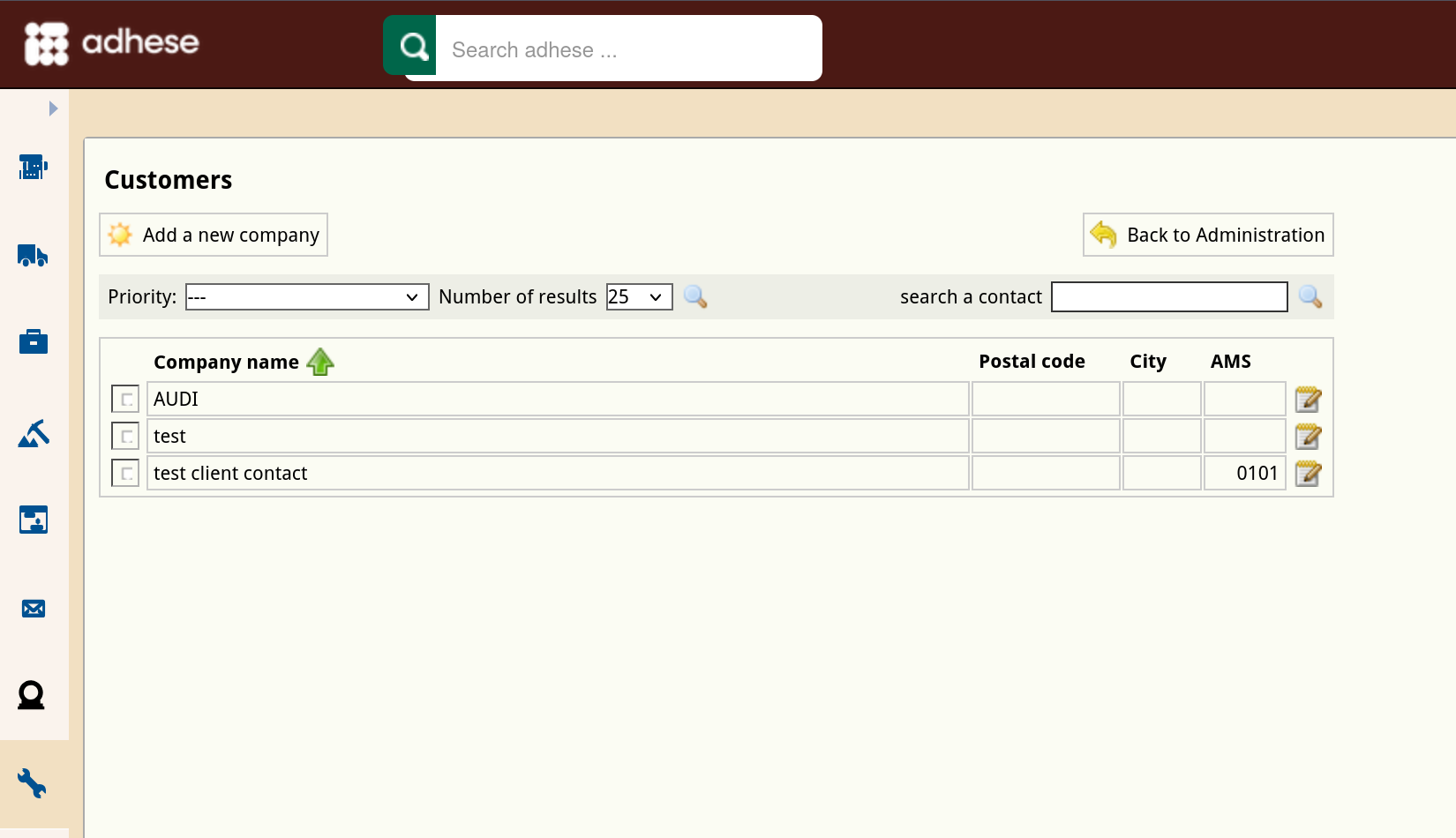](https://documentation.adhese.org/uploads/images/gallery/2024-10/JsnqBhgepA1dLkxz-schermafdruk-van-2024-10-29-11-06-10.png) The *Customers* screen presents a table with four columns: 1. The *Company name* column specifies the name of the client or company. 2. The *Postal code* column details the postal code of the city where the company is located. 3. The *City* column shows the city where the company is located. 4. The *AMS* column shows the AMS ID of the company. Use the **Invoice Type** drop-down to filter the list of companies by the way they are invoiced. Determine the number of results to display from the **Number of results** drop-down. Use the **search a contact** bar to search for a specific company. Sort the list with companies by the *Company name* column. To add a new client or add an new contact click the *Add a new company* button. To edit a company, click the company's name you want to modify or use the edit icon.For proper reporting of advertisers in BQ/Lookerstudio, make sure to fill in a valid domain in the quote field when you add or edit an advertiser (ex. example.com). Valid domains cannot contain spaces and most special characters.
# Pricing and payments ## RatesThe Rates screen is no longer of significance.
## Public rate cardThe Public rate card screen works in much the same way as the Rate cards screen but is less comprehensive. The Rate cards screen and the Financial tab of a campaign are operational in the Adhese interface, making the Public rate card screen no longer relevant.
## Booking settingsThe Booking settings screen is no longer of significance.
# Targets To manage targets in Adhese, click the Targets - Manage targets link in the administration screen. More information on managing targets can be found [here](https://documentation.adhese.org/books/inventory-management/page/targeting). General information on targeting can be found on [this page](https://documentation.adhese.org/books/campaign-management/page/bookings#bkmrk-targeting). ## View Logs All changes made to the targets are logged and become visible by clicking the *View logs* link. [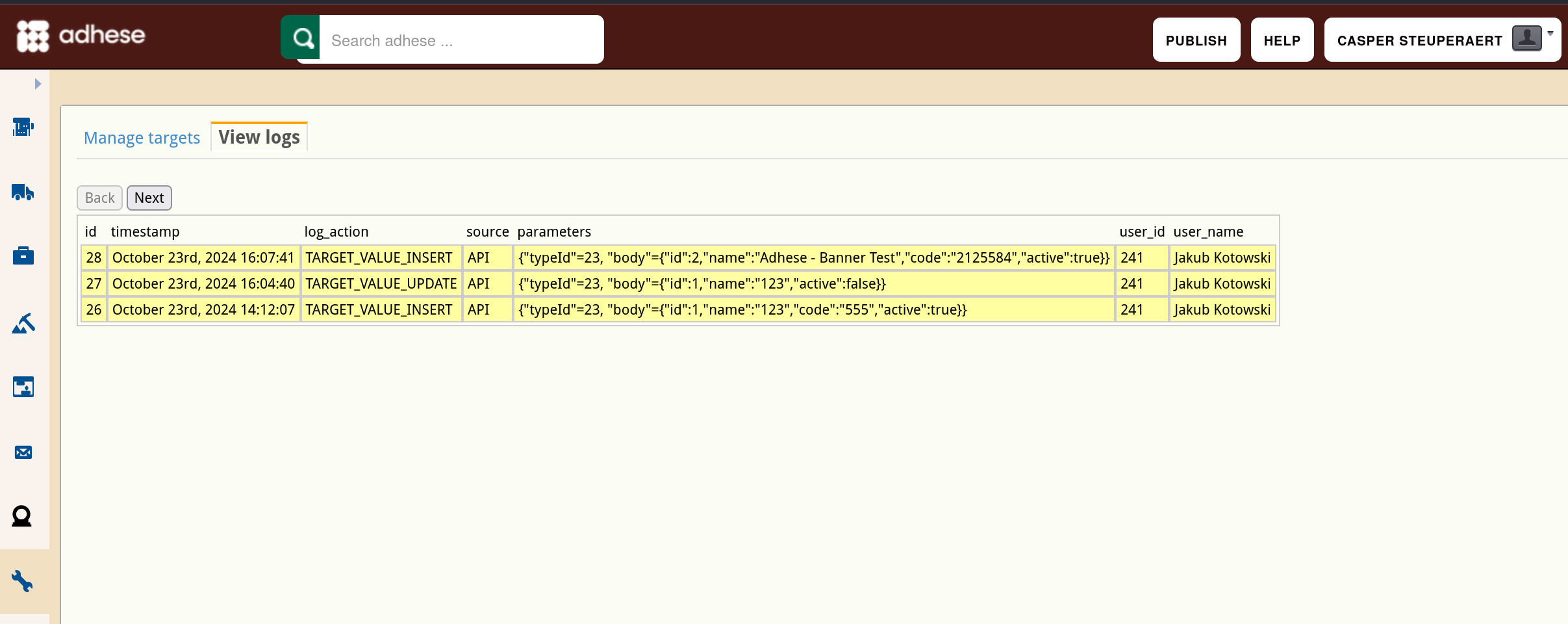](https://documentation.adhese.org/uploads/images/gallery/2024-10/SbEKFSW8TGcTW3PW-schermafdruk-van-2024-10-29-11-06-48.png) ## Locations and channels ### Locations A location is a (sub)section within a publication, like the homepage, the lifestyle section, or the daily newsletter. The *Locations* screen shows the different locations associated with your account. For more information on creating and managing locations, visit [this page.](https://documentation.adhese.org/books/inventory-management/page/locations) ### Positions A position is the combination of a location and format. The *Positions* screen shows the different positions associated with your account. [This page](https://documentation.adhese.org/books/inventory-management/page/positions) gives more information on creating and editing positions. ## Bulk create positions (deprecated)The Bulk create positions screen is not in use at the moment.
## Channels Channels are a collection of positions within a publication (e.g. run-of-site) or across your network of publications (e.g. run-of-network). Channels group identical formats in different locations and make it easy to target ads on similar web pages. The *Channels* screen shows the different channels associated with your account. Visit [this page](https://documentation.adhese.org/books/inventory-management/page/channels) if you would like to know more about creating and managing channels. ## Behavioural targets Behavioural targeting allows a publisher to target ads to visitors who show a higher level of interest in a particular section of a publication (for example, sports or economy). The *Behavioural targets* screen lists the behavioural targets that are available within your account. Visit [this page](https://documentation.adhese.org/books/campaign-management/page/bookings#bkmrk-behavioural-targetin) for more information on behavioural targets. ## Cities The Cities screen enables you to specify which cities are available for targeting. [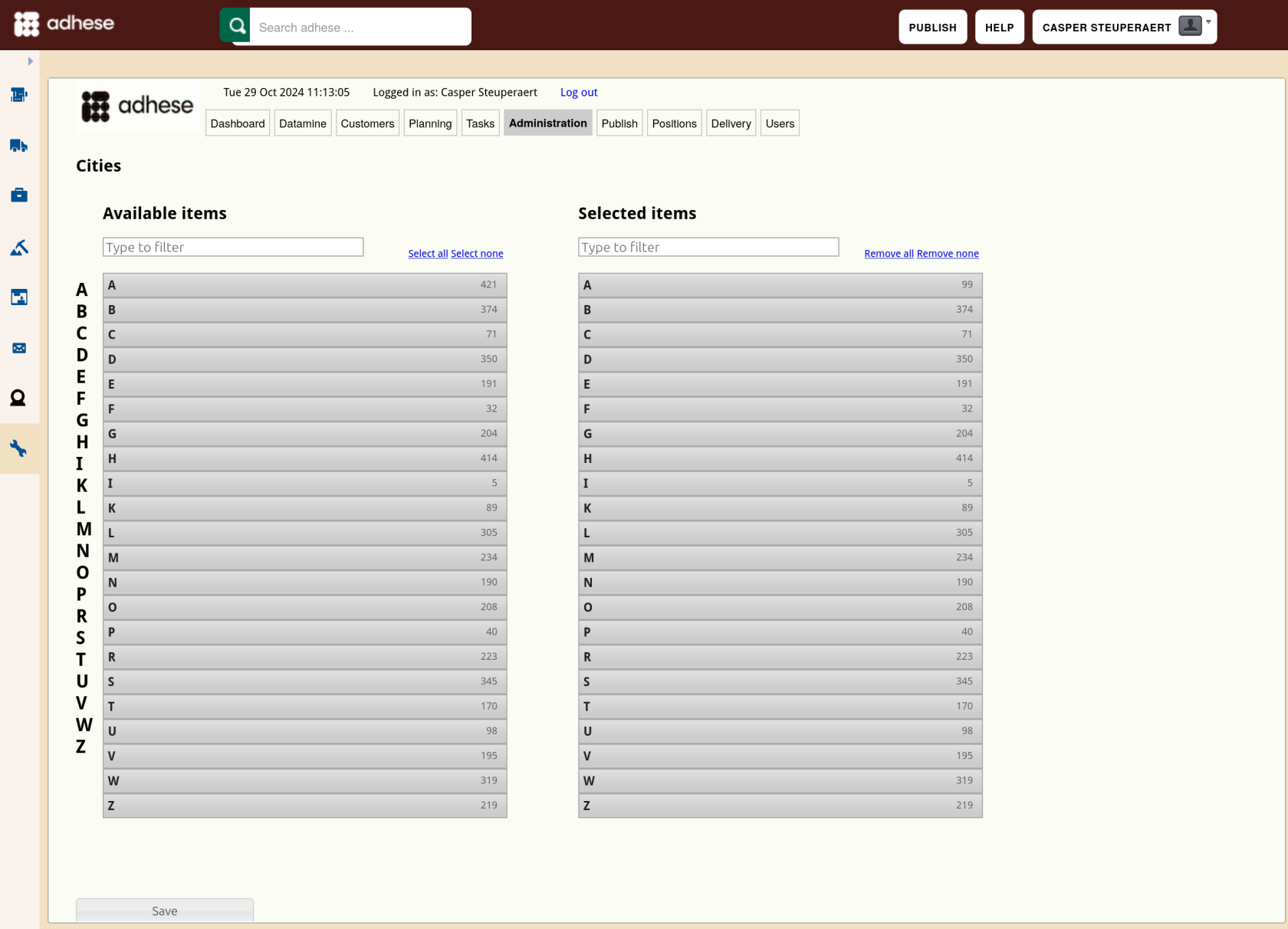](https://documentation.adhese.org/uploads/images/gallery/2024-10/HXjle5SPa0hRSiyt-schermafdruk-van-2024-10-29-11-13-23.png) To add a city: 1. Click an initial letter from the left *Available items* list or filter the list and type in the search bar. 2. Select the cities you wish to target. The selected cities from the *Available items* list will appear in the right list of *Selected items*. 3. Click the *Save* button to save your changes. You can now target a campaign by the selected cities. ## City groups A City Group is a collection of identical cities, such as university cities. The *City groups* screen lists all available city groups. [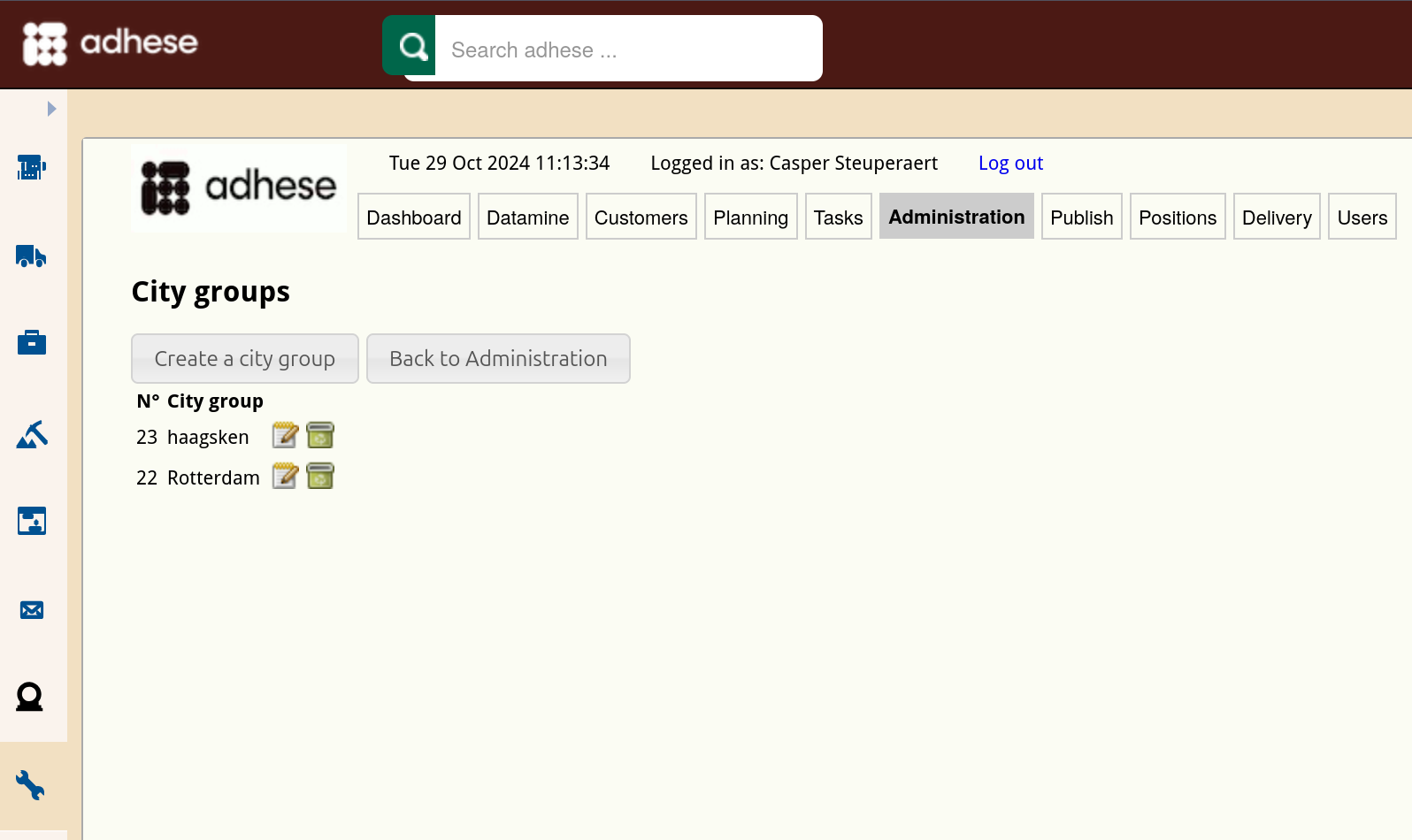](https://documentation.adhese.org/uploads/images/gallery/2024-10/qK1OdulgbCgbUYDK-schermafdruk-van-2024-10-29-11-13-54.png) The *City groups* screen displays the ID and the name of the city group. To create a city group, click the *Create a city group* button. To edit a city group, click the edit icon [](https://documentation.adhese.org/uploads/images/gallery/2024-06/8DuAkeX8Dlo5jG96-edit.png) for the city group you want to modify. Click the trash can icon [](https://documentation.adhese.org/uploads/images/gallery/2024-06/OeBdUfZSf30MgYnT-delete.png) to delete a city group. # Formats and templates ## Formats A format defines the conditions of an ad creative, such as its file size and dimensions. The *Formats* screen lists all available formats. To find out more about managing formats in Adhese, go [here](https://documentation.adhese.org/books/inventory-management/page/formats). ## Template files Adhese does not restrict advertising to the use of IAB standard formats. The Adhese templates solution makes it possible to wrap more complex creatives (e.g. an overlayer, takeover or floor ad) by using advanced functionalities such as JavaScript, HTML and CSS. There are two ways to manage templates: either directly through the Admin UI or your own Git repository. UI management is unavailable when using the Git repository. The Git repository is recommended for advanced users with many complex templates. The UI can only be used for read-only consultation of the existing templates. The content and features of templates do not differ for each approach. ## UI Managed templates When using the UI for managing templates, you can edit the files directly through the text editor on the screen.Changes in a template or advar template will be applied to all creatives using the updated templates at the next publishing cycle.
### Format Templates Adhese does not restrict advertising to the use of IAB Standard Formats only. The Adhese Templates solution allows you to wrap more complex creatives such as overlayers, takeovers or floor ads by adding advanced functionality using JavaScript, HTML and CSS. The *Template files* screen lists all templates that are available within your account. For more information on templates, visit [this page](https://documentation.adhese.org/books/inventory-management/page/templates). ### Advar templates Adhese introduced its own template format: Advar. Advar templates are pre-defined creatives consisting of Javascript, CSS, custom JSON objects, etc. Advar templates produce pre-made ads, such as text ads including a small image. The *Advar templates* screen lists all available Advar templates. To learn more about advar templates, go [here](https://documentation.adhese.org/books/inventory-management/page/templates#bkmrk-advar-templates) ### HTML5 templates The HTML5 templates mentioned above can be found in the creative screens in an Advar form in the *Add Advar Template* dropdown list. For more information on HTML5 Templates, go [here](https://documentation.adhese.org/books/inventory-management/page/templates#bkmrk-html5-templates) ## Position types Position types add additional functionality to a position. The main purpose of a position type is to define the MIME type of the response and the possible templates wrapped around the output. The *Position types* screen lists all available position types. Go to the [positions page](https://documentation.adhese.org/books/inventory-management/page/positions#bkmrk-position-types) to learn more about position types. ## Template Repository The Template Repository lets you control Template files and Advar templates using a Git version control system. For more information on the template repository, visit [this page](https://documentation.adhese.org/books/inventory-management/page/templates#bkmrk-template-repository). # Benchmarking ## Campaign properties The *Campaign properties* screen enables you to add custom metadata properties to a campaign. Metadata provides additional information about a campaign, such as the sector in which an advertiser operates (e.g. car manufacturers or financial institutions). [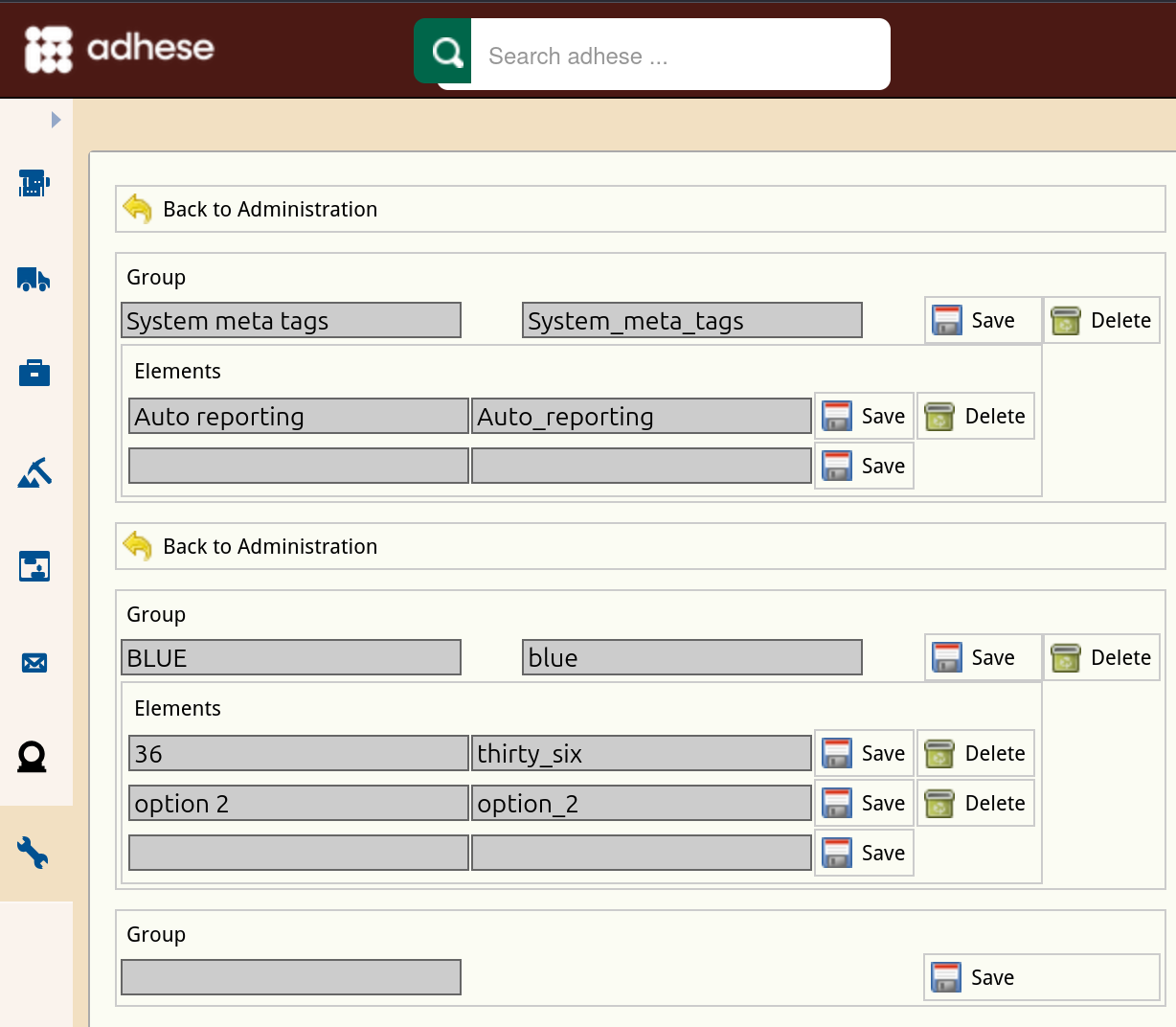](https://documentation.adhese.org/uploads/images/gallery/2024-10/nxyNy9W1e07JUdxu-schermafdruk-van-2024-10-29-11-14-39.png) To add a campaign property, select a name that identifies the metadata campaign property and specify the different elements. For more information, refer to [Metadata](https://documentation.adhese.org/books/campaign-management/page/campaigns#bkmrk-metadata). # General ## UsersFor user management, we refer to the following User Management page
## MessagesThe Messages screen is no longer significant.
## Advertiser properties The *Advertiser properties* screen enables you to add custom metadata to a company in the[ Add a new company screen](https://documentation.adhese.org/books/campaign-management/page/campaigns#bkmrk-client). To add an advertiser property, select a name that identifies the metadata property and specify its different elements. ## Booking properties The *Booking properties* screen lets you add custom metadata properties to a booking in the *Header* tab of a booking. Metadata provides additional information about a booking. To [add a booking property](https://documentation.adhese.org/books/campaign-management/page/bookings#bkmrk-add-a-booking), choose a name that identifies the metadata booking property and specify the different elements. For more information, refer to [Metadata](https://documentation.adhese.org/books/campaign-management/page/bookings#bkmrk-metadata). ## Alerts Alerts are email notifications about a specific type of booking or campaign The *Alerting screen* displays all the alerts defined in your account. At the top, there are four function buttons along with a filter field. You can create a new alert using the *Add button*. The other three buttons, *Duplicate*, *Run*, and *Remove*, are available when one or more alerts are specified. For more information on alerts, check the [Alerting page](https://documentation.adhese.org/books/campaign-management/page/alerting) ## User and campaign logs The *Users and campaign logs* screen allows searching for logs from a specific user or campaign. For more information about user logs, visit [this page](https://documentation.adhese.org/books/troubleshooting/page/user-logs) ## Creative 3rd party regular expressionsThe Creative 3rd party, regular expressions screen, is no longer of significance.
## Go to Tasks The *Tasks* screen displays information about Adhese's specific actions, such as publishing or sending alerts. [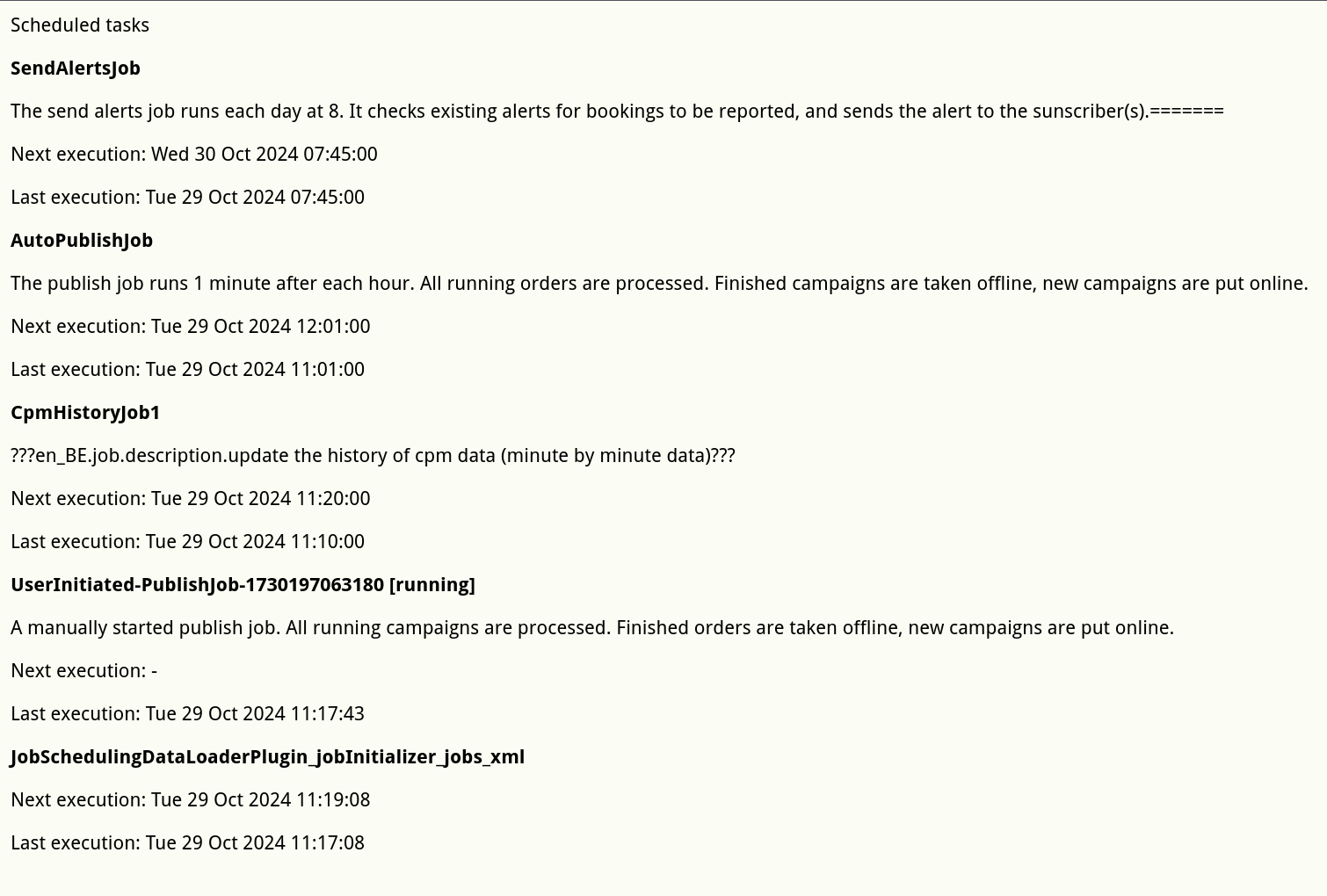](https://documentation.adhese.org/uploads/images/gallery/2024-10/vFrPbQpUGe6lyUWw-schermafdruk-van-2024-10-29-11-18-07.png) ## Ratecard configuration The *Rate cards* screen details all rate cards and lets you create, duplicate, activate or deactivate a rate card. For more information, visit the [Rate Cards page](https://documentation.adhese.org/books/campaign-management/page/rate-cards).