# Gateway configuration

# Wikan

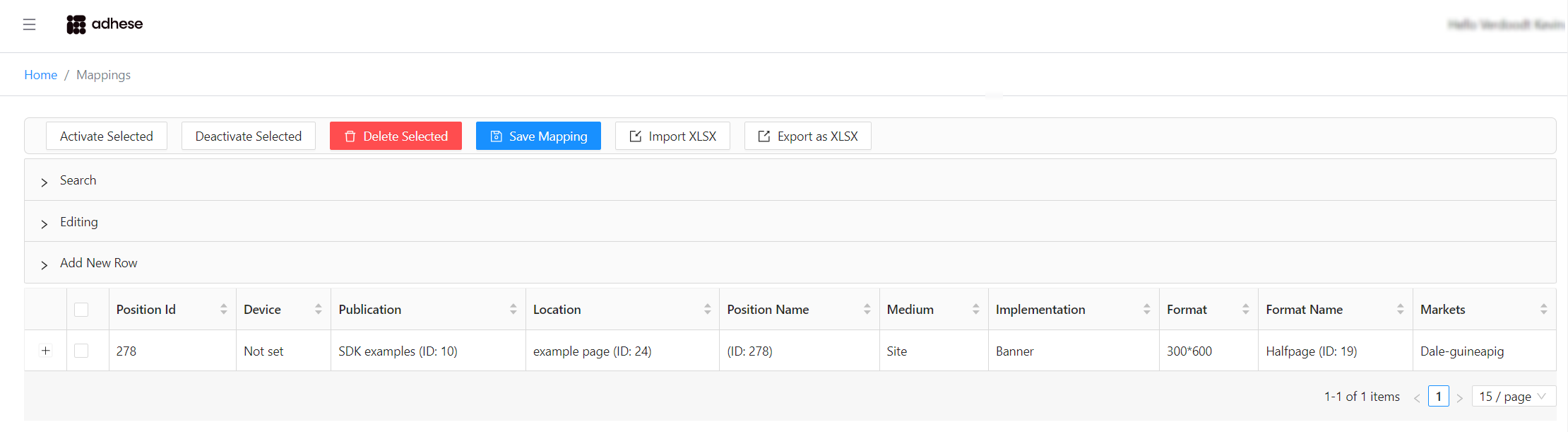
<span style="white-space: pre-wrap;">Wikan is a web-based application that is used to modify the configuration of the </span>****Adhese Gateway****.

You can access Wikan at:  
**`<strong class="editor-theme-bold editor-theme-code">https://[customer].adhese.org/tools/cubeui/mappings</strong>`**

[![image.png](https://documentation.adhese.org/uploads/images/gallery/2024-09/scaled-1680-/PNofr8jCWKhZTFcb-image.png)](https://documentation.adhese.org/uploads/images/gallery/2024-09/PNofr8jCWKhZTFcb-image.png)

## Searching and filtering

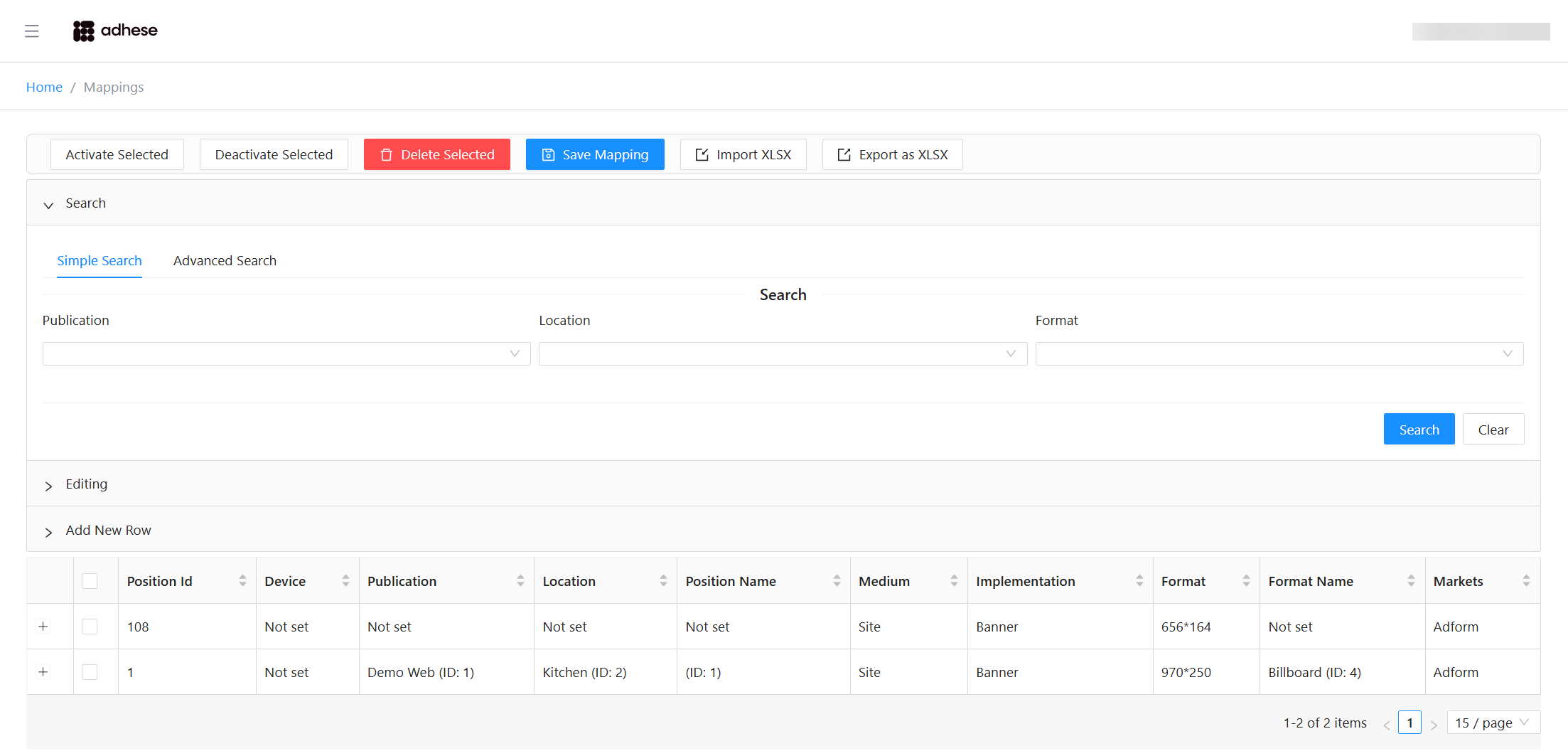
<span style="white-space: pre-wrap;">Click the light grey bar labelled </span>****Search****<span style="white-space: pre-wrap;"> to expand the search form:</span>

[![blur_search.png](https://documentation.adhese.org/uploads/images/gallery/2026-03/scaled-1680-/ZGIx1wI4CFELJLpl-blur-search.png)](https://documentation.adhese.org/uploads/images/gallery/2026-03/ZGIx1wI4CFELJLpl-blur-search.png)

You can perform:

<div id="bkmrk-simple-search-%28publi">- **Simple Search** (Publication, Location, Format)
- **Advanced Search**

</div>To filter the table, fill in one or more fields and click **Search**. Empty fields are ignored.

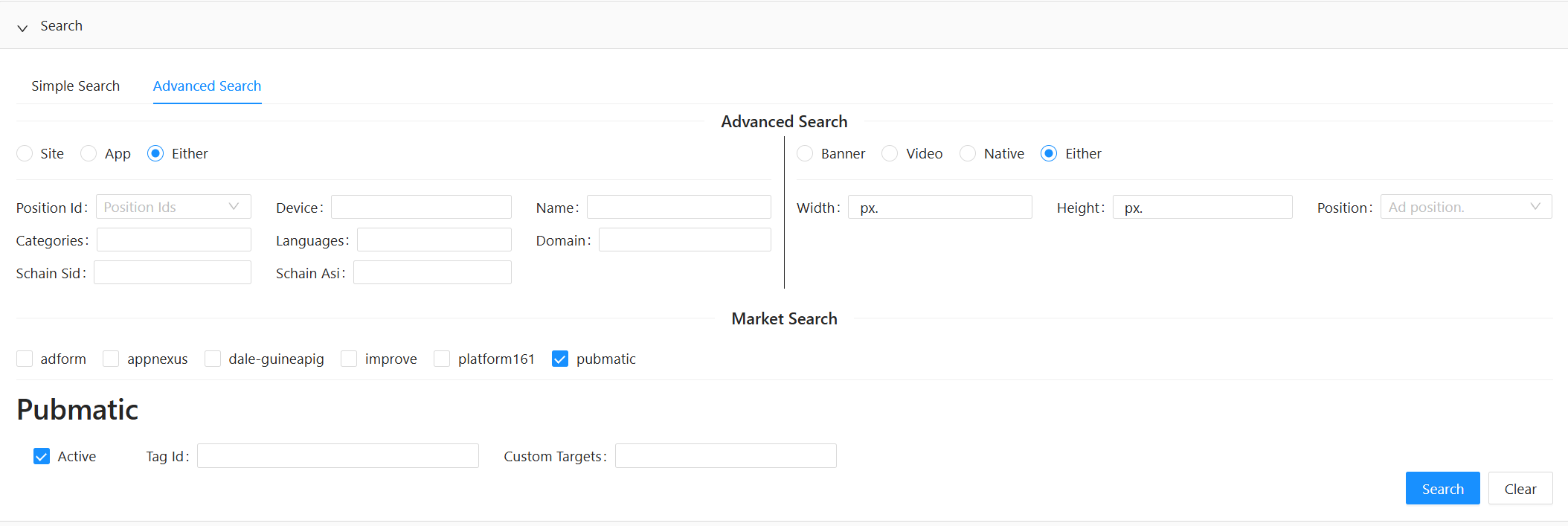
In **Advanced Search**:

<div id="bkmrk-the-radio-buttons-in"><div>- The radio buttons in both the left and right sections default to **Either**, meaning the filter does not consider medium (Site/App) or content type (Banner/Video) unless you change them.
- Selecting any checkbox under **Market Search** reveals additional market‑specific fields.

</div></div>[![image.png](https://documentation.adhese.org/uploads/images/gallery/2026-03/scaled-1680-/vMbkuhSJ6sJHYx8N-image.png)](https://documentation.adhese.org/uploads/images/gallery/2026-03/vMbkuhSJ6sJHYx8N-image.png)

<span style="white-space: pre-wrap;">Click </span>****Search****<span style="white-space: pre-wrap;"> to apply your filters.</span>  
<span style="white-space: pre-wrap;">Click </span>****Clear****<span style="white-space: pre-wrap;"> to reset all fields and remove the current filter.</span>

## Editing rows

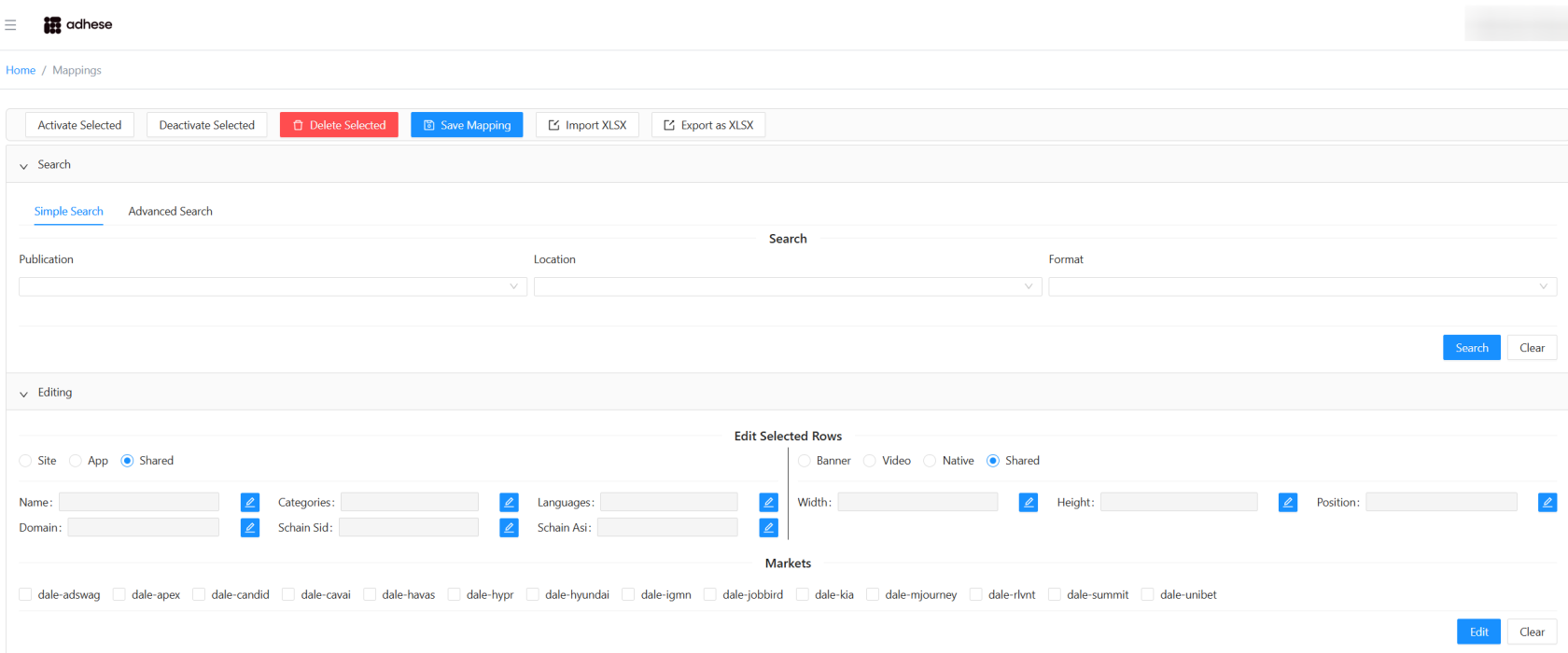
<span style="white-space: pre-wrap;">Click the grey bar labelled </span>****Editing****<span style="white-space: pre-wrap;"> to open the Editing form</span>

[![image.png](https://documentation.adhese.org/uploads/images/gallery/2026-03/scaled-1680-/gGtaByW8Uc0xT5rS-image.png)](https://documentation.adhese.org/uploads/images/gallery/2026-03/gGtaByW8Uc0xT5rS-image.png)

All fields are disabled by default (shown in grey). Enable a field by clicking the blue toggle next to it.

[![image.png](https://documentation.adhese.org/uploads/images/gallery/2026-03/scaled-1680-/5VxzCxpPlteML6kw-image.png)](https://documentation.adhese.org/uploads/images/gallery/2026-03/5VxzCxpPlteML6kw-image.png)
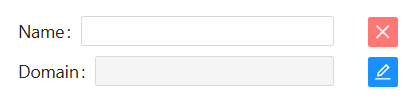
A disabled field is ignored when applying edits:

- If the field already has a value, it will remain unchanged.
- If the field is empty, it will not be overwritten with an empty value.

This prevents accidental data removal.

You can also enable market‑specific sections by selecting their checkboxes

[![image.png](https://documentation.adhese.org/uploads/images/gallery/2026-03/scaled-1680-/CVn39t7yLBrQfPIy-image.png)](https://documentation.adhese.org/uploads/images/gallery/2026-03/CVn39t7yLBrQfPIy-image.png)

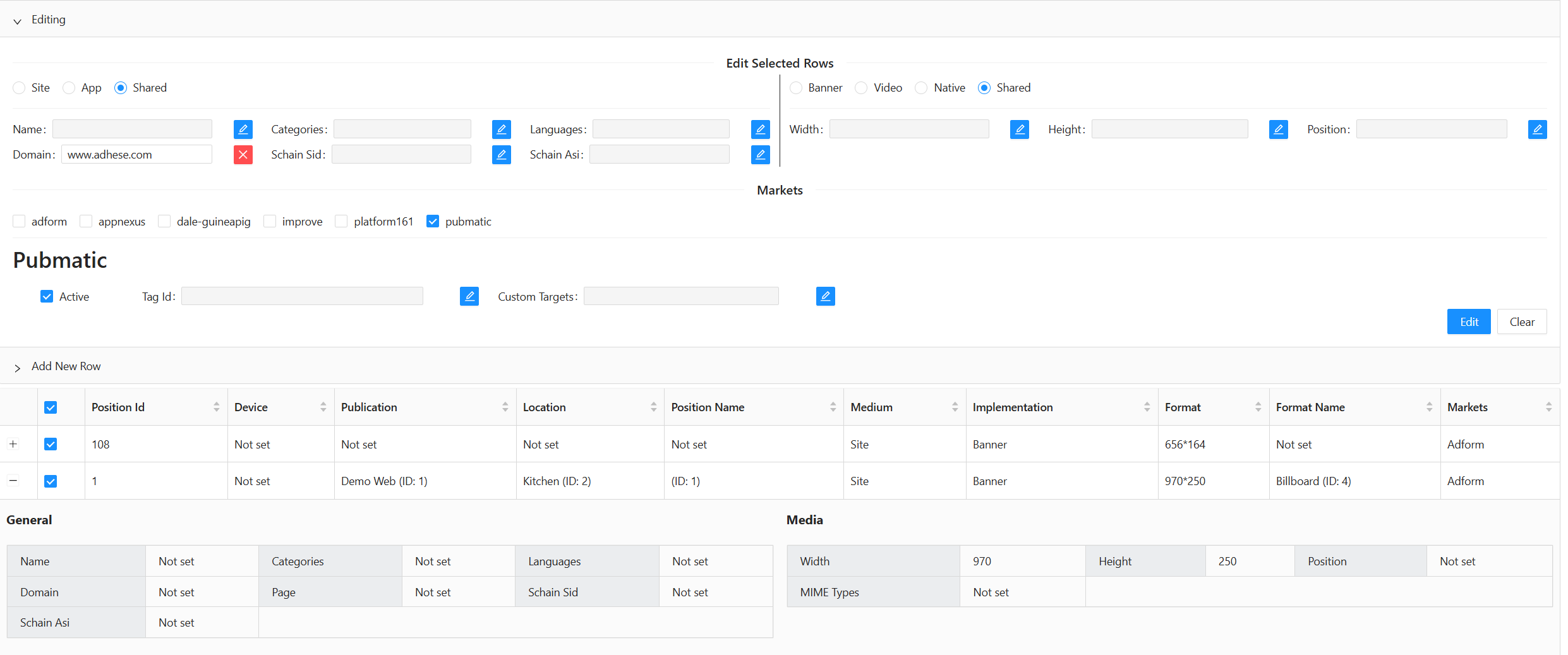
#### Editing multiple rows

1. Select one or more rows in the table
2. Click **Edit**
3. Modify the enabled fields
4. Click **Apply**

[![image.png](https://documentation.adhese.org/uploads/images/gallery/2026-03/scaled-1680-/NFCPT1qqJmtvPcrR-image.png)](https://documentation.adhese.org/uploads/images/gallery/2026-03/NFCPT1qqJmtvPcrR-image.png)
[![image.png](https://documentation.adhese.org/uploads/images/gallery/2026-03/scaled-1680-/vdNrw2C5CNIVvX9V-image.png)](https://documentation.adhese.org/uploads/images/gallery/2026-03/vdNrw2C5CNIVvX9V-image.png)

#### Editing a single row

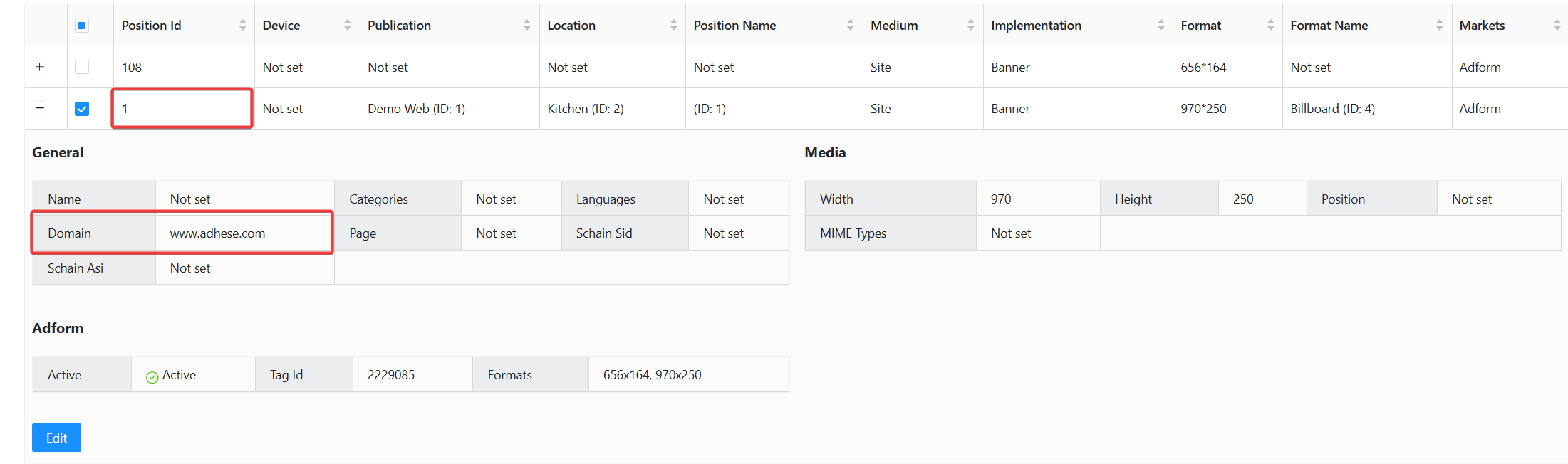
1. Expand the row
2. Click **Edit**
3. Update the desired fields
4. Click **Apply**

[![image.png](https://documentation.adhese.org/uploads/images/gallery/2026-03/scaled-1680-/71197rSGoDeBwet1-image.png)](https://documentation.adhese.org/uploads/images/gallery/2026-03/71197rSGoDeBwet1-image.png)
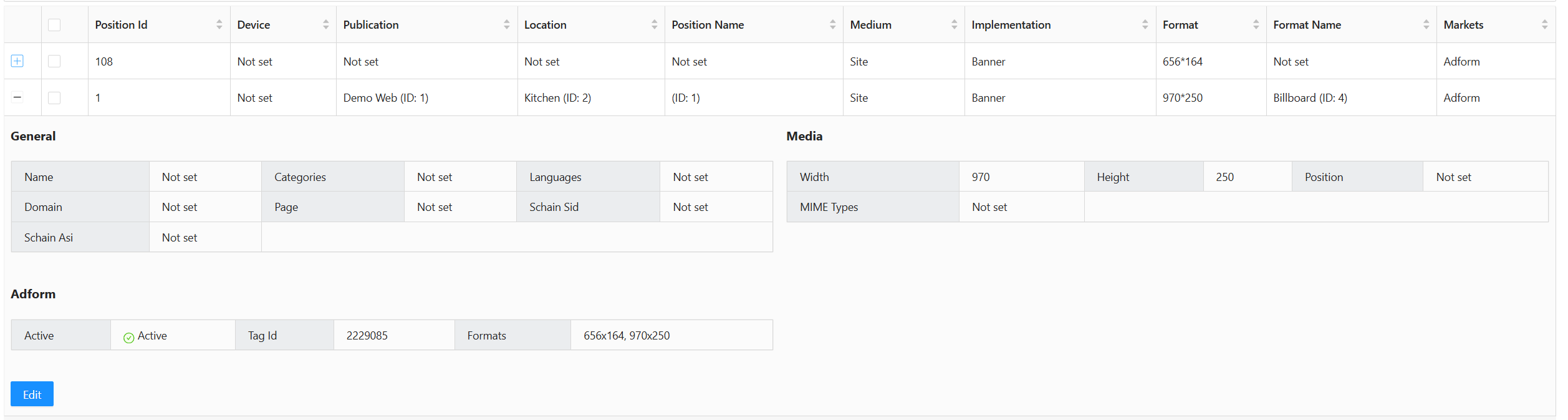
Click the Edit button, and for instance, now change the name field

[![image.png](https://documentation.adhese.org/uploads/images/gallery/2026-03/scaled-1680-/HY4lBCzh7QfD5Kkc-image.png)](https://documentation.adhese.org/uploads/images/gallery/2026-03/HY4lBCzh7QfD5Kkc-image.png)
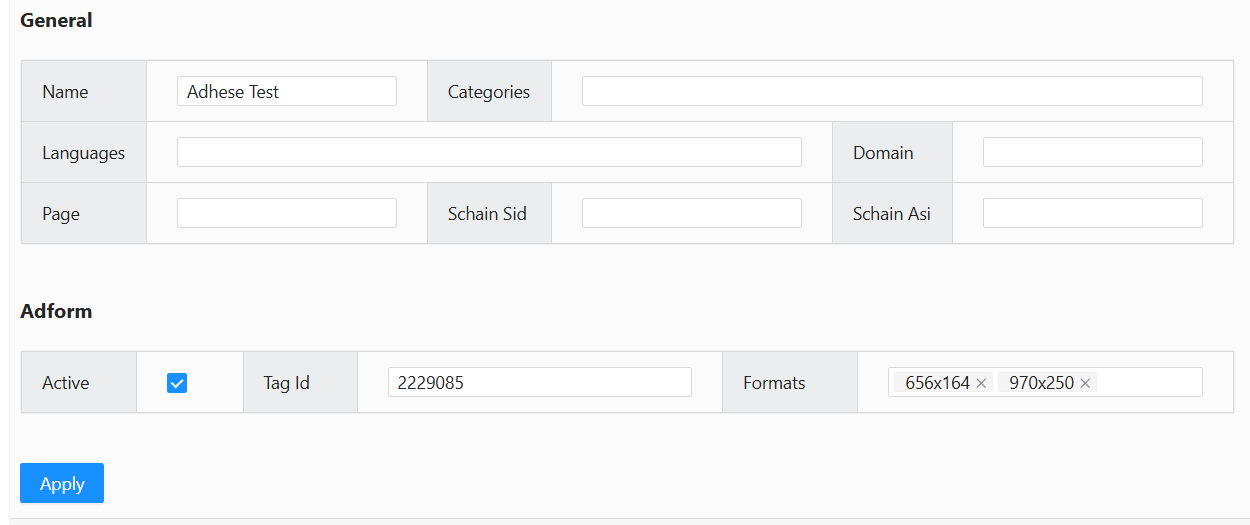
Once you click apply the changes will take effect

#### Saving and Publishing Changes

<div id="bkmrk-click-save-mapping-%28">Click **Save Mapping** (top) to save your edits to the mapping files.  
This **saves your changes but does not publish them to production**.</div>[![image.png](https://documentation.adhese.org/uploads/images/gallery/2026-03/scaled-1680-/WH5qjjg0Io6dlIwu-image.png)](https://documentation.adhese.org/uploads/images/gallery/2026-03/WH5qjjg0Io6dlIwu-image.png)

[![image.png](https://documentation.adhese.org/uploads/images/gallery/2026-03/scaled-1680-/dDfWpxd0Df7qKRBv-image.png)](https://documentation.adhese.org/uploads/images/gallery/2026-03/dDfWpxd0Df7qKRBv-image.png)
[![image.png](https://documentation.adhese.org/uploads/images/gallery/2026-03/scaled-1680-/PEoW5JzthPurZye6-image.png)](https://documentation.adhese.org/uploads/images/gallery/2026-03/PEoW5JzthPurZye6-image.png)

#### Publish

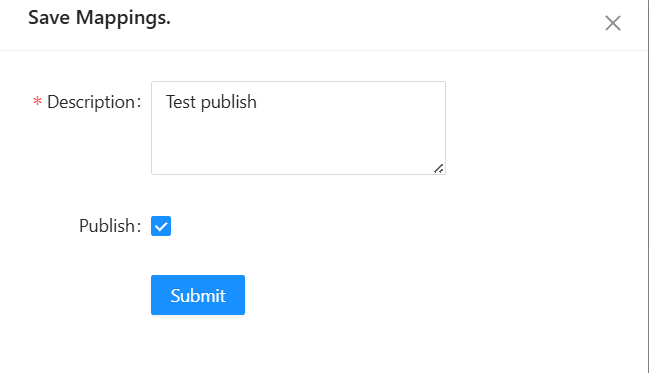
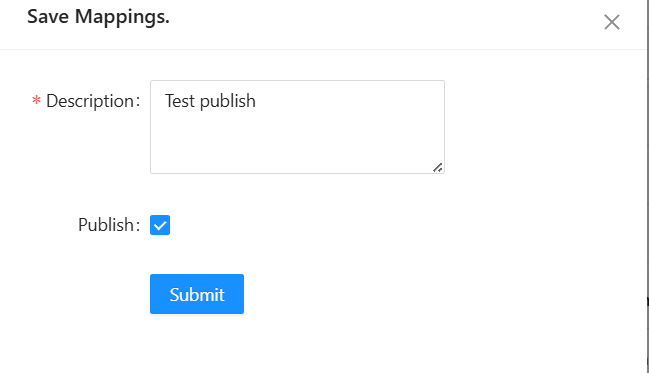
After saving, click **Publish** to push your changes to the cloud.  
You must be in **Write Mode** to publish.

Enter a short description and click **Publish**.  
This final step deploys the changes to production and ends your Write Mode session.

[![image.png](https://documentation.adhese.org/uploads/images/gallery/2026-03/scaled-1680-/iCqvJSuVsGGgl2h9-image.png)](https://documentation.adhese.org/uploads/images/gallery/2026-03/iCqvJSuVsGGgl2h9-image.png)
## Adding Rows

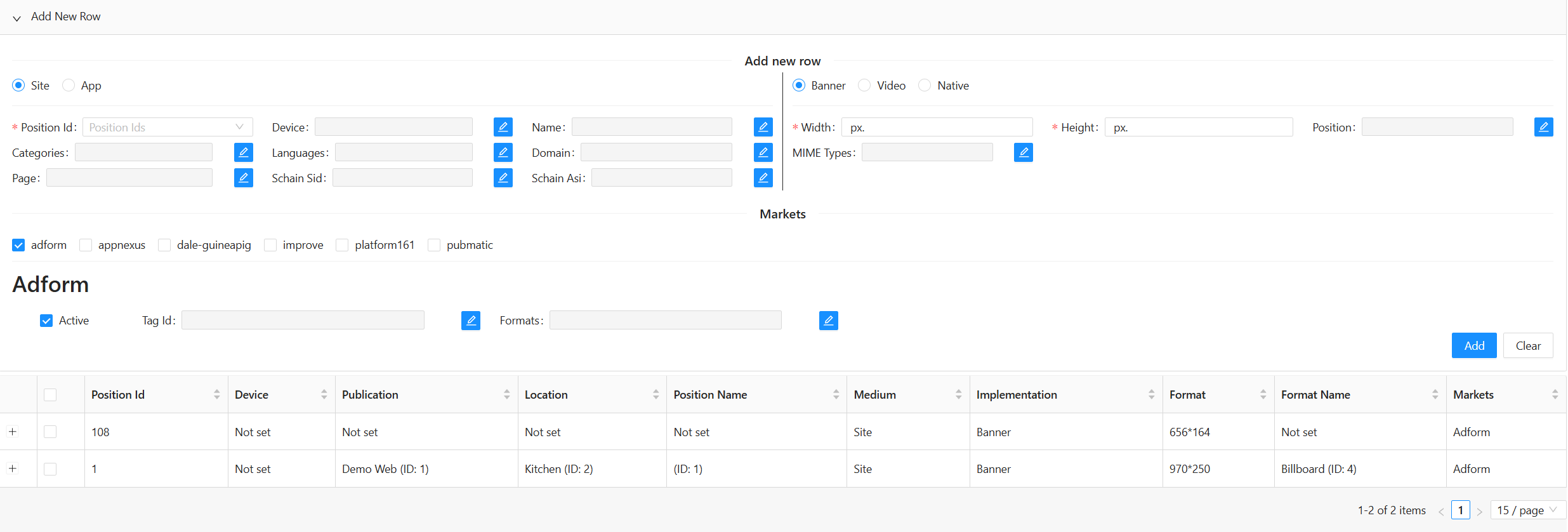
**Click**<span style="white-space: pre-wrap;"> the black bar labelled </span>**Add New Row** to open that section.

[![image.png](https://documentation.adhese.org/uploads/images/gallery/2026-03/scaled-1680-/cy2ljIEt1evEKMGA-image.png)](https://documentation.adhese.org/uploads/images/gallery/2026-03/cy2ljIEt1evEKMGA-image.png)

<div id="bkmrk-most-fields-are-disa">Most fields are disabled by default and can be enabled individually.  
</div>However:

- Required fields are enabled automatically and cannot be disabled.
- Each new row must include at least one **market instance**. If adding a row with an existing position ID, ensure **device type** and **content type** differ from the original.
- **Width** and **Height** are required unless the content type is neither Banner nor Video.

[![image.png](https://documentation.adhese.org/uploads/images/gallery/2026-03/scaled-1680-/jdHT5hWYledwszsr-image.png)](https://documentation.adhese.org/uploads/images/gallery/2026-03/jdHT5hWYledwszsr-image.png)
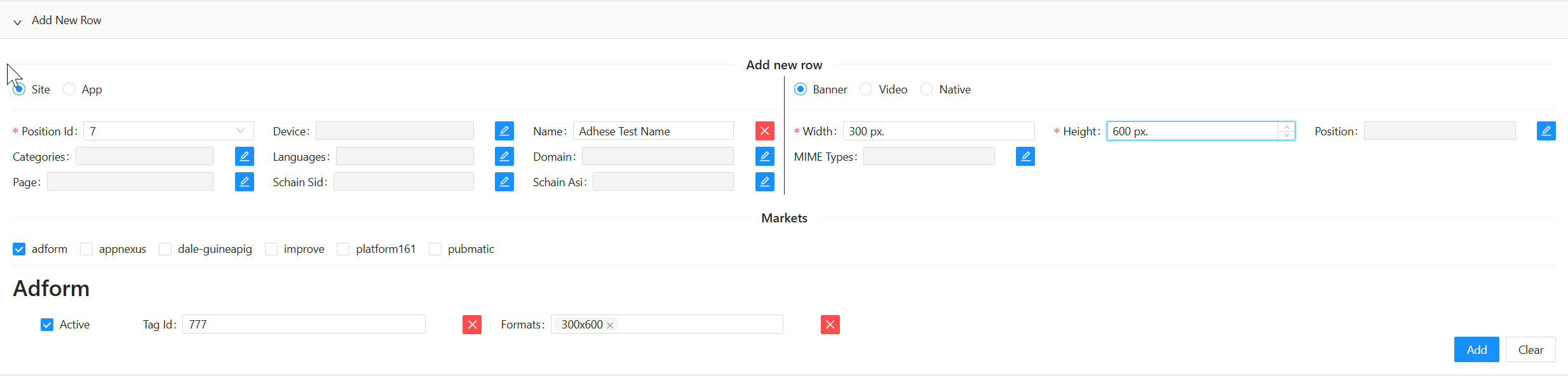
After completing the form, click **Apply**. A confirmation notification will appear.

[![image.png](https://documentation.adhese.org/uploads/images/gallery/2026-03/scaled-1680-/YXSm3YnGI7B0YlDS-image.png)](https://documentation.adhese.org/uploads/images/gallery/2026-03/YXSm3YnGI7B0YlDS-image.png)

## Save your changes

<span style="white-space: pre-wrap;">To permanently save your changes, click the </span>****Save Mapping****<span style="white-space: pre-wrap;"> button in the top-middle of the Wikan UI.</span>  
<span style="white-space: pre-wrap;">Please note that this does </span>****not****<span style="white-space: pre-wrap;"> publish your changes to production; it only saves your progress.</span>

[![image.png](https://documentation.adhese.org/uploads/images/gallery/2026-03/scaled-1680-/b13OTX5qFckl4osl-image.png)](https://documentation.adhese.org/uploads/images/gallery/2026-03/b13OTX5qFckl4osl-image.png)

## [![image.png](https://documentation.adhese.org/uploads/images/gallery/2026-03/scaled-1680-/Ez2n4neQIEHIehUp-image.png)](https://documentation.adhese.org/uploads/images/gallery/2026-03/Ez2n4neQIEHIehUp-image.png)

## Publish your changes

<span style="white-space: pre-wrap;">As your final step, you need to </span>****Publish****<span style="white-space: pre-wrap;"> to push your changes to the cloud. To push your changes, you need to be in </span>****Write mode****<span style="white-space: pre-wrap;"> and </span>****click the Publish button****<span style="white-space: pre-wrap;"> in the top right corner; this will publish the changes and end your </span>****Write mode****<span style="white-space: pre-wrap;"> session.</span>

[![image.png](https://documentation.adhese.org/uploads/images/gallery/2026-03/scaled-1680-/lVwjEDKgeDIQOUzy-image.png)](https://documentation.adhese.org/uploads/images/gallery/2026-03/lVwjEDKgeDIQOUzy-image.png)

## Importing and Exporting Mappings

### Export

Click **Export as XLSX** to download all mapping data as a spreadsheet.  
The exported format matches the structure used for importing.

[![importing_and_exporting_mappings_with_wikan1.png](https://documentation.adhese.org/uploads/images/gallery/2024-06/scaled-1680-/7LuEsjO23iRwJMZy-importing-and-exporting-mappings-with-wikan1.png)](https://documentation.adhese.org/uploads/images/gallery/2024-06/7LuEsjO23iRwJMZy-importing-and-exporting-mappings-with-wikan1.png)

### Import

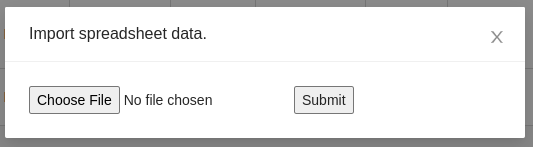
Click **Import XLSX**, select your file, and click **Submit**.

If the import succeeds:

<div id="bkmrk-new-rows-are-added-e">- New rows are added
- Existing rows are updated  
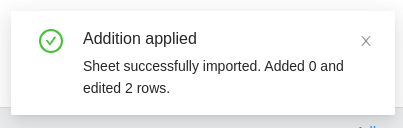
    A notification in the bottom‑right shows the number of changes made.

</div>[![importing_and_exporting_mappings_with_wikan2.png](https://documentation.adhese.org/uploads/images/gallery/2024-06/scaled-1680-/C91MvMpyVBHvqZ6Z-importing-and-exporting-mappings-with-wikan2.png)](https://documentation.adhese.org/uploads/images/gallery/2024-06/C91MvMpyVBHvqZ6Z-importing-and-exporting-mappings-with-wikan2.png)

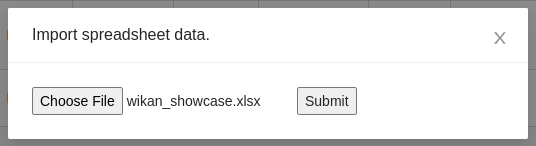
****Select****<span style="white-space: pre-wrap;"> the </span>****spreadsheet file****<span style="white-space: pre-wrap;"> and </span>****click Submit:****

[![importing_and_exporting_mappings_with_wikan3.png](https://documentation.adhese.org/uploads/images/gallery/2024-06/scaled-1680-/npwReNesfpfQjwjr-importing-and-exporting-mappings-with-wikan3.png)](https://documentation.adhese.org/uploads/images/gallery/2024-06/npwReNesfpfQjwjr-importing-and-exporting-mappings-with-wikan3.png)

If the operation is successful, the system will add new rows and update existing ones. A notification in the bottom right corner indicates the number of new rows added and the number of existing rows updated.

[![importing_and_exporting_mappings_with_wikan4.png](https://documentation.adhese.org/uploads/images/gallery/2024-06/scaled-1680-/U8amLE2L2dA1jKEi-importing-and-exporting-mappings-with-wikan4.png)](https://documentation.adhese.org/uploads/images/gallery/2024-06/U8amLE2L2dA1jKEi-importing-and-exporting-mappings-with-wikan4.png)
## Spreadsheet Fields and Examples

Below is a non-exhaustive list of the fields in an import/export spreadsheet.

<table id="bkmrk-field-name-type-exam" style="width: 78.1273%; height: 1157.8px;"><colgroup><col style="width: 25.5128%;"></col><col style="width: 13.7686%;"></col><col style="width: 28.2119%;"></col><col style="width: 32.5354%;"></col></colgroup><tbody><tr style="height: 29.8px;"><th class="align-left" style="height: 29.8px;">**Field name**

</th><th class="align-left" style="height: 29.8px;">**Type**

</th><th class="align-left" style="height: 29.8px;">**Example**

</th><th class="align-left" style="height: 29.8px;">**Key**

</th></tr><tr style="height: 29.8px;"><td style="width: 20.2808%; height: 29.8px;">Position Id

</td><td style="width: 49.142%; height: 29.8px;">Integer

</td><td style="width: 1.56006%; height: 29.8px;">55

</td><td style="width: 31.8253%; height: 29.8px;">profile.sl

</td></tr><tr style="height: 29.8px;"><td style="width: 20.2808%; height: 29.8px;">Device

</td><td style="width: 49.142%; height: 29.8px;">String

</td><td style="width: 1.56006%; height: 29.8px;">desktop

</td><td style="width: 31.8253%; height: 29.8px;">profile.dt

</td></tr><tr style="height: 29.8px;"><td style="width: 20.2808%; height: 29.8px;">Name

</td><td style="width: 49.142%; height: 29.8px;">String

</td><td style="width: 1.56006%; height: 29.8px;">Dominos

</td><td style="width: 31.8253%; height: 29.8px;">site.name, app.name

</td></tr><tr style="height: 47px;"><td style="width: 20.2808%; height: 47px;">Categories

</td><td style="width: 49.142%; height: 47px;">String Array

</td><td style="width: 1.56006%; height: 47px;">IAB1-4,IAB2

</td><td style="width: 31.8253%; height: 47px;">site.cat, app.cat

</td></tr><tr style="height: 47px;"><td style="width: 20.2808%; height: 47px;">Languages

</td><td style="width: 49.142%; height: 47px;">String Array

</td><td style="width: 1.56006%; height: 47px;">fr,nl

</td><td style="width: 31.8253%; height: 47px;">site.wlang, app.wlang

</td></tr><tr style="height: 47px;"><td style="width: 20.2808%; height: 47px;">Domain

</td><td style="width: 49.142%; height: 47px;">String

</td><td style="width: 1.56006%; height: 47px;">test.com

</td><td style="width: 31.8253%; height: 47px;">site.domain, app.domain

</td></tr><tr style="height: 29.8px;"><td style="width: 20.2808%; height: 29.8px;">Page

</td><td style="width: 49.142%; height: 29.8px;">String

</td><td style="width: 1.56006%; height: 29.8px;">test.com/product

</td><td style="width: 31.8253%; height: 29.8px;">site.page

</td></tr><tr style="height: 29.8px;"><td style="width: 20.2808%; height: 29.8px;">site\_or\_app

</td><td style="width: 49.142%; height: 29.8px;">String

</td><td style="width: 1.56006%; height: 29.8px;">site

</td><td style="width: 31.8253%; height: 29.8px;"><span style="white-space: pre-wrap;"> </span>

</td></tr><tr style="height: 29.8px;"><td style="width: 20.2808%; height: 29.8px;">banner\_or\_video

</td><td style="width: 49.142%; height: 29.8px;">String

</td><td style="width: 1.56006%; height: 29.8px;">video

</td><td style="width: 31.8253%; height: 29.8px;"><span style="white-space: pre-wrap;"> </span>

</td></tr><tr style="height: 47px;"><td style="width: 20.2808%; height: 47px;">Width

</td><td style="width: 49.142%; height: 47px;">Integer

</td><td style="width: 1.56006%; height: 47px;">300

</td><td style="width: 31.8253%; height: 47px;">imp.banner.w, imp.video.w

</td></tr><tr style="height: 47px;"><td style="width: 20.2808%; height: 47px;">Height

</td><td style="width: 49.142%; height: 47px;">Integer

</td><td style="width: 1.56006%; height: 47px;">600

</td><td style="width: 31.8253%; height: 47px;">imp.banner.h, imp.video.h

</td></tr><tr style="height: 47px;"><td style="width: 20.2808%; height: 47px;">Position

</td><td style="width: 49.142%; height: 47px;">Integer

</td><td style="width: 1.56006%; height: 47px;">4

</td><td style="width: 31.8253%; height: 47px;">imp.banner.pos, imp.video.pos

</td></tr><tr style="height: 47px;"><td style="width: 20.2808%; height: 47px;">banner MIME Types

</td><td style="width: 49.142%; height: 47px;">String Array

</td><td style="width: 1.56006%; height: 47px;">image/jpg, image/gif

</td><td style="width: 31.8253%; height: 47px;">imp.banner.mimes

</td></tr><tr style="height: 57.8px;"><td style="width: 20.2808%; height: 57.8px;">video Delivery Methods

</td><td style="width: 49.142%; height: 57.8px;">Integer Array

</td><td style="width: 1.56006%; height: 57.8px;">4,5

</td><td style="width: 31.8253%; height: 57.8px;">imp.video.delivery

</td></tr><tr style="height: 47px;"><td style="width: 20.2808%; height: 47px;">video Protocol Ids

</td><td style="width: 49.142%; height: 47px;">Integer Array

</td><td style="width: 1.56006%; height: 47px;">3,4

</td><td style="width: 31.8253%; height: 47px;">imp.video.protocols

</td></tr><tr style="height: 47px;"><td style="width: 20.2808%; height: 47px;">video MIME Types

</td><td style="width: 49.142%; height: 47px;">String Array

</td><td style="width: 1.56006%; height: 47px;">video/mp4, video/flv

</td><td style="width: 31.8253%; height: 47px;">imp.video.mimes

</td></tr><tr style="height: 47px;"><td style="width: 20.2808%; height: 47px;">video Min Duration

</td><td style="width: 49.142%; height: 47px;">Integer

</td><td style="width: 1.56006%; height: 47px;">3

</td><td style="width: 31.8253%; height: 47px;">imp.video.minduration

</td></tr><tr style="height: 47px;"><td style="width: 20.2808%; height: 47px;">video Max Duration

</td><td style="width: 49.142%; height: 47px;">Integer

</td><td style="width: 1.56006%; height: 47px;">30

</td><td style="width: 31.8253%; height: 47px;">imp.video.maxduration

</td></tr><tr style="height: 29.8px;"><td style="width: 20.2808%; height: 29.8px;">video Linearity

</td><td style="width: 49.142%; height: 29.8px;">Integer

</td><td style="width: 1.56006%; height: 29.8px;">1

</td><td style="width: 31.8253%; height: 29.8px;">imp.video.linearity

</td></tr><tr style="height: 57.8px;"><th colspan="4" style="width: 102.808%; height: 57.8px;">**All market instances share the following fields. Replace &lt;market instance&gt; with the appropriate market instance and its name.**

</th></tr><tr style="height: 47px;"><td style="width: 20.2808%; height: 47px;">&lt;market instance&gt; active

</td><td style="width: 49.142%; height: 47px;">Boolean

</td><td style="width: 1.56006%; height: 47px;">true

</td><td style="width: 31.8253%; height: 47px;"><span style="white-space: pre-wrap;"> </span>

</td></tr><tr style="height: 70px;"><td style="width: 20.2808%; height: 70px;">&lt;market instance&gt; site/app\_id

</td><td style="width: 49.142%; height: 70px;">String

</td><td style="width: 1.56006%; height: 70px;">3485929

</td><td style="width: 31.8253%; height: 70px;">site.id, app.id

</td></tr><tr style="height: 70px;"><td style="width: 20.2808%; height: 70px;">&lt;market instance&gt; banner Formats

</td><td style="width: 49.142%; height: 70px;">Format Array

</td><td style="width: 1.56006%; height: 70px;">300x240,400x200

</td><td style="width: 31.8253%; height: 70px;">imp.banner.format

</td></tr><tr style="height: 29.8px;"><th colspan="4" style="width: 102.808%; height: 29.8px;">**The following fields are specific to certain market instances.**

</th></tr><tr style="height: 70px;"><td style="width: 20.2808%; height: 70px;">&lt;market instance&gt; Custom Targets

</td><td style="width: 49.142%; height: 70px;">Multimap

</td><td style="width: 1.56006%; height: 70px;">value1=result2,value2=placeholder

</td><td style="width: 31.8253%; height: 70px;"><span style="white-space: pre-wrap;"> </span>

</td></tr></tbody></table>