Advertising types
Display ads
Display advertising with Adhese can be delivered through several integration routes, ranging from a drop-in web SDK to a fully server-side API. All routes ultimately talk to the same adserver engine, so the choice of integration method is about how your platform requests and renders ads, not about what campaigns can run.
Display advertising covers visual ad formats rendered in a reserved container. Adhese delivers all common display creative types through every integration method described in this document:
Where can display ads run?
Anywhere the platform can request ads and render the returned markup or image:
- Websites - desktop and mobile web, whether ads are requested in the browser (SDK, tags, Prebid) or server-side by your CMS or backend before the page is delivered.
- Apps - retrieve ads using the Request API and render them in a webview or native component.
- Newsletters - set up a server side connection to retrieve ads, download the material and put it in the newsletter before sending them out
Most common display formats
- 300×600 Half Page
- 300×250 Medium Rectangle
- 336×280 Large Rectangle
- 728×90 Leaderboard
- 970×250 Billboard — large-format desktop top slot
- 320×100 Large Mobile Banner
- 320×50 Mobile Leaderboard
- 120×600 Skyscraper
- 160×600 Wide Skyscraper
Integration methods
| Method | Best for |
|---|---|
| TypeScript SDK | Modern websites and web apps |
| Prebid.js / Prebid Server | Publishers running header bidding |
| Request API | CMS, apps, custom stacks |
DOOH: Digital Out Of Home
What is Digital Out of Home?
Digital Out of Home (DOOH) is digital advertising shown on screens in physical, public spaces - think digital billboards along a motorway, screens in shopping malls and supermarkets, displays in lifts and lobbies, transit and airport panels, and menu boards in quick-service restaurants.
It's the digital evolution of traditional "out of home" advertising (printed billboards and posters). Instead of a static printed sheet, content is delivered electronically to a screen, so it can be scheduled, rotated, and updated remotely.
DOOH works quite differently from web or in-app advertising, and those differences shape how the integration below is built:
- There's no browser, cookie, or logged-in user. Ads are targeted to a screen (and its location), not to an individual person.
- Content is played, not clicked. Success is measured by proof-of-play - confirmation that a creative actually appeared on screen - instead of clicks or impressions in regular advertising.
- The network can be unreliable. A screen in a lift or a remote billboard may lose connectivity, so players are expected to cache content and keep running offline.
Where Adhese fits in
Adhese acts as the ad server for your DOOH network. It decides what should play on each screen and provides the building blocks a player needs to run:
- Media asset distribution: delivering the video and image files to be played.
- Playlist generation: telling each screen or player what to play, and in what order.
- Proof-of-play tracking: recording that each creative was shown.
- Player-level targeting and reporting: targeting and measuring by individual screen or location.
How an Adhese DOOH integration works
A typical DOOH setup involves the following components working together:
- Screens: the physical displays that show the ads.
- Digital Signage CMS / Player: the software driving the screens; it fetches content from Adhese and plays it.
- Adhese Ad Server: decides what plays and serves assets, playlists, and tracking URLs.
- Server-side data mapping: links each player to metadata (such as its store or location) for targeting and reporting.
- Reporting and Proof-of-Play tracking: captures what actually played, for measurement and billing.
In short: the player asks Adhese for a playlist, Adhese responds with the ads to show, the player plays them from its local cache, and it fires tracking URLs back to confirm each play.
Before you start
Make sure the following are in place before beginning the integration.
Adhese requirements
- An active Adhese account.
- The DOOH feature enabled by Adhese support.
- Configured inventory and templates.
- A configured player ID target.
Player / CMS requirements
Your player or CMS must be able to:
- Perform HTTP
GETrequests. - Parse JSON.
- Cache assets locally.
- Play back video and images.
- Fire tracking URLs.
The DOOH endpoints
There are two things a player fetches from Adhese:
- Assets: the creative files to download and cache in advance (optional).
- A playlist: the list of ads to play (required). The playlist comes in two variants: one with a capped number of ads, and one with no cap.
| Purpose | Endpoint |
|---|---|
| Assets download (Heads-up) | https://headsup-[customer].adhese.org/api/headsup/download-list/sl[positioncode] |
| Playlist - limited number of ads | https://ads-[customer].adhese.com/m/stack/sl[positioncode]?max_ads=[amount] |
| Playlist - unlimited number of ads | https://ads-[customer].adhese.com/e/stack/sl[positioncode] |
Assets Download Endpoint (Heads-up)
The heads-up endpoint is optional. Use it to retrieve and cache all active creative assets for a DOOH position ahead of time. The response structure is fixed and cannot be customised.
Request example
https://headsup-[customer].adhese.org/api/headsup/download-list/sl[positioncode]Response example
{
  "media": [
    {
      "ad": {
        "id": "https://pool-demo.adhese.com/pool/lib/ad1.mp4",
        "mime": "video/mp4",
        "curl": "https://pool-demo.adhese.com/pool/lib/ad1.mp4",
        "checksum": "abc123"
      }
    }
  ]
}
Detailed information on the heads-up endpoint is available here.
Playlist Endpoint
Adhese provides two stack endpoints for retrieving a playlist:
/m/stack/: returns a list with a limit on the number of ads (max_ads)./e/stack/: returns a list with no predefined limit.
Request example
/m/stack/: https://ads-[customer].adhese.com/m/stack/sl[positioncode]/pi[player ID]?max_ads=[amount]
/e/stack/: https://ads-[customer].adhese.com/e/stack/sl[positioncode]/pi[player ID]
Response example
{
    "ads":
      [
        {
            "id":"https://pool-demo.adhese.com/pool/lib/562_2nd_1.mp4",
            "dur":28.07,
            "proofOfPlay":"https://ads-demo.adhese.com/track/3474/sl357/tlnone/piplayer_id/A2?1746011926824",
            "error":"https://ads-demo.adhese.com/track/3474-PLAY_ERROR_[ERRORCODE]/sl357/tlnone/piplayer_id/A2/?1746011926824"
        },
        {
            "id":"https://pool-demo.adhese.com/pool/lib/561_2nd_1.mp4",
            "dur":11.45,
            "proofOfPlay":"https://ads-demo.adhese.com/track/3444/sl357/tlnone/piplayer_id/A2?1746011926824",
            "error":"https://ads-demo.adhese.com/track/3444-PLAY_ERROR_[ERRORCODE]/sl357/tlnone/piplayer_id/A2/?1746011926824"
        },
        {
            "id":"https://pool-demo.adhese.com/pool/lib/560_2nd_1.mp4",
            "dur":18.85,
            "proofOfPlay":"https://ads-demo.adhese.com/track/3455/sl357/tlnone/piplayer_id/A2?1746011926824",
            "error":"https://ads-demo.adhese.com/track/3455-PLAY_ERROR_[ERRORCODE]/sl357/tlnone/piplayer_id/A2/?1746011926824"
        }
    ]
}
Detailed information on the stack endpoint is available here.
Targeting and reporting
Player ID target
You can add extra targeting information to a request by appending target sections to the URL, in the form /[prefix][value]/.
The player ID is one such target. It uses the prefix pi (as shown in the examples above) and can be used for:
- Player / screen-level targeting and reporting.
- Location-based targeting and reporting.
Providing extra target / reporting data
Player and store location, plus any other custom metadata, can be supplied server-side by uploading a player → metadata mapping in Adhese.
Each metadata property is linked to its own target prefix. Adhese maps this data automatically to incoming requests based on the player ID, making it available for both targeting and reporting.
The player ID prefix - and any other target prefixes - must be configured by Adhese support.
Operational recommendations
Asset caching
Always cache assets locally to:
- Reduce bandwidth usage.
- Avoid playback interruptions.
- Improve offline resilience.
Offline mode
If connectivity is lost, players should keep playing using:
- The last valid playlist.
- Cached creatives.
Troubleshooting
| Issue | Possible cause |
|---|---|
| Empty media array | No active campaigns, or a targeting-related issue |
| Endpoint redirects | DOOH endpoints not enabled |
| Heads-up endpoint empty | No active campaigns, or Use in heads-up format config disabled |
| Playback errors | Unsupported codec or corrupt file |
| No reporting | Proof-of-play URL not triggered |
VAST: Video & Audio Advertising
What is VAST?
VAST - the Video Ad Serving Template - is the standard IAB introduced to make video and audio ad serving work across players from different vendors. It uses an XML schema to carry an ad's metadata from the ad server to the video or audio player.
Adhese fully supports VAST: we are compliant with VAST 2.0, 3.0, and 4.0 and can help you adopt its guidelines.
VAST offers a set of features intended to make online video advertising easy.
- Platform—and device-agnostic: Nothing about the protocol of VAST is specific to the functioning of a certain device or platform. This allows Adhese to serve ads across several video and audio players in different situations, such as websites, mobile websites and applications, Internet-connected TVs, or set-top box environments.
- Support for different ad types: VAST supports different video and audio ad formats. Next to the well-known linear and non-linear video ad formats, VAST enables the delivery of companion ads, skippable linear ads, and ad pods.
- **Tracking:**To provide details about the delivered ads, VAST enables the simultaneous tracking of several user events related to the video ad. That is to say, VAST can tell you, for example, whether a video ad was completely viewed or if the user has muted the sound. VAST can also notify you if a user skipped a linear ad by explicitly closing it before completion, or if the user clicked a non-linear ad away.
- Detailed error reporting: When a video player cannot display an ad, VAST enables the player to provide specific feedback to the ad server about why the ad can not be served.
More information on VAST can be found on the IAB's website. Detailed documentation on the latest version can be found in this PDF.
How does a VAST setup work?
The player requests an ad from the ad server using a simple URL. This is usually done using the AD endpoint. Adhese then answers with a VAST XML document the player knows how to read. That document is assembled from two building blocks: advar templates, which supply the static VAST markup, and creatives, which are used to provide the media itself together with other META data.
The media can be provided in three ways:
- By uploading the material in Adhese
- By providing a link to material hosted on a different domain
- By providing a link to an external VAST tag. Adhese will in that case redirect to the external tag while maintaining the ability to track events
Because a template holds static VAST markup, each type or version of media you want to serve, will require its own template.
Simplified response example
<VAST version="4.0">
  <Ad id="19787">
    <InLine>
      <AdSystem>Adhese</AdSystem>
      <AdTitle>Your creative</AdTitle>
      <Impression><![CDATA[ …/impression ]]></Impression>
      <Creatives>
        <Creative>
          <Linear>
            <Duration>00:00:15</Duration>
            <TrackingEvents>
              <Tracking event="start"> … </Tracking>
              <Tracking event="firstQuartile"> … </Tracking>
              <Tracking event="complete"> … </Tracking>
            </TrackingEvents>
            <VideoClicks>
              <ClickThrough><![CDATA[ …/click ]]></ClickThrough>
            </VideoClicks>
            <MediaFiles>
              <MediaFile type="video/mp4" width="640" height="360">
                <![CDATA[ …/creative.mp4 ]]>
              </MediaFile>
            </MediaFiles>
          </Linear>
        </Creative>
      </Creatives>
    </InLine>
  </Ad>
</VAST>
Video ad types
Video | Linear Since VAST 1.0
In-stream video ads that interrupt the main video content. They include Pre-rolls (playing before the video), Mid-rolls (playing during), and Post-rolls (playing after). These usually include skippable or non-skippable formats (introduced in VAST 3.0).
Video | Companion ads Since VAST 2.0
A companion ad is a image ad shown alongside a linear video ad, usually displayed on top of the player or on its side. It is displayed at the same time as the video ad and can continue to be displayed after the video has finished playing.
Video | Outstream Since VAST 2.0
The video ad appears in non-video environments, typically embedded in text-based content such as articles or news feeds. An outstream video could for example be shown in typical display placements such as a 'medium rectangle'.
Video | Non-linear Since VAST 2.0
The ad runs alongside the content, typically as an overlay, without interrupting playback.
Video | Ad pods Since VAST 3.0
A group of ads that play in sequence during a commercial break during long-form video content. Specifically, using IAB VAST, an ad pod is a group of sequential ads that can be served in one VAST tag.
Video | SIMID Since VAST 4.0
VAST can carry interactive ads, not just straight playback. The current standard for that is SIMID - Secure Interactive Media Interface Definition - IAB's successor to the now-deprecated VPAID.
The interactive layer is an HTML creative that the player loads into a sandboxed iframe and talks to over the postMessage API, so it can drive clickable overlays, menus or dynamic calls to action without ever touching the player itself.
An Adhese templates can provide the option to add a link to an externally hosted HTML layer. Creating and hosting the interactive layer in Adhese is not possible.
More info on the SIMID standard: https://iabtechlab.com/wp-content/uploads/2022/09/SIMID-1.2.pdf
Audio ad types
Audio | Linear Since VAST 4.1
Audio ads that play in a vendor's digital audio player. They are handled similarly to video creatives, except they only have audio and no video component.
Native audio arrived in VAST 4.1, when the separate audio spec (DAAST) was folded back into VAST - before that, audio was served through DAAST as its own template.
Audio | Companion ads Since VAST 4.1
An audio companion ad pairs a linear audio ad with a synchronized image on a screen. This setup allows advertisers to deliver a voice-driven message while providing a clickable asset for direct response. Ideal for music or podcast applications.
DCO
What is DCO?
DCO, or Dynamic Creative Optimisation, is a feature that enables the dynamic fetching and updating of components within a banner.
For example, we have a banner advertising a product that is currently on sale.
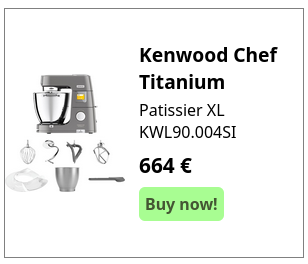
- Title
- Product description
- Order button
- CTA
- Pricing information
- Special offer information
- Product Image(s)
- Company Image
With a regular banner, if any part needs to be changed, it must be done manually. This can be achieved by either creating a new banner or accessing the creative and updating it.
With DCO, these fields can be linked to a feed, enabling automatic updates. For example, the price of a product changes. This change is implemented in the feed, which then updates the banner automatically.
If the title of the advertisement is changed, it can also be updated via the feed without requiring manual intervention.
Changes can also be made based on contextual or audience information. Let’s say a user sees this banner in Europe. They do not need American financing options. Since we know that this user is from a European country, we can automatically update the banner they see with information from the feed.
A simple example of DCO is the automatic rotation of multiple product banners on a single position, which creates a product carousel:
DCO is used to change banner content based on context, audience and up-to-date product information. It enables the automatic assembly and updating of various banner elements, such as images, headlines, and calls to action, to create and deliver personalised ad creatives in real time.
This can significantly reduce the workload for AdOps by decreasing the number of manual actions required to keep banners up to date and reducing the number of banners that need to be set up in the first place.
Targeting can also be taken into account. If a user has shown interest in a specific product category, the feed can assemble banners based on that category, even if the user is viewing other products (provided the user has granted consent or is logged in). This means that all products and information can be bundled into one feed and displayed to the user based on either known audience information or contextual page information.
Furthermore, feeds can take external information into account. For example, if you want to display a banner advertising barbecues in the summer, but only when it’s relatively sunny, you can connect the feed to a weather service to ensure that BBQ-related banners are only displayed when the conditions are right.
Information about stores, such as their location and stock levels, can also be connected to the feed. This ensures that products that aren’t available at a particular store aren’t shown.
How does DCO work?
A DCO setup consists of two parts:
- One or more product feeds
- An HTML5 or an Advar creative
Advertisers can administer the feed either by syncing a custom feed to Adhese locally every time it is updated or by hosting files directly on Adhese.
When someone visits a site with inventory connected to a DCO campaign, our Content Delivery Network (CDN) system will display banners based on up-to-date information synced from the advertiser's feed.
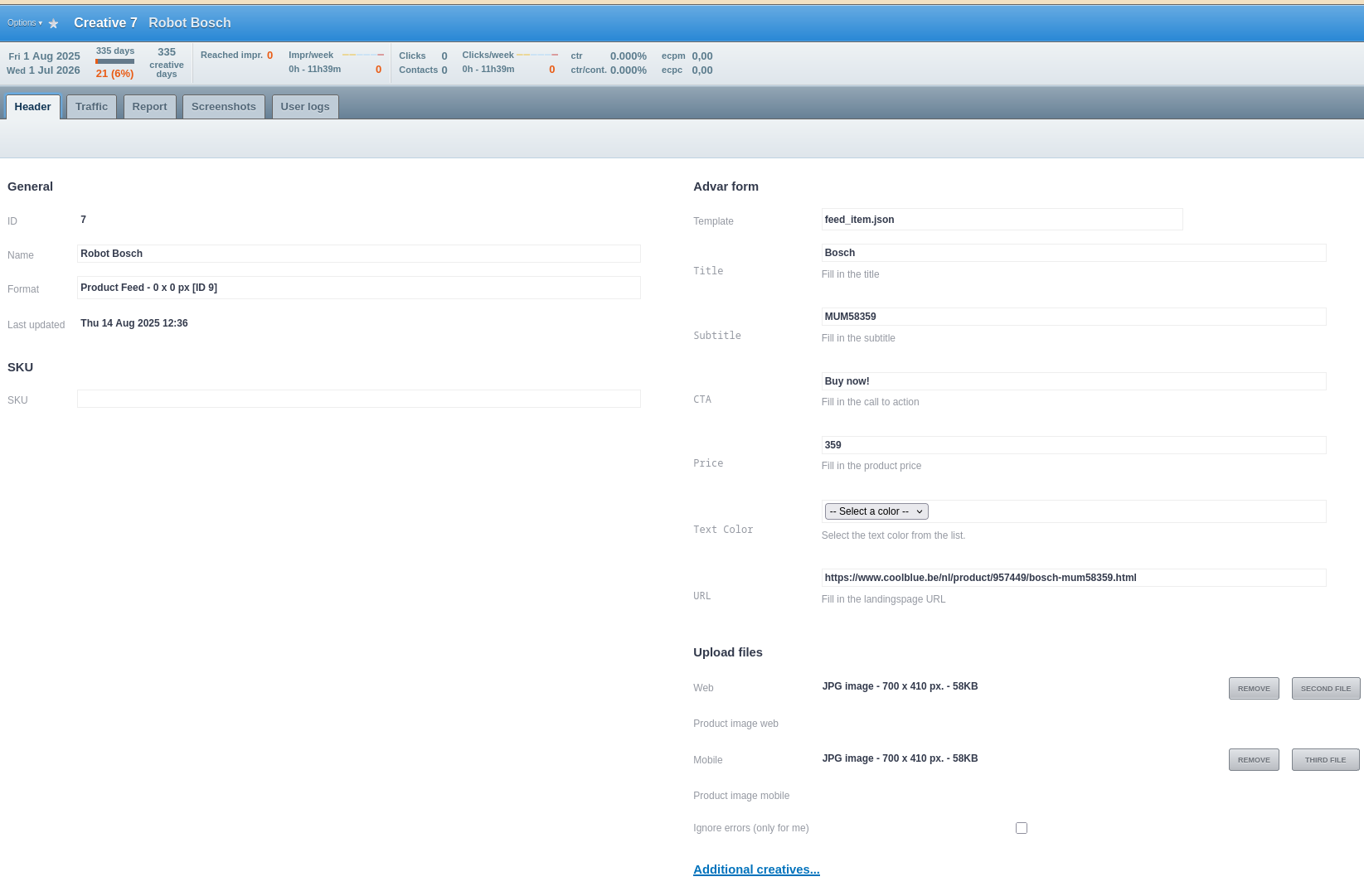
To give an example setup related to the feed shown above, we have three items in a Product Feed format:
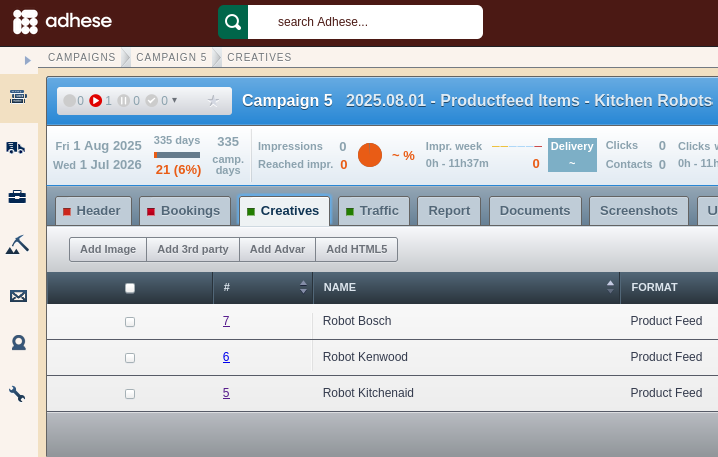
These creatives are defined by an Advar template that contains elements such as the image, call to action (CTA) and price.
In a second campaign, we have a product carousel creative that links to these three feed items:
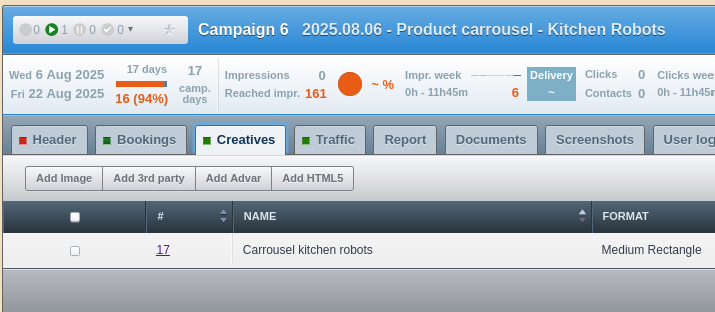
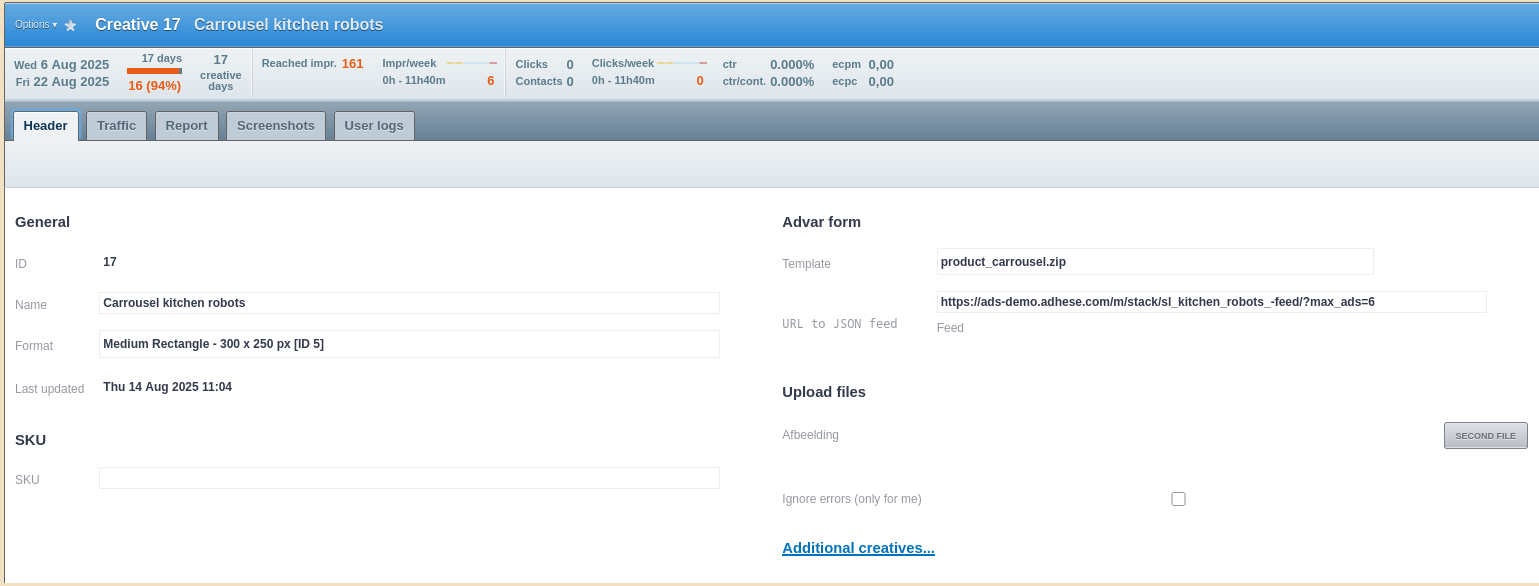
And this carousel is what's displayed on the actual position. Every time one of the feed items is updated, the carousel will change accordingly.
If you would like to implement a DCO banner either on Adhese or on your own CDN, please contact support.
Reporting
As always, the default reporting on campaign, booking and creative levels is available in Adhese. For more granular reporting on DCO banners, custom reporting with custom trackers can be set up using BQ/Looker Studio. With this, we can take into account information such as:
- Product ID
- Pricing
- Codes
- Etc…