**GDPR:** Remember that the unique identification of visitors and storing personal and other data is subject to national, European and international legislation. It is the **exclusive responsibility** of the publisher to comply with the law and adequately notify the user of its rights. Adhese can help and advise publishers herein. More on user privacy is available in [the GDPR section](https://documentation.adhese.org/books/adhese-setup-and-implementation/page/user-privacy-and-gdpr#bkmrk-gdpr) of the documentation.
**Relationship between targets:** Targets values from different target types have an AND relation, while values within the same type have an OR relationship. To create an AND relationship between targets of the same type, make an additional target value in the admin screen that includes both target codes (first\_target&second\_target). The same can be done for negative targets (!first\_target&!second\_target).
**New targets & forecasting:** New targets lack forecast data and are therefore best used in combination with the SOV setting. When used with the auto setting, the system will try to calculate an estimated share. With many competing bookings on that same target, however, it is likely that only some bookings will receive a share. The other bookings will only start delivering once forecast data is available, which can take up to two weeks.
## Managing Targets {{@256}} ### Target Tags {{@274}} ### Negative targeting As explained in the introduction on this page, you can use a request parameter as a targeting variable. You can also reverse this logic by using a parameter to exclude bookings targeted by it. For instance, a negative target could be 'all countries except Belgium'. ### Joining targets and negative targets You can join two targets values in an AND relation by creating a combined target with '&'. To do so, follow these steps: 1. Make sure both target values already exist within the relevant target type (ex. "code1" and "code2") 2. Create a new target value, give it a name and join the two target codes with & (ex. "code1&code2") 3. You can now select the combined target in the target type in the booking header screen. When selecting the combined target, both values (code1 AND code2) will need to be present for the booking to be delivered You can also exclude delivery when a certain value is present by creating a negative target value with '!'. To do so, follow these steps: 1. Make sure a positive target value already exists within the relevant target value (ex. "code1") 2. Create a new target value, give it a name (ex. Not Code1) and exclude the value with ! (ex."!code1") 3. You can now select the negative target value within the target type in the booking header screen. When selecting the negative target value, the booking will not be delivered if the excluded value is present Combined targets and negative targets can also be combined. If you want to deliver on a broad target within a target type, but you want to make sure you exclude a certain value, you can join the positive target value with a negative one: - For example: You want to deliver on code, which includes code1, code2 and code3, but you want to exclude code 2. You can join the targets like this: '!code2&code'[](https://documentation.adhese.org/uploads/images/gallery/2024-10/qQbwusc8AnoUhOPd-schermafdruk-van-2024-10-01-17-01-11.png)Note that when combining a negative with a positive target value, '!' must be the first character.
## Targeting options #### Contextual targeting Contextual targeting ensures that a booking is relevant to the content of the website. The text of a website is scanned for **content keywords**, **article tags**, or **topics**. Bookings targeted on those keywords are subsequently returned to the website. For example, if a visitor is reading a movie review, Adhese can show a booking from a nearby movie theatre that is playing the same movie. This targeting method is custom-implemented per client. #### External data sources Adhese can also take **external data** sources into account when targeting. Variables such as stock indexes, product inventory, and weather can be used. Imagine an advertiser who sells tyres. They could change the content of the creative based on a weather forecast for the visitor's location. This targeting method is custom-implemented per client. #### Competitive exclusions Campaign variables can be used to ensure that certain bookings are not served together simultaneously. This feature is similar to our delivery multiples solution, but it is relevant to the campaign level. For instance, you can opt not to deliver bookings from the same client or two competitor companies, such as car manufacturers, at the same time. If you are interested in this custom feature, please [contact us](https://documentation.adhese.org/books/introduction/page/adhese-support). #### More targeting options To learn more about the various targeting options in Adhese, consult the following pages: - [Brand Targeting](https://documentation.adhese.org/books/inventory-management/page/user-agent-targeting) - [Behavioural Targeting](https://documentation.adhese.org/books/inventory-management/page/behavioural-targeting) - [Retargeting](https://documentation.adhese.org/books/inventory-management/page/retargeting) - [Hierarchical Targeting](https://documentation.adhese.org/books/inventory-management/page/hierarchical-targeting) - [Advanced Targeting](https://documentation.adhese.org/books/inventory-management/page/advanced-targeting) # User Agent targetingUA Targeting is a custom feature. Please [contact](https://documentation.adhese.org/books/introduction/page/adhese-support) support if you are interested in implementing one or more user agent targeting variables.
UA Targeting in older accounts will still be called *Brand* targeting.
User agent targeting enables you to target your audience by technical aspects, for example: - Internet service providers, such as Telenet, Proximus, VodafoneZiggo or KPN; - Browser, like Chrome, Safari, or Firefox; - Brands like Apple or Samsung; - Device, for example, a tablet, smartphone, or desktop; - Operating systems, for instance, iOS, Android, Windows, Linux or macOS. You can use UA Targeting to focus ad delivery on specific device types, but only when this information is available. For example, if you only want to deliver to computers and tablets, but not smartphones, tick the *Device - Desktop* and *Device - Tablet* boxes, but do **not** tick the *Device - Phone* box. See the screenshot below. [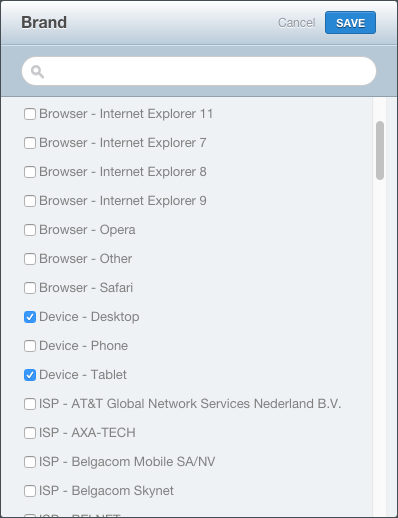](https://documentation.adhese.org/uploads/images/gallery/2024-06/mevzLB3xn7bpYmBe-targeting2.png) # Hierarchical Targeting With **hierarchical targeting**, each different targeting group is given a priority, which allows a targeting group with the lowest volume to be given priority over other targeting groups.Hierarchical targeting is not compatible with channels. Bookings with hierarchical targets must be booked on individual positions.
Hierarchical targeting is an option that is not included in the default Adhese set-ups. If you want to add this option, please contact [support](https://documentation.adhese.org/books/introduction/page/adhese-support).
An example: [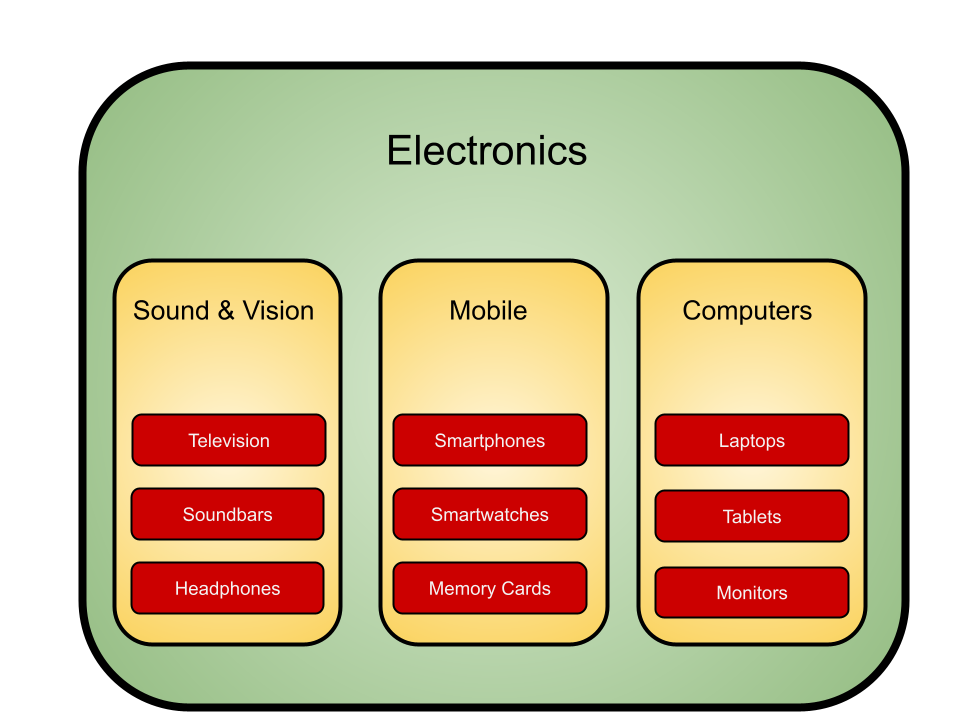](https://documentation.adhese.org/uploads/images/gallery/2024-06/VNYeAd7KXwIfKXwU-hierarchical-targeting1.png) There are three different target groups: - Main category (for example, Electronics - green) - Product group (for example, Computers - yellow) - Super category (for instance, Laptops or Tablets or Monitors - red) In the example above, bookings targeted at the **Super category** (red) take priority over bookings targeted at the **Product group** (yellow). Bookings targeted at the **Product group** (yellow) take priority over bookings targeted at the **Main category** (green). It is possible to target both the **Product group** and **Super category** when making a booking. For example, if you target the **Super Categories** *Laptop* and *Tablets* and the **Product group** *Computers*, the *Laptop* and *Tablets* targets will receive the highest priority. All other targets under the **Super category** (such as *Monitors*) will also show the booking because they fall under the **Product group** *Computers*, but only if there is no competing booking targeted on that particular **Super category**. When booking with the target **Main category** (*Electronics*), each **Product Group** (*Sound & Vision, Mobile and Computers*) and all underlying **Super Category** sections can display the booking, but only if there is no competing booking targeted at a particular **Product Group** or **Super Category**. # Advanced TargetingAdvanced Targeting is a feature that must be enabled and requires additional setup. Please contact Support if you would like to make use of this feature.
Targets that fall under advanced targeting do not contain forecast data. They are best used in combination with SOV delivery.
## Introduction Advanced targeting allows the Adhese instance admins to create complex targeting rules and save them with a label. Sales and Operations can select these targets when booking a campaign. ## Creating and Editing To manage Advanced Targeting in Adhese, click on the *Advanced Targeting* link in the Administration screen. The following screen will appear: [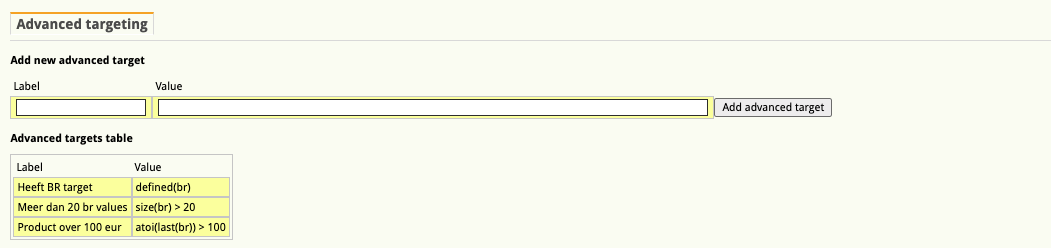](https://documentation.adhese.org/uploads/images/gallery/2024-06/kVO50XTewTk1c1Ia-advanced-targeting1.png) The screen is divided into two parts: - Add new advanced target - Advanced target table Click **Add new advanced target** to add a new one. To add a new target, enter a label, give it a value and click the *Add Advanced Target* button. The code must be unique for the application to accept it. The **Advanced Targets table** lists the advanced targets that have been created. ## Creating a new Targeting Expression Targeting expressions contain target identifiers and functions. The identifiers allow you to tell the system which targets you want to check, modify, etc.… With the functions, you can express what you want to do with the values. By 'target values' we mean the incoming values of an ad request, regardless of how they were injected into the request. So, this could be a value sent by the browser or app, a segment picked up by a server-side mapping, or a combination of both. ### Defining which targets to use Targets are referred to by their two-letter prefix code: “dt”, “co”, etc... just like in the POST body of an ad request. The exact values available for your Adhese instance can be found in the documentation of your account. The values of each target are always considered to be multi-valued. Their type is List<String>, a list of alphanumeric characters. If you know that a target is single-valued (as can be set in the 'definitions' of your instance), you can use last() to change the type to String (or Void if an empty list). ### Functions to express what to do with a target value Each function acts on the values sent by the request and is identified by the given 2-character target code. For example, given a request like the one below and using the target code 'sg', which is often used for 'segments': https://ads-myadheseinstance.adhese.com/json/sl123/tlall/**sgfamily;sports**/ag45/dtdesktop/II456d676e8d6878s687/ We can identify the target by its two-letter code, ‘sg,’ and see two values: ‘**family**’ and '**sports**'. ## List of all functions ### 1. Check the presence of the target ``` defined(target_code) ``` Checks if a target is present, even if it has an empty string value. ##### Example ``` defined(sg) ``` will match the following requests [https://ads-myadheseinstance.adhese.com/json/sl123/tlall/**sgfamily;sports**/ag45/dtdesktop/II456d676e8d6878s687/](https://ads-myadheseinstance.adhese.com/json/sl123/tlall/sgfamily;sports/ag45/dtdesktop/II456d676e8d6878s687/) https://ads-myadheseinstance.adhese.com/json/sl123/tlall/**sg**/ag45/dtdesktop/II456d676e8d6878s687/ but not match this one https://ads-myadheseinstance.adhese.com/json/sl123/tlall/ag45/dtdesktop/II456d676e8d6878s687/ ### 2. Count number of target values ``` size(target_code) ``` Counts the number of values for a given target code. ##### Example ``` size(sg) > 1 ``` will match [https://ads-myadheseinstance.adhese.com/json/sl123/tlall/**sgfamily;sports**/ag45/dtdesktop/II456d676e8d6878s687/](https://ads-myadheseinstance.adhese.com/json/sl123/tlall/sgfamily;sports/ag45/dtdesktop/II456d676e8d6878s687/) https://ads-myadheseinstance.adhese.com/json/sl123/tlall/**sgfamily**/ag45/**sggourmet**/dtdesktop/II456d676e8d6878s687/ but will not match this one https://ads-myadheseinstance.adhese.com/json/sl123/tlall/**sgfamily**/ag45/dtdesktop/II456d676e8d6878s687/ ### 3. Check the presence of value ``` target_code intersects {'value'} ``` Returns true if ‘value’ is part of the values for the given target_code ##### Example ``` sg intersects {'sports'} ``` will match [https://ads-myadheseinstance.adhese.com/json/sl123/tlall/**sgfamily;sports**/ag45/dtdesktop/II456d676e8d6878s687/](https://ads-myadheseinstance.adhese.com/json/sl123/tlall/sgfamily;sports/ag45/dtdesktop/II456d676e8d6878s687/) https://ads-myadheseinstance.adhese.com/json/sl123/tlall/**sgsports**/ag45/**sggourmet**/dtdesktop/II456d676e8d6878s687/ but will not match https://ads-myadheseinstance.adhese.com/json/sl123/tlall/**sgfamily**/ag45/dtdesktop/II456d676e8d6878s687/ ### 4. Logical operators ``` (condition1 && condition2) || (condition3 && condition4) ``` **&&** expresses ‘and’, **||** expresses ‘or’, **( )** round brackets can be used for grouping expressions ##### Example ``` sg intersects {'family'} || (sg intersects {'sports'} && dt intersects {'desktop'}) ``` will match [https://ads-myadheseinstance.adhese.com/json/sl123/tlall/**sgfamily;sports**/ag45/dtdesktop/II456d676e8d6878s687/](https://ads-myadheseinstance.adhese.com/json/sl123/tlall/sgfamily;sports/ag45/dtdesktop/II456d676e8d6878s687/) https://ads-myadheseinstance.adhese.com/json/sl123/tlall/**sgsports**/ag45/sggourmet/**dtdesktop**/II456d676e8d6878s687/ but will not match https://ads-myadheseinstance.adhese.com/json/sl123/tlall/**sgsports**/ag45/**dtmobile**/II456d676e8d6878s687/ ### 5. Numerical comparison operators ``` atoi(last(target_code)) operator integer ``` Compares the value of a target_code (converted from a string to an integer) with a fixed integer. ##### Available operators - < : less than - <= : less than or equal - > : greater than - >= : greater than or equal - <> : not equal - = : equal ##### Example ``` atoi(last(ag)) > 35 && atoi(last(ag)) <= 65 ``` will match [https://ads-myadheseinstance.adhese.com/json/sl123/tlall/sgfamily;sports/**ag45**/dtdesktop/II456d676e8d6878s687/](https://ads-myadheseinstance.adhese.com/json/sl123/tlall/sgfamily;sports/ag45/dtdesktop/II456d676e8d6878s687/) https://ads-myadheseinstance.adhese.com/json/sl123/tlall/sgsports/**ag65**/sggourmet/dtdesktop/II456d676e8d6878s687/ but will not match https://ads-myadheseinstance.adhese.com/json/sl123/tlall/sgsports/**ag25**/dtmobile/II456d676e8d6878s687/ ### 6. Decode urls and split ``` last(split(decode64(last(target_code))),'/') = string ``` Converts the last value of the given target_code from base64 encoded to a string, splits it by slash and compares the last item with a string ##### Example ``` last(split(decode64(last(br)),'/')) = 'index.html' ``` will match https://ads-myadheseinstance.adhese.com/json/sl123/tlall/sgsport/ag25/dtmobile/II456d676e8d6878s687/**rfL2Zvby9iYXIvaW5kZXguaHRtbA==**/ but will not match https://ads-myadheseinstance.adhese.com/json/sl123/tlall/sgsport/ag25/dtmobile/II456d676e8d6878s687/**rfL2Zvby9iYXIvb3ZlcnZpZXc=**/ # Managing Targets **Important rules to keep in mind when working with targets:**1. The code cannot contain any punctuation. The only exceptions allowed are an underscore (**\_**), an ampersand (**&**) (to add two or more codes in one target), and an exclamation mark (**!**) (for negative targets). 2. Using a '-' will cause problems in the backend (rotation file) once the target is used in a booking 3. Targets have a character limit of 40. If a single target would exceed 40 characters, consider using [advanced targeting](https://documentation.adhese.org/books/inventory-management/page/advanced-targeting)).
To manage targets in Adhese, click the *Targets - Manage targets* link in the administration screen. The following screen is then displayed: [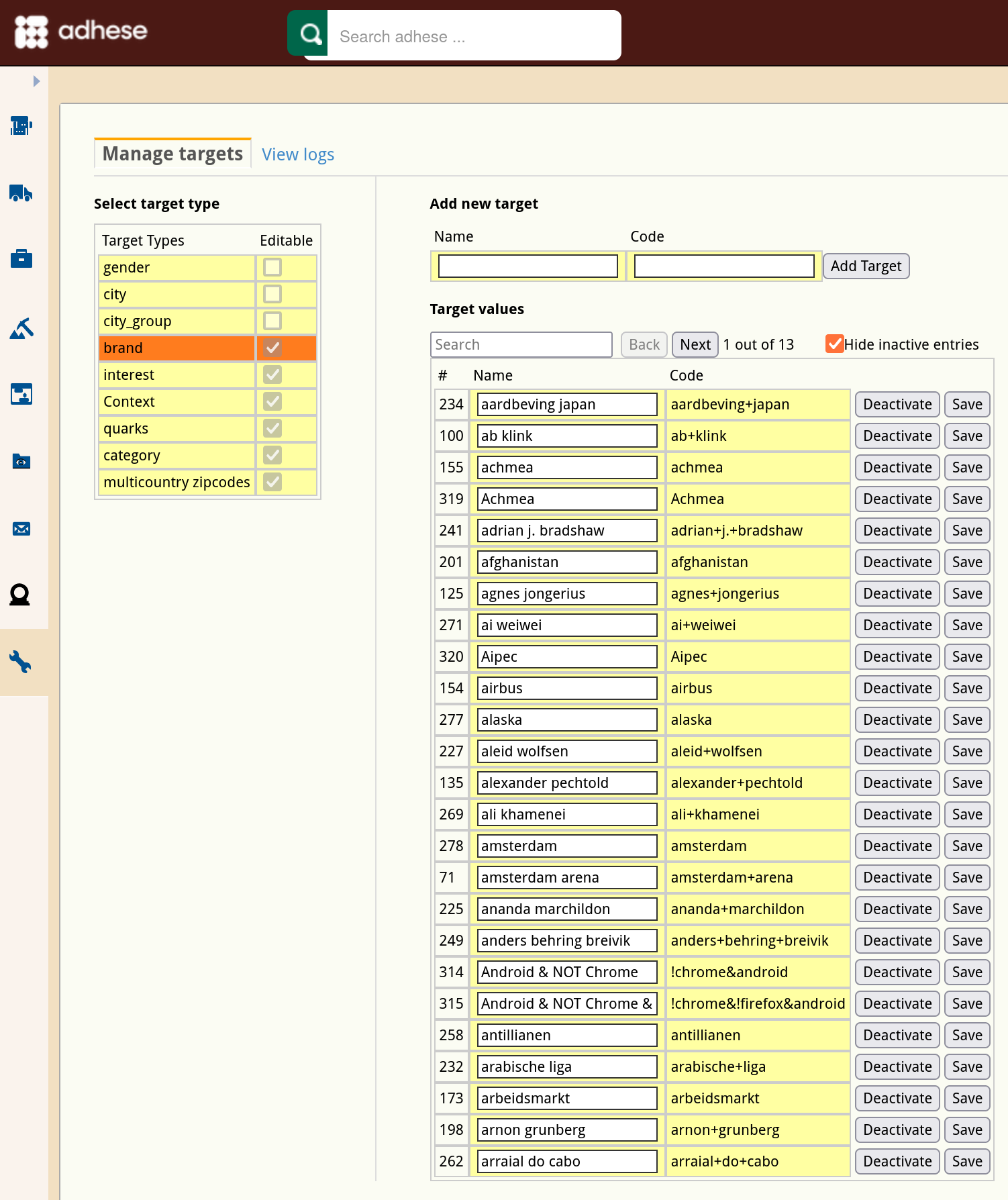](https://documentation.adhese.org/uploads/images/gallery/2024-10/WwkoSDxuOLhUskJM-schermafdruk-van-2024-10-29-09-37-48.png) The screen is divided into two parts: - Select target types on the left side - Add new target values on the right side The **Select target types** part shows all the available target types and indicates whether they are editable or not. Ticked boxes are editable. Empty boxes are not editable. When you select a target type, the colour changes from yellow to orange, and your selection is displayed in the *Add new target/target values* part of the screen. Click **Add new target** if you want to add a new target value. To add a new target, fill in a name, give it a code and hit the *Add Target* button. The code has to be unique to be accepted by the application. - a search box - a back and next button showing the number of pages for this particular target - a checkbox to hide or show inactive entries. The list can be sorted by clicking the *\#*, *name* or *code*. You can edit the name of each target. After editing, you can save your changes by clicking the *save* button. To deactivate a target, simply click on the *deactivate* button. Once deactivated, the button's label will change to *activate*. To find out more about how targeting can be used within a booking, see the [Targeting](https://documentation.adhese.org/books/campaign-management/page/bookings#bkmrk-targeting) section of the **Bookings** page # Adobe Destination ConnectionSend audience segments to Adhese for targeted ad delivery on publisher-owned inventory. Files are exported to Adhese's secure S3 bucket.
# Adhese connection ## Overview You can send audience segments from *Adobe Experience Platform* to Adhese and use them for targeted ad delivery on Adhese-served inventory. Audience exports are delivered as files to Adhese's secure cloud storage. > This destination connector and documentation page are created and maintained by *Adhese*. For any inquiries or update requests, contact us at [Support Adhese](https://adhese.atlassian.net/servicedesk/customer/portals). ## Use cases To help you better understand how and when you should use the *Adhese* destination, here are sample use cases that *Adobe Experience Platform* customers can solve by using this destination. ### Use Audience Segmentation for advertising campaigns A publisher or retailer builds first-party audiences in *Adobe Experience Platform*, for example: frequent readers of a content category, regular buyers of selected product categories, loyalty program members; and sends these audiences to their Adhese instance to enable advertisers to [target](https://documentation.adhese.org/books/inventory-management/page/targeting) them with relevant campaigns on the retailer's or publisher's own [inventory](https://documentation.adhese.org/books/inventory-management/page/the-inventorys-structure). ## Prerequisites Before you can send audiences to Adhese, you must be onboarded as an Adhese customer. Contact your Adhese account manager or [Support Adhese](https://adhese.atlassian.net/servicedesk/customer/portals) to set up the integration. During onboarding, Adhese provides you with: - An **Amazon S3 access key ID** and **secret access key**, used to authenticate the connection - The **Adhese customer name** to export to - Your active Adhese **region** [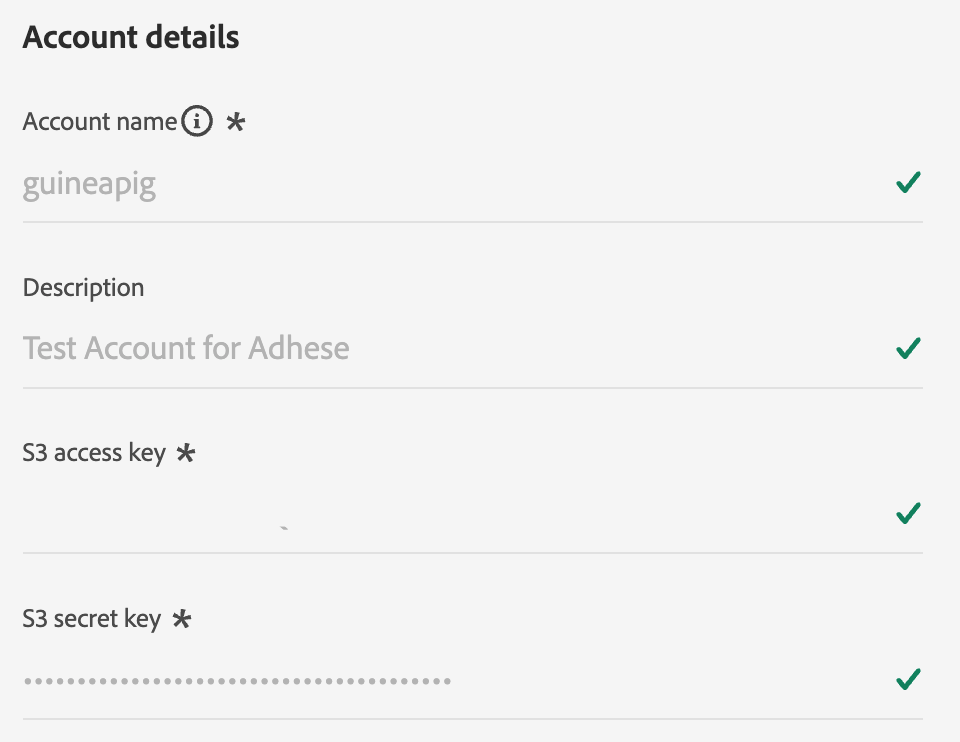](https://documentation.adhese.org/uploads/images/gallery/2026-06/3AFUBMXaUvWI0Qi2-image.png) No data is shared with other Adhese customers: your credentials grant write access exclusively to your own folder. ## Supported identities *Adhese* supports the activation of identities described in the table below. Use the identity that you also use to identify users on your website or app, so Adhese can match the exported audience members at ad-delivery time. See the following link for more information on configuring [identities](https://experienceleague.adobe.com/en/docs/experience-platform/identity/features/namespaces) in *Adobe Experience*.| **Target Identity** | **Description** | **Considerations** |
|---|---|---|
| GAID | Google Advertising ID | Select the GAID target identity when your source identity is a GAID namespace. |
| IDFA | Apple ID for Advertisers | Select the IDFA target identity when your source identity is an IDFA namespace. |
| ECID | Experience Cloud ID | A namespace that represents ECID. This namespace can also be referred to by the following aliases: "Adobe Marketing Cloud ID", "Adobe Experience Cloud ID", "Adobe Experience Platform ID". Read the following document on ECID for more information. |
| email\\\_lc\\\_sha256 | Email addresses hashed with the SHA256 algorithm | Both plain text and SHA256 hashed email addresses are supported by *Adobe Experience Platform*. When your source field contains unhashed attributes, check the **Apply transformation** option, to have \*Experience Platform\* automatically hash the data on activation. |
| extern\\\_id | Custom user IDs | Select this target identity when your source identity is a custom namespace, for example your own first-party user ID that is also available to Adhese at ad-delivery time. |
| **Audience origin** | **Supported** | **Description** |
|---|---|---|
| Segmentation Service | Yes | Audiences generated through the Experience Platform [Segmentation Service](https://experienceleague.adobe.com/en/docs/experience-platform/segmentation/home). |
| All other audience origins | Yes | This category includes all audience origins outside of audiences generated through the Segmentation Service. Some examples include: custom upload audiences imported into Experience Platform from CSV files, look-alike audiences, federated audiences, audiences generated in other Experience Platform apps such as [*Adobe Journey Optimizer*](https://experienceleague.adobe.com/en/docs/journey-optimizer/using/audiences-profiles-identities/audiences/create/create-landing-page), and more. |
| **Audience data type** | **Supported** | **Description** | **Use cases** |
|---|---|---|---|
| People audiences | Yes | Based on customer profiles, allowing you to target specific groups of people for marketing campaigns. | Frequent buyers, cart abandoners |
| Account audiences | No | Target individuals within specific organizations for account-based marketing strategies. | B2B marketing |
| Prospect audiences | No | Target individuals who are not yet customers but share characteristics with your target audience. | Prospecting with third-party data |
| Dataset exports | No | Collections of structured data stored in the *Adobe Experience Platform* Data Lake. | Reporting, data science workflows |
| **Item** | **Type** | **Notes** |
|---|---|---|
| Export type | Audience export | You are exporting all members of an audience with the identifiers (such as ECID, hashed email, or a custom user ID) used in the *Adhese* destination. |
| Export frequency | Batch | [Batch destinations export](https://experienceleague.adobe.com/en/docs/experience-platform/destinations/how-destinations-work/profile-export-behavior#file-based-destinations) files to downstream platforms in increments of three, six, eight, twelve, or twenty-four hours. |