Do not forget to select a group level in the **Channel** drop-down. The highest group level is 1. The higher the number the lower the group level. For more information on group levels, see [this page](https://documentation.adhese.org/books/campaign-management/page/the-delivery-scheme-of-adhese-explained#bkmrk-location-level).
2. Create a new position; see [Create a new position](https://documentation.adhese.org/books/inventory-setup/page/positions#bkmrk-create-a-new-positio) chapter. 3. Click *Channels* in the *Administration* screen. The *Channels* screen opens: [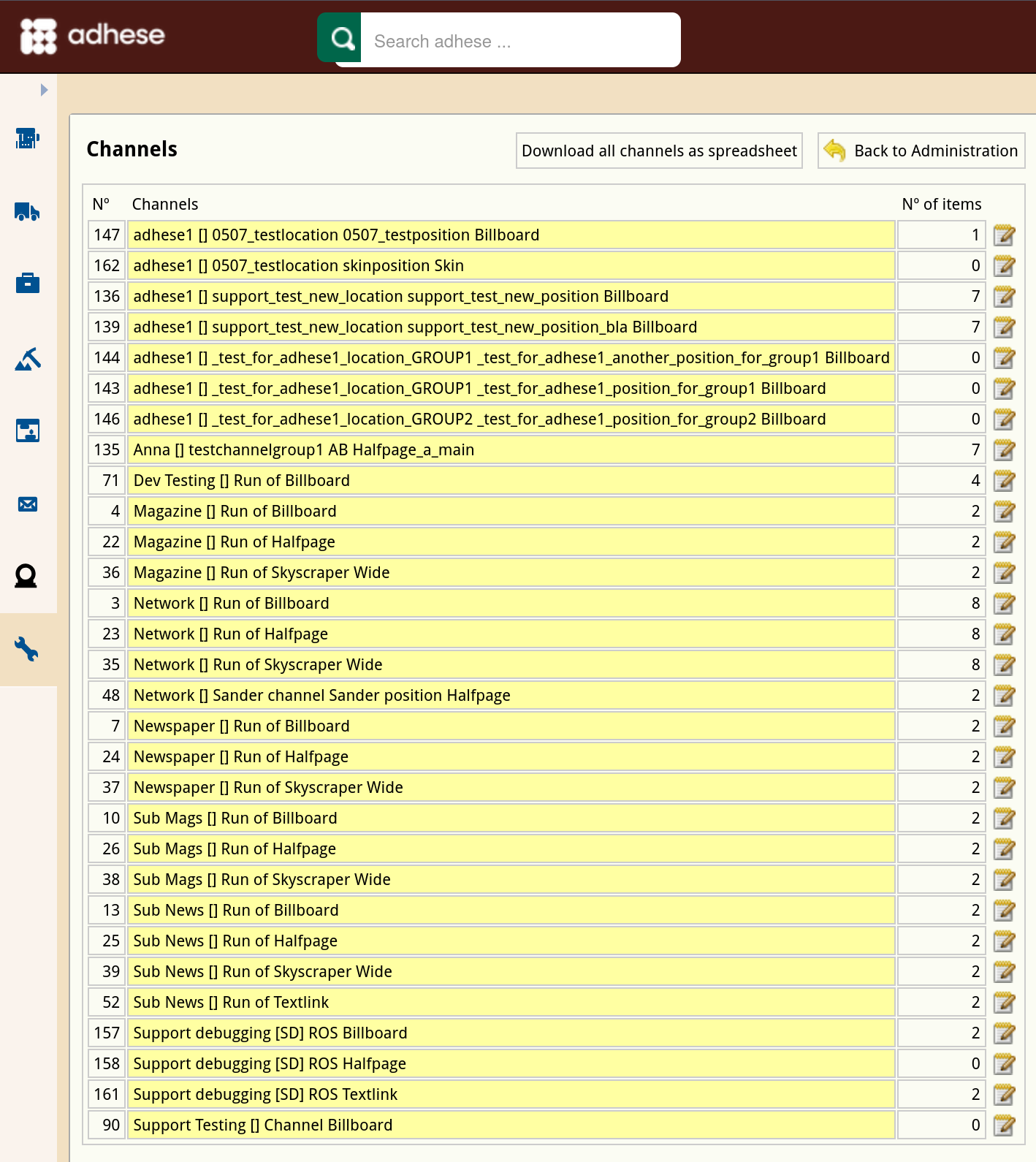](https://documentation.adhese.org/uploads/images/gallery/2024-10/97264bl4BsHRSsXx-schermafdruk-van-2024-10-22-13-20-11.png) 4. Click the channel position you have just created. The *Edit channel* screen opens. Based on the selected format, all available positions across your entire network appear in the left column. [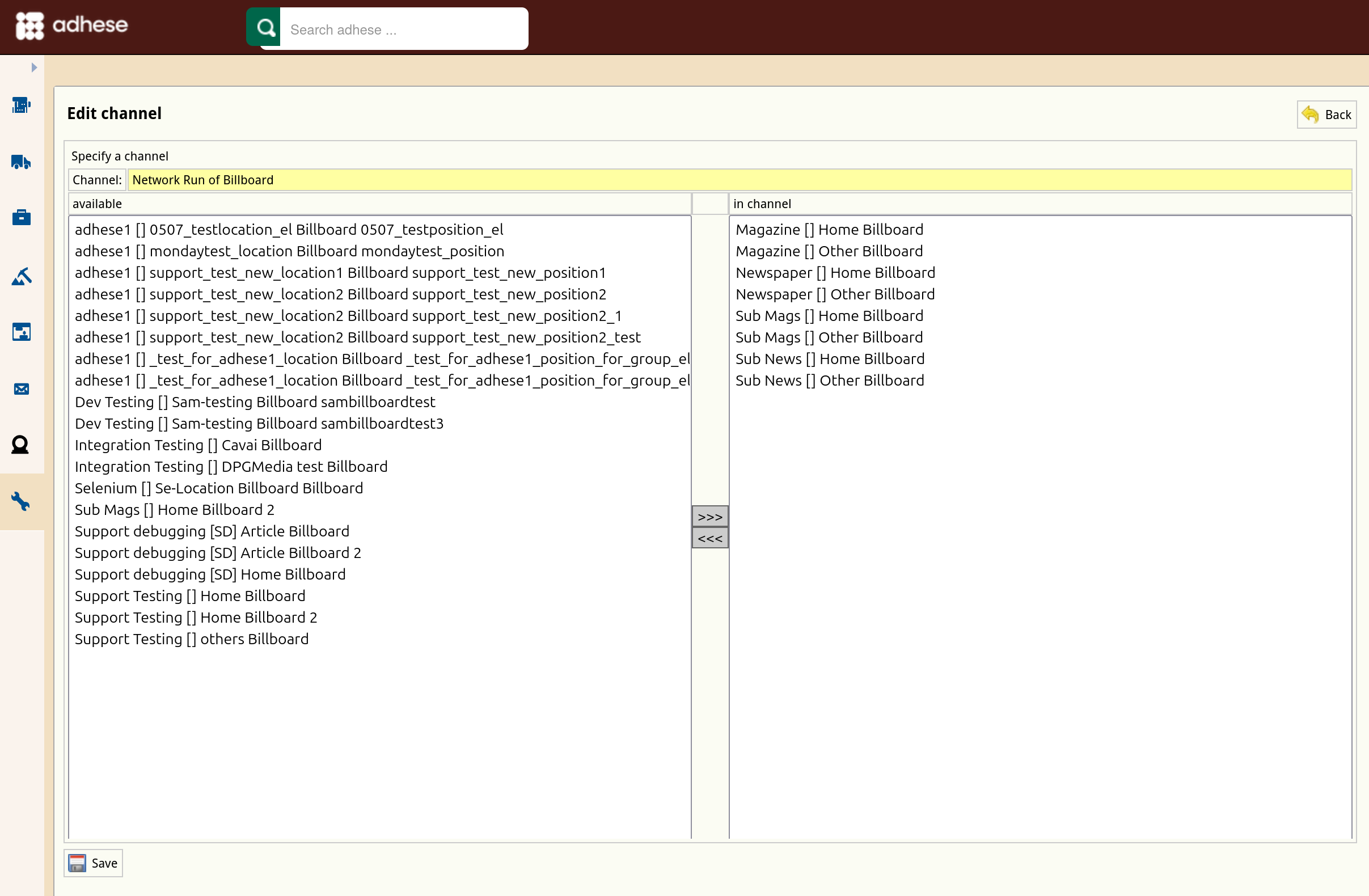](https://documentation.adhese.org/uploads/images/gallery/2024-10/aTYPBtxtBHFH22XR-schermafdruk-van-2024-10-22-13-21-08.png) 5. To add a position to the channel, select a position from the list of available positions on the left and click the >>> button. 6. To remove a position from the channel, select a position from the right-hand list of positions in the channel and click the <<< button. 7. Click the *Save* button to finish. # Edit a channel To edit a channel: 1. Go to the *Administration* screen. Click *Admin* in the left navigation menu. 2. Click *Channels*. The *Channels* screen opens. 3. On the *Channels* screen, click the name of the channel you want to modify or use the edit icon [](https://documentation.adhese.org/uploads/images/gallery/2024-06/Gk6rxgFjOAIS2eci-edit.png). The *Edit channel screen* opens. 4. Change the channel by: 1. Including additional positions: 1. Select the position from the list on the left, and 2. Click the >>> button. 2. Excluding positions from the channel: 1. Select the position from the list on the right, and 2. Click the <<< button. 5. Click *Save*. # List all channels and positions To obtain a list of all Channels and positions, and a list of all positions that are not currently in a Channel, go to Administration and click *Channels*. On the *Channels* screen, click the *Download all channels as spreadsheet* button. The spreadsheet contains two tabs: - **Positions**, listing all channels and the positions they currently contain, with the following columns: - Position ID - Position publication - Position location - Position format - Channel ID - Channel publication - Channel location - Channel format - Channel group level - **Positions not in channels**, listing all positions not currently in a channel, with the following columns: - Position ID - Position publication - Position location - Position format