# Locations

A **location** is a (sub)section within a publication, such as a home page, the local news or lifestyle section, or the daily newsletter.

# Create a new location

To create a new location:

1. Click *Admin* in the left navigation menu. This opens the *Administration* screen.
2. Click *Locations*. The *Locations* screen opens:
3. The *Locations* screen consists of a table with four columns:
    
    
    1. The *N<sup>o</sup>* column displays the ID of the location.
    2. The *Location* column shows the name of the publication and the location.
    3. The *Active and future bookings* column indicates the number of bookings that are currently booked on that location.
    4. The last column details whether the location is a single position or if the location belongs to a [channel](https://documentation.adhese.org/books/inventory-management/page/channels) of positions.
    
    To filter locations belonging to a specific publication, select a publication from the **Show only** drop-down menu above the list and click the magnifying glass icon
    
    [![Schermafdruk van 2024-10-18 15-28-58.png](https://documentation.adhese.org/uploads/images/gallery/2024-10/scaled-1680-/AoD5uondALq4gtO1-schermafdruk-van-2024-10-18-15-28-58.png)](https://documentation.adhese.org/uploads/images/gallery/2024-10/AoD5uondALq4gtO1-schermafdruk-van-2024-10-18-15-28-58.png)
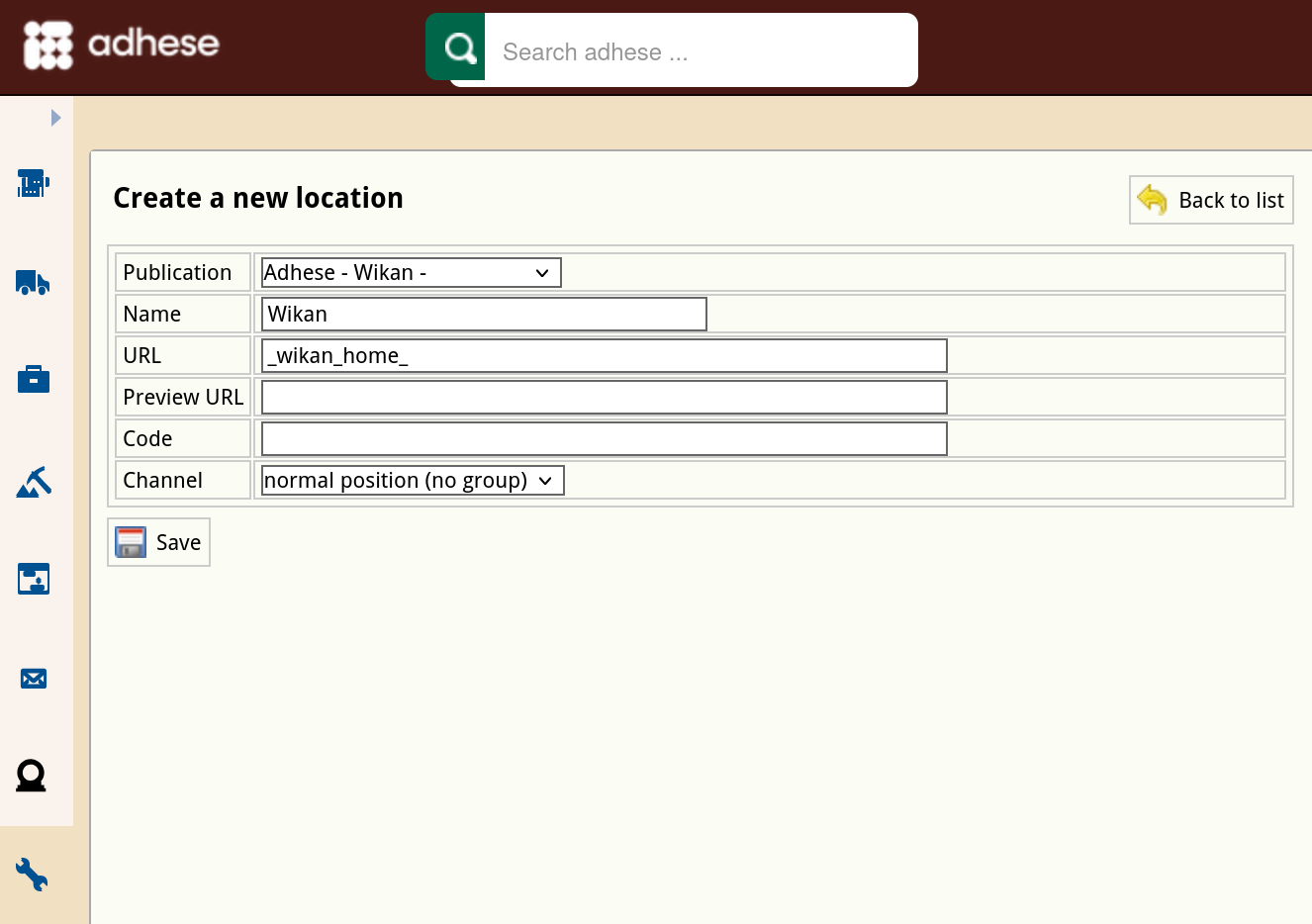
4. Click the *Create a new location* button. This opens the *Create a new location* screen.  
    [![Schermafdruk van 2024-10-18 15-29-41.png](https://documentation.adhese.org/uploads/images/gallery/2024-10/scaled-1680-/yM0LMMGF4OALBDBw-schermafdruk-van-2024-10-18-15-29-41.png)](https://documentation.adhese.org/uploads/images/gallery/2024-10/yM0LMMGF4OALBDBw-schermafdruk-van-2024-10-18-15-29-41.png)
5. In the **Publication** drop-down, select the publication to which the location belongs.
6. Enter the name of the location in the **Name** field. Choose a clear and logical name, such as *magazine home*.
7. Define the URL for the location in the **URL** field. The URL should follow the scheme agreed upon during the setup process. Please note that each location must have a unique URL, and no two locations can share the same URL. Multiple URLs can be defined for a location by separating them with a semicolon (;).
    
    <p class="callout info">To verify whether a location URL already exists, navigate to the *Admin* screen and select *Positions*. Type the URL in the search bar and click the magnifying glass icon. If the URL is already in use, it will be listed on the results page. In some cases, the results page does not display the URL of an existing location. This may be because the URL belongs to an inactive publication. To examine this, click on the *Download all positions as spreadsheet* button. Open the spreadsheet and check whether the URL belongs to an inactive publication.</p>
    
    <p class="callout info">If the location refers to a channel, the URL will have no effect. Therefore, we recommend ignoring this property when dealing with channels.</p>
8. (Optional) In the **Code** field, enter the location code or foreign key if Adhese integrates with your existing CMS.
9. Determine whether the location is a standard location or a channel location by choosing a group level from the **Channel** drop-down menu:
    
    
    - If the location is a separate location, select *group level 0*.
    - If the location is a channel, select *group level 1* or higher.
10. Click the save button.

<p class="callout info">The **group level** sets the priority of a channel and is determined within the database. Here is an example to illustrate the idea. Take the following two channels: *Newspaper \[News\] Sports Football Run Of* and *Newspaper \[News\] Sports Run Of.* Note that the *Sports* channel contains all sports positions, including the football positions of the *Sports Football* channel. The *Sports Football* channel has a higher priority (and, therefore, a lower group level) than the *Sports* channel because the *Sports Football* channel only contains the *Football* positions.</p>

# Edit a location

To edit a location:

1. Go to the *Administration* screen. Click *Admin* in the left navigation menu.
2. Click *Locations*.
3. In the list of locations, click the name of the location you want to modify or click the edit icon [![afbeelding.png](https://documentation.adhese.org/uploads/images/gallery/2024-06/scaled-1680-/zQxKceXDreQdwfQ0-afbeelding.png)](https://documentation.adhese.org/uploads/images/gallery/2024-06/zQxKceXDreQdwfQ0-afbeelding.png). The *Edit location* screen opens:  
    [![Schermafdruk van 2024-10-18 15-49-11.png](https://documentation.adhese.org/uploads/images/gallery/2024-10/scaled-1680-/YzRwqASHJqOjSQ2j-schermafdruk-van-2024-10-18-15-49-11.png)](https://documentation.adhese.org/uploads/images/gallery/2024-10/YzRwqASHJqOjSQ2j-schermafdruk-van-2024-10-18-15-49-11.png)
4. Change any of the location’s details.
5. Click *Save*.