# Publications

A publisher maintains online **publications** such as a website, blog, video channel, newsletter, smartphone app, or webshop. Adhese is platform-agnostic: it can support any type of publication.

You can filter the *Publications* screen by publisher and select a publisher from the **Show only** drop-down menu above the list. You can filter the *Publications* screen by publication status using the **Filter** drop-down menu. Determine the number of results to display from the **Number of results** drop-down. Use the *search* bar to search for a specific publication.

# Create a new publication

To add a new publication:

1. Click *Admin* in the left navigation menu. This opens the *Administration* screen.
2. Click *Publications*. The *Publications* screen opens:  
    [![Schermafdruk van 2024-10-18 14-58-37.png](https://documentation.adhese.org/uploads/images/gallery/2024-10/scaled-1680-/8ryYdNJC5cB9B3bZ-schermafdruk-van-2024-10-18-14-58-37.png)](https://documentation.adhese.org/uploads/images/gallery/2024-10/8ryYdNJC5cB9B3bZ-schermafdruk-van-2024-10-18-14-58-37.png)
3. Click the *Create a new publication* button. This opens the *Create New Publication* screen, where you enter the new publication details.  
    [![Schermafdruk van 2024-10-18 14-59-09.png](https://documentation.adhese.org/uploads/images/gallery/2024-10/scaled-1680-/wqAhHRuCTgBJUJJJ-schermafdruk-van-2024-10-18-14-59-09.png)](https://documentation.adhese.org/uploads/images/gallery/2024-10/wqAhHRuCTgBJUJJJ-schermafdruk-van-2024-10-18-14-59-09.png)
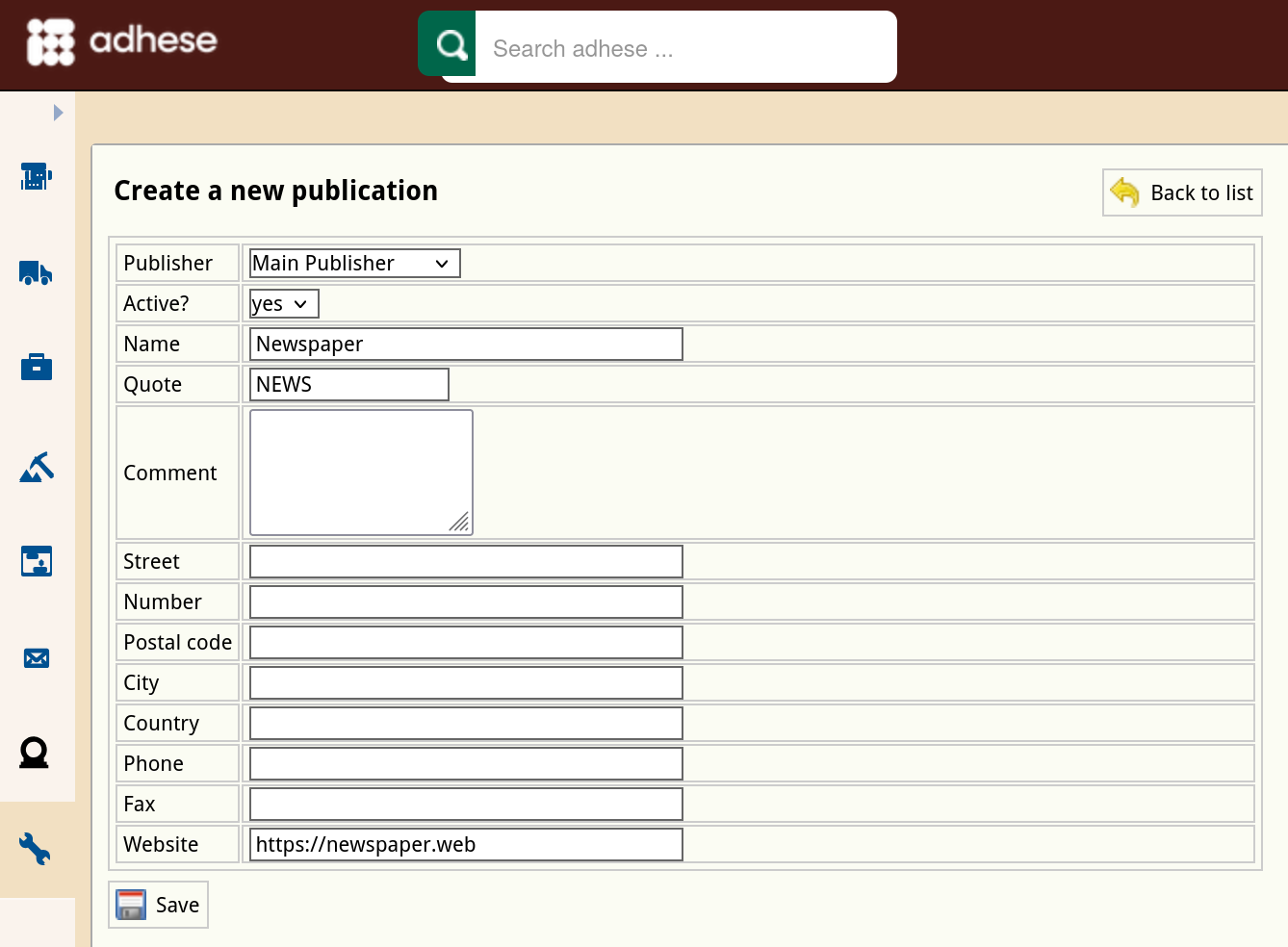
4. In the **Publisher** drop-down, select the publisher to which the publication belongs.
5. Select *yes* or *no* to determine whether the status of the publication is active or not in the **Active?** drop-down. By default, a new publication is active. If a publication is set to inactive, you will not be able to use it to serve ads.
6. Enter a name for the publication in the **Name** field.
7. (Optional) Enter a short name for the publication in the **Quote** field. Adhese uses the quote as a short notation for the publication and displays it in the list of locations (see [Create a new location](https://documentation.adhese.org/books/inventory-setup/page/locations#bkmrk-create-a-new-locatio)).
8. (Optional) Enter the publisher’s contact details in the **Street**, **Number**, **Postal code**, **City**, **Country**, **Phone**, and **Fax** field
9. To preview uploaded creatives in Adhese, provide the URL of the publication's website in the **Website** field.
10. Click the *Save* button at the bottom of the form to save your new publication.

<p class="callout warning">Make sure to use a full URL (e.g. https://example.com) instead of a short URL (e.g. example.com)</p>

# Edit a publication

To edit a publication:

1. Go to the *Administration* screen. Click *Admin* in the left navigation menu.
2. Click *Publications*.
3. In the list of publications, click the name or the edit icon [![deactivate_a_publisher1.png](https://documentation.adhese.org/uploads/images/gallery/2024-06/scaled-1680-/0oasbva32UbrG3zS-deactivate-a-publisher1.png)](https://documentation.adhese.org/uploads/images/gallery/2024-06/0oasbva32UbrG3zS-deactivate-a-publisher1.png) for the publication you want to edit. This opens the *Edit publication* screen.  
    [![Schermafdruk van 2024-10-18 15-00-41.png](https://documentation.adhese.org/uploads/images/gallery/2024-10/scaled-1680-/fXSq4CjTp9hV1K3D-schermafdruk-van-2024-10-18-15-00-41.png)](https://documentation.adhese.org/uploads/images/gallery/2024-10/fXSq4CjTp9hV1K3D-schermafdruk-van-2024-10-18-15-00-41.png)
4. Change any of the publication’s details.
5. Click *Save*.

# Deactivate a publication

To deactivate a publication:

1. Go to the *Administration* screen. Click *Admin* in the left navigation menu.
2. Click *Publications*.
3. In the list of publications, click the name of the publication or click the edit icon [![deactivate_a_publisher1.png](https://documentation.adhese.org/uploads/images/gallery/2024-06/scaled-1680-/J9AnPXGXzkkIjUtX-deactivate-a-publisher1.png)](https://documentation.adhese.org/uploads/images/gallery/2024-06/J9AnPXGXzkkIjUtX-deactivate-a-publisher1.png) for the publication you want to deactivate. This opens the Edit a publication screen.
4. Change the **Active** field from *yes* to *no*.
5. Click *Save*.

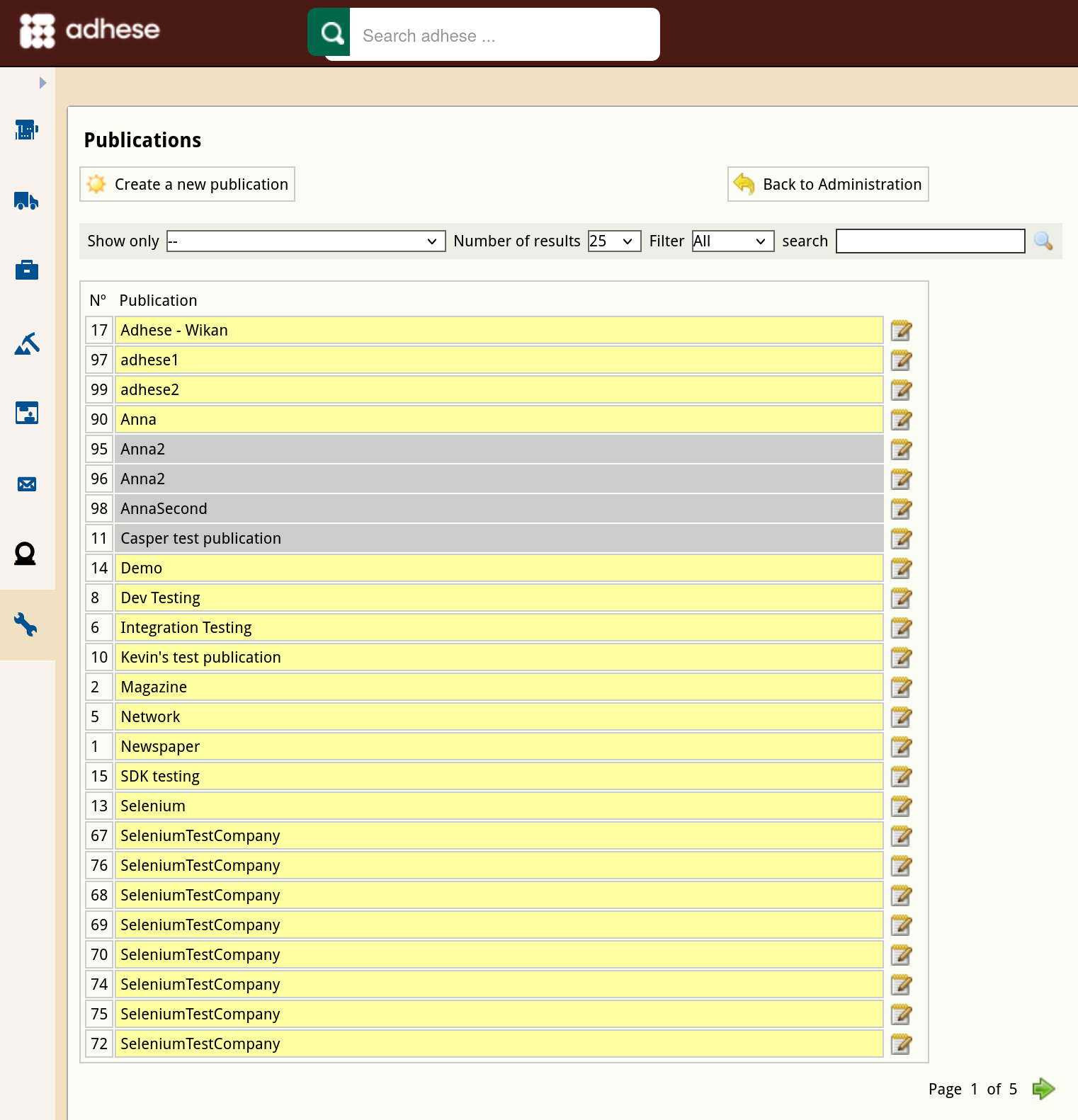
The publication and its positions are no longer available in the *Booking* header. An inactive publication will be grey (instead of yellow) in the list of publishers.

[![Schermafdruk van 2024-10-18 15-02-44.png](https://documentation.adhese.org/uploads/images/gallery/2024-10/scaled-1680-/dWT2qabJLhNZ9UA6-schermafdruk-van-2024-10-18-15-02-44.png)](https://documentation.adhese.org/uploads/images/gallery/2024-10/dWT2qabJLhNZ9UA6-schermafdruk-van-2024-10-18-15-02-44.png)

<p class="callout danger">Deactivating a publication prevents new bookings from being created for it. Running bookings, including bookings where the publication is part of a channel, remain active. The owner of the deactivated publication is responsible for removing all requests to Adhese.   
To prevent running bookings from delivering on deactivated publications, create a 100% SOV booking coupled with an empty ad on the highest priority. Check that this booking has priority over all other bookings in the competing bookings list and/or the planned daily traffic graph.  
</p>