Before submitting a request to the Support Team, we recommend consulting the [Adhese documentation](https://documentation.adhese.org). You will find a *Help* button in the top-right corner of the Adhese interface, which takes you to the documentation of the Adhese platform. Check whether your question or issue has already been reported or resolved.
When contacting support, please try to provide as much information as possible.
# How to get help? ## Adhese Support portal To submit a request via our Support Portal: 1. Log in to the Adhese [Support portal](http://support.adhese.com). [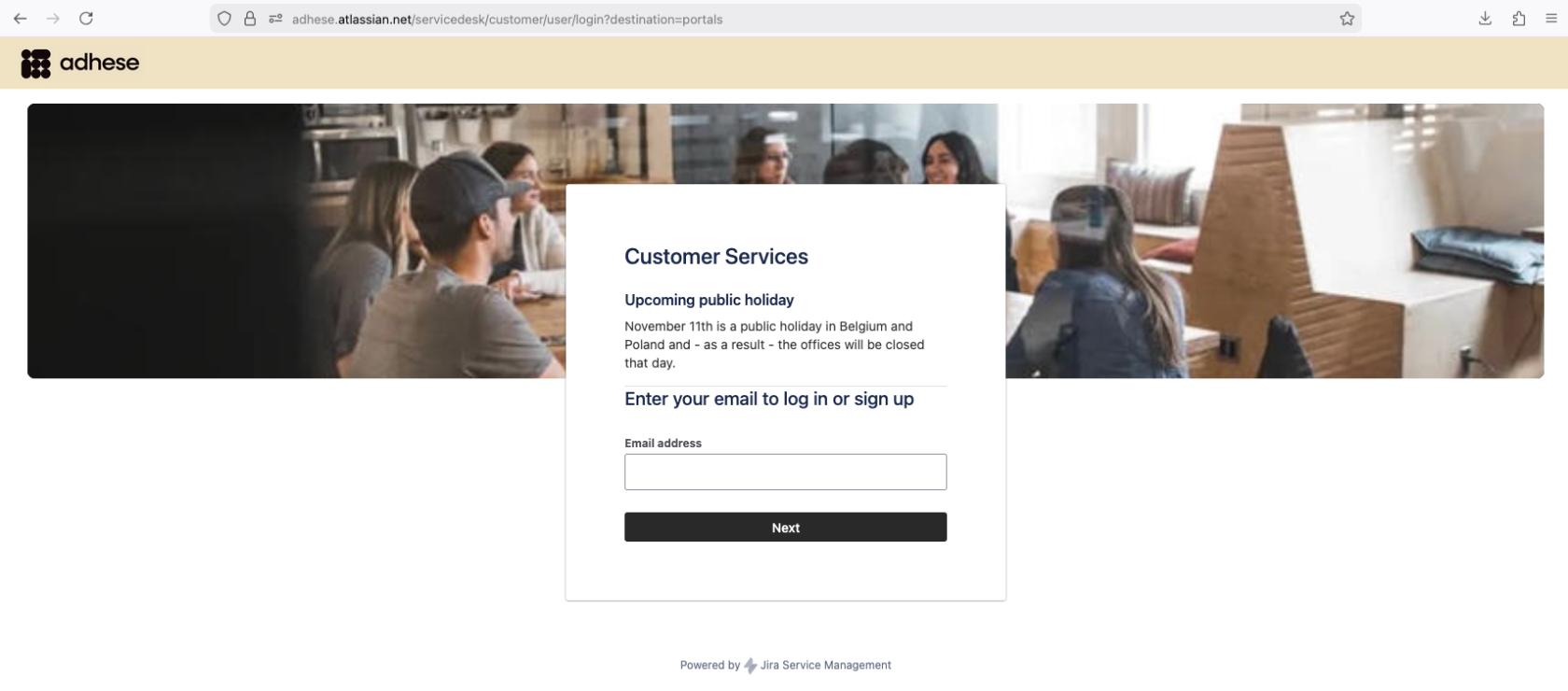](https://documentation.adhese.org/uploads/images/gallery/2025-12/DhKuggfEEJ9ZZwfT-schermafbeelding-2025-12-03-om-15-17-42.png) 2. Enter your email in the **Email** field. Click *next*. The *Adhese Support* screen opens:If the Support Portal recognises your company's domain, an account will be created automatically when you submit your first ticket.
[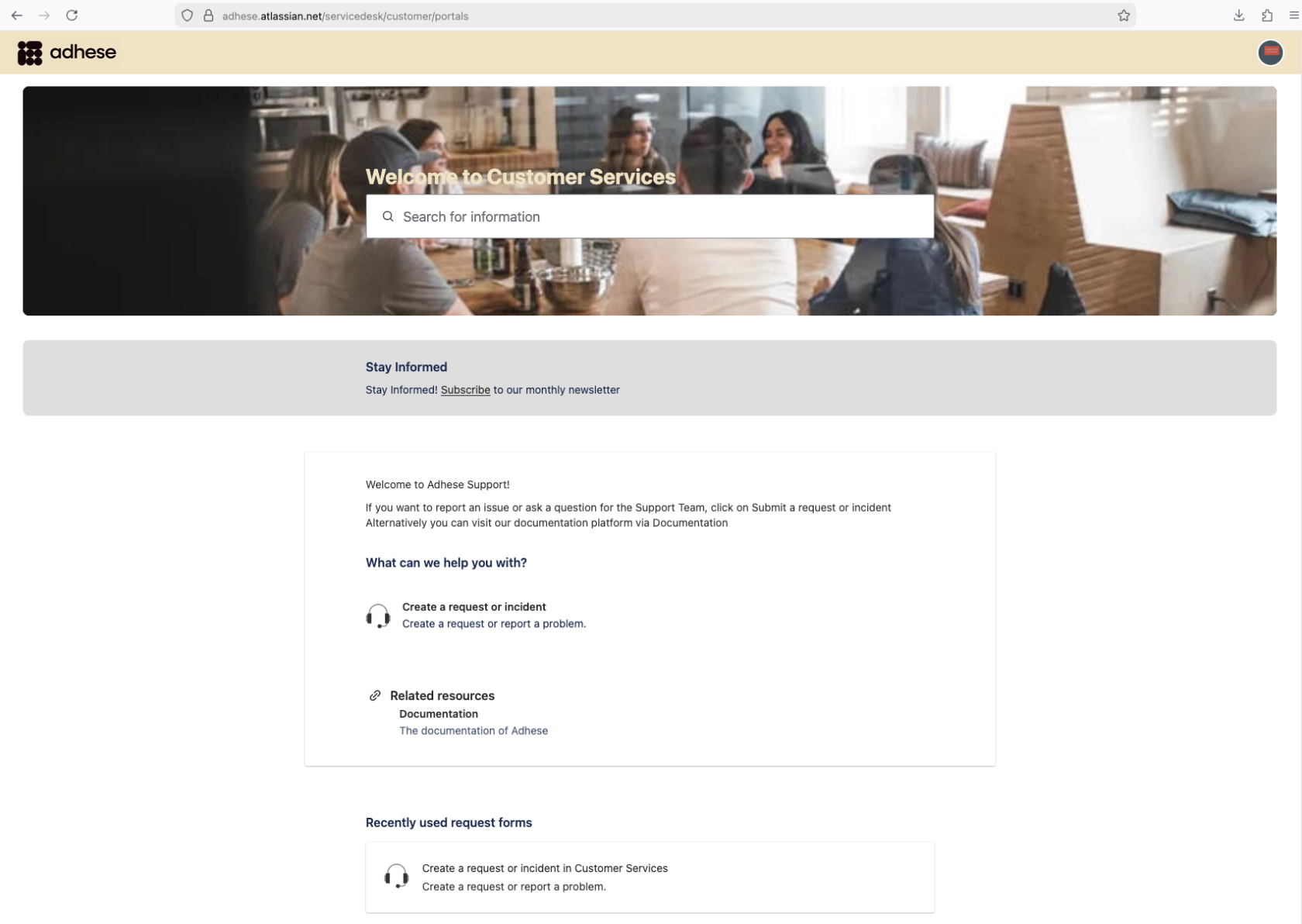](https://documentation.adhese.org/uploads/images/gallery/2025-12/dXWTGyKJZJ2911qR-schermafbeelding-2025-12-03-om-15-16-32.png) 3. To submit a new request, click *Create a request or incident.* A new screen will open where you can fill in your request. [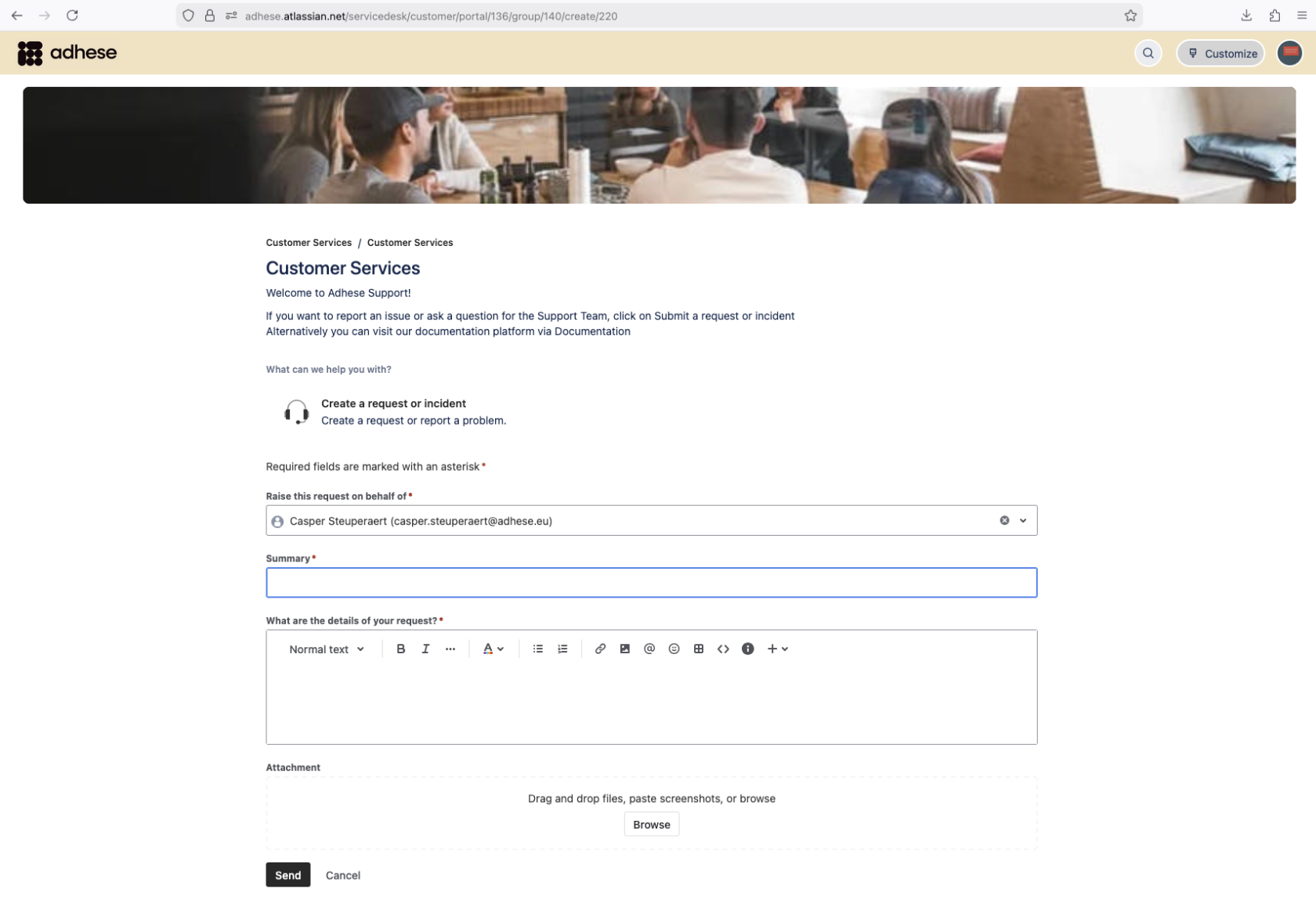](https://documentation.adhese.org/uploads/images/gallery/2025-12/Tu3kANBha0Cqj3cq-schermafbeelding-2025-12-03-om-15-22-12.png) 4. Specify the following details: 1. Enter the subject of your request in the **Summary** field. Choose a short but comprehensive subject line. 2. Enter the details of your request in the **What are the details of your request** field.The description should include the actions you or your staff have taken to ensure the issue is not caused by your infrastructure, code, or recent system changes.
3. (Optional) Specify the ID of the campaign, booking, or creative. 4. (Optional) Add or drop files, such as screenshots, in the **Attachment** field. 5. Click the *Send* button to send your request. Your request will become a ticket, and you will receive an email confirming your support request. The confirmation contains: - Your request. - A ticket number for this request. - A URL that redirects to your request on our [Support portal](http://support.adhese.com/). 6. You will be notified by e-mail when there is an update or resolution to your ticket. ## Adhese support by email Send an email to our team of Support Engineers atThe description should include the actions you or your staff have taken to ensure the issue is not caused by your infrastructure, code, or recent system changes.
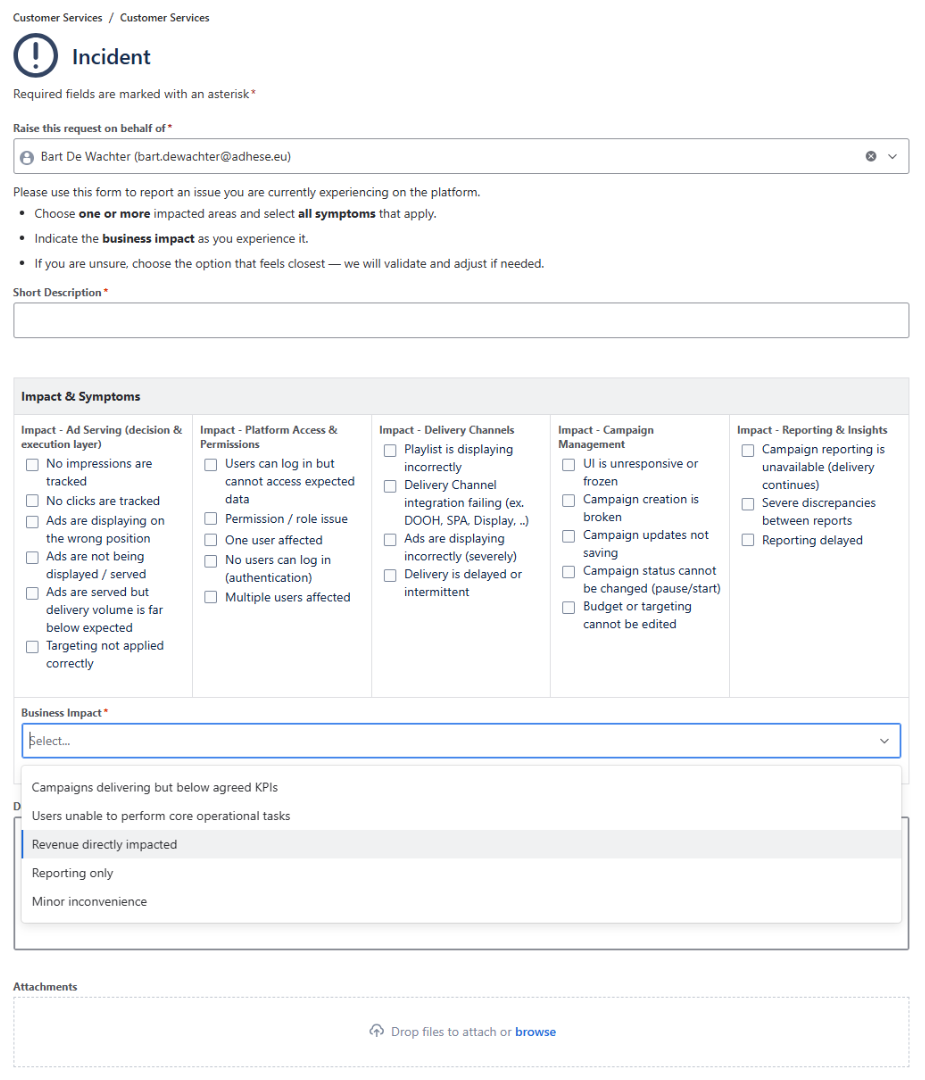
4. Attach relevant screenshots. 5. Send your email. Your request will become a ticket, and you will receive an email confirming your support request. The confirmation contains: - Your request. - A ticket number for this request. - A URL that redirects you to your request on our [Support portal](http://support.adhese.com). 6. You will be notified by e-mail when there is an update or resolution to your ticket. When sending an email, you can add other people from your company in the CC field. If the support ticketing system recognises the email address (i.e., if the person has an Adhese support account), they will also receive any further communication regarding the request. # Modify your account information **To edit your name, avatar, phone number and/or email address:** 1. Log in to the Adhese Support portal. The *Adhese Support* screen opens. 2. In the *Adhese Support* screen, click your profile name in the upper-right corner. [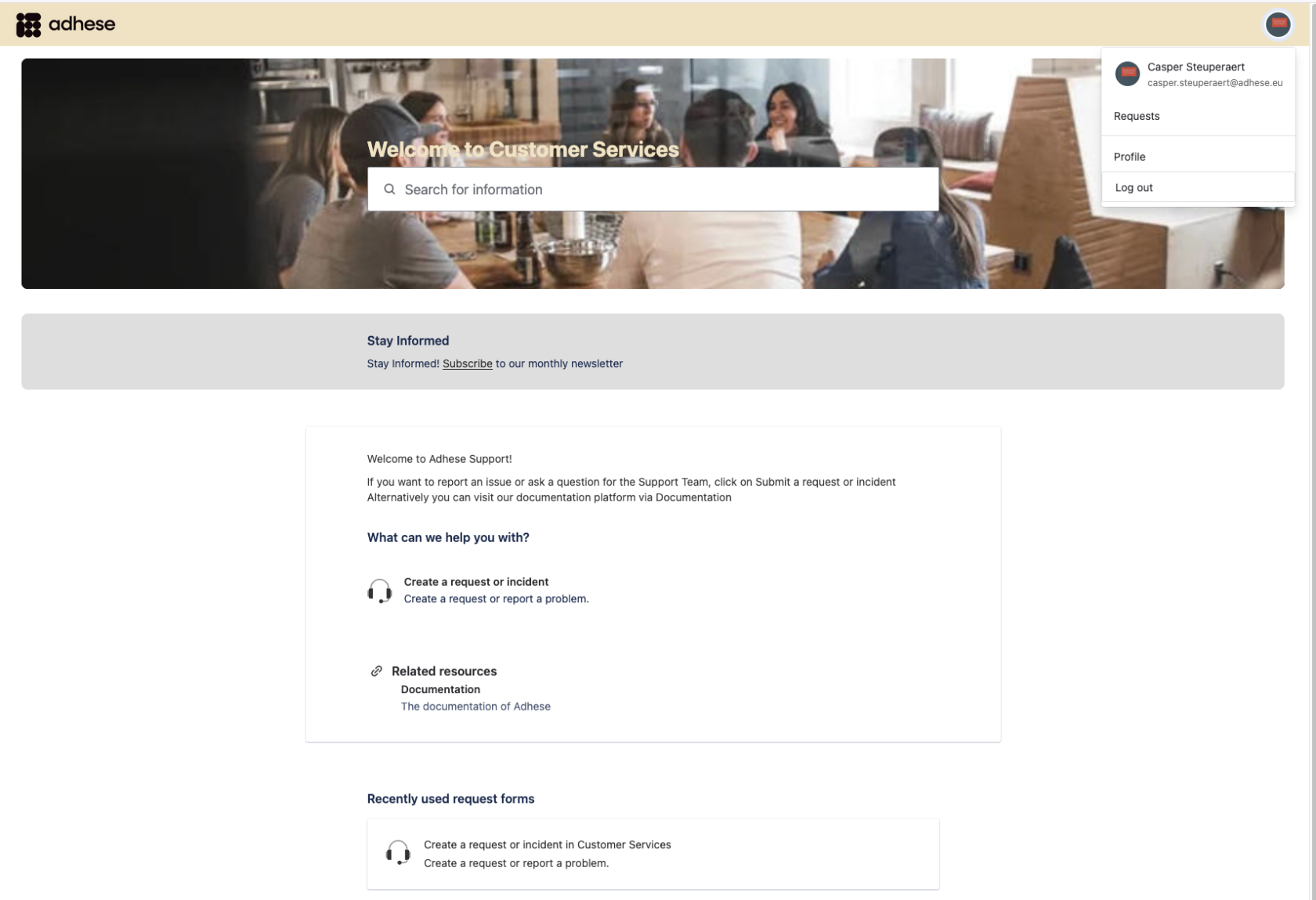](https://documentation.adhese.org/uploads/images/gallery/2025-12/nZYYIurIT30nptTI-schermafbeelding-2025-12-03-om-15-32-22.png) From the drop-down menu, click Profile, then edit the details you want to change. # Monitor your requests **The Adhese Support portal enables you to track your requests efficiently.** 1. Log in to our [Support portal](http://support.adhese.com/). 2. Click your name in the upper right corner of the *Adhese Support* screen. 3. From the expanding list, click *Requests*. [](https://documentation.adhese.org/uploads/images/gallery/2025-12/nZYYIurIT30nptTI-schermafbeelding-2025-12-03-om-15-32-22.png) The *Requests* screen provides a summary of the requests you and your co-workers have submitted. You can filter the overview by the following request statuses: *Open*, *Closed, Pending, In Progress* and *Done*. You can also search all tickets using the search bar above the ticket overview. # Request statuses **A request or support ticket can have one of the following statuses:** - **To Do**: An open request has not yet been resolved or picked up by support. - **In Progress**: Support has taken up your ticket and is working on the issue. - **Pending**: Support is waiting on information from you. - **Done**: The ticket is considered fixed or closed. You cannot reopen a closed ticket by adding a comment. If you want to reply to a closed request, create a follow-up request. # Incident Requests If an issue is too severe or urgent to be resolved through a regular customer service request, an incident can be reported via the [Adhese Customer Service Portal](https://adhese.atlassian.net/servicedesk/customer/portals). By default, the request will be raised on behalf of the person who is creating the incident. The following fields are required for the incident: - A short description of the incident. - All impacts and symptoms relating to the incident must be selected from the provided list. - The business impact should be selected from the dropdown menu. - A more detailed description should include information such as the IDs of affected campaigns, website URLs, etc. - Attachments such as screenshots, reports, etc...To help the Support team handle your request as effectively as possible, please provide the necessary information as accurately and completely as possible.
Depending on how you fill in the form, an on-call Support team member will be notified and will immediately take a look at the incident. Please fill in the form as correctly as possible so on-calls are only triggered when necessary.
[](https://documentation.adhese.org/uploads/images/gallery/2026-05/6kLwb71qdoITmp2q-afbeelding.png)