# Troubleshooting
Information on most encountered problems, bug reporting, etc...
# General troubleshooting
During the monitoring of campaign delivery, it is possible to encounter some unusual conflicts. Despite Adhese's best efforts to optimise delivery and ensure everything runs smoothly, errors can still occur during ad serving.
## Ad delivery
Adhese does not report impressions for a booking if ad delivery is inhibited. There are several reasons why no impressions are being delivered, including:
- An ad tag must be implemented for the position to deliver an ad. If you do not implement an ad tag for the booked position, a browser can not request an ad.
- If no creative files are uploaded or attached to a booking, nothing is displayed. The [Creative status](https://documentation.adhese.org/books/campaign-management/page/statuses#bkmrk-creative-status) and [Traffic status](https://documentation.adhese.org/books/campaign-management/page/statuses#bkmrk-traffic-status) provide more information.
- Suppose a booking requires only a small number of impressions compared to the booked position's total available volume. In that case, the delivery may be completed before the end date (as the objective has already been achieved).
- If multiple bookings with varying priority levels are made at the same position, bookings with a higher priority will be delivered first. Our[ forecasting tool](https://documentation.adhese.org/books/adhese-ui/page/inventory-screenforecasting) will indicate whether a booking will be delivered or not.
[Contact Support](https://documentation.adhese.org/books/introduction/page/adhese-support) if none of the above factors provides a solution.
## Clicks
One of the following reasons might explain why a report does not indicate any clicks:
- If the creative's file is a third-party tag:
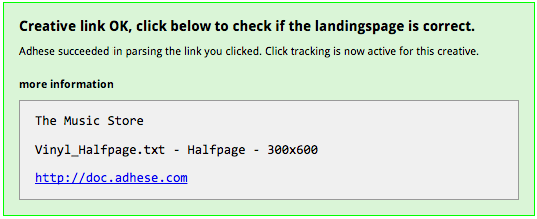
- The clickTAG may be incorrect. To test this, check the URL of the uploaded creative in its live context (see [Checking the uploaded creative URL](https://documentation.adhese.org/books/campaign-management/page/creatives#bkmrk-checking-the-url-of--2)). If the target URL clicks through correctly, the following message will appear:
[](https://documentation.adhese.org/uploads/images/gallery/2024-06/OjnUs0cd4y7lp19Z-troubleshooting1.png)
If the above message does not appear, Adhese will not track clicks because of one of the following reasons:
- The advertiser might not support click tracking by the publisher. The advertiser tracks the clicks on its own server.
- Adhese might not recognize the third party. [List of third-party ad servers and marketplaces](https://documentation.adhese.org/books/integrations-and-delivery/page/list-of-third-party-ad-servers-and-marketplaces) provides an overview of third-party ad servers Adhese can integrate with.
- The [3rd party code](https://documentation.adhese.org/books/campaign-management/page/creatives#bkmrk-add-a-third-party-ta) does not contain the click-tracker macro of Adhese (%c).
[Contact Support](https://documentation.adhese.org/books/introduction/page/adhese-support) if none of the above reasons provides a solution.
## Third-party discrepancies
Publishers may have to deal with third-party ad serving if an advertiser wants to manage its campaigns through its own ad server. Consequently, each party will have a different ad server in place. Adhese enables the integration with the advertiser's third-party ad server, allowing the ad servers to communicate. The third-party ad server is responsible for the ultimate display of the advertiser's ad.
However, discrepancies between a publisher's and an advertiser's reports are likely to occur. These differences in reporting are better known as third-party discrepancies.
The online advertising industry has a maximum discrepancy of 5 to 10 percent. If you experience a gap higher than 10%, you should justify or minimise the ad count difference. It is important to note that a discrepancy can never be reduced to 0% since there are several reasons you cannot track, such as ad blockers and browser shutdowns.
Discrepancies can be prevented before a campaign starts. When manually implementing a third-party tag, it is important to exercise caution and verify that the correct tag and cache buster have been implemented. It is advisable to compare figures while a campaign is running, as fewer steps are available to explain discrepancies after a campaign has ended.
## Examining third-party discrepancies
**If you experience a discrepancy, check if both reports are pulled against the same ad tags, placements, time zone, and date range.** If you run into something conflicting, you may have identified the root cause. Re-run the report and verify that the discrepancy has been resolved. If not (or if the reports were already generated correctly), [contact us](https://documentation.adhese.org/books/introduction/page/adhese-support), and we will assist you in finding the source of the discrepancy.
Here is an overview of some of the most common sources of discrepancies:
1. **Measurement methodology**
The measurement methodology of both ad servers differs. Each ad server counts an impression at a slightly different moment in the ad serving process. Adhese (or the publisher's ad server) counts an impression when the request to serve an ad is made (ad request) and the ad has been delivered to the page (ad delivery).
2. **Viewability**
A viewable impression is a metric for ads that were viewable (in part, entirely, or based on other conditional parameters) when served and, therefore, had a true chance of being seen. In this scenario, Adhese will count a viewable impression when the ad is actually in view within the browser window based on the conditional parameters. However, the third-party ad server may count the impression earlier: when the ad is delivered.
3. **Cachebuster (or timestamp)**
If a booking is delivered, its creative file will temporarily be saved to the cache. The cache is the temporary memory of a browser. When the booking is requested a second time, the browser will retrieve its cache's creative file. The third-party ad server won't count the second impression. A cache buster prevents this practice. A cache buster is a unique piece of code that prevents a browser from serving content from its cache. The cache buster forces the browser to fetch a fresh copy for each request. Ensure you implement the correct cache buster to reduce discrepancies caused by caching.
4. **Latency**
Websites are increasingly equipped with heavy images, custom fonts, and auto-play videos. The entire HTML content of a page may be loaded quickly. Still, if one page element has to wait for another aspect to finish loading and rendering, "heavy" elements (either large in size or complex to render) will increase the total page load time. If the website takes a long time to load into the visitor's browser, the visitor might leave the website (intentionally or not) before the ad is actually delivered. Asynchronous rendering is a solution that allows the browser to render content elements in parallel. Asynchronous rendering reduces latency, or the time elements are waiting for another element to finish, and, therefore, it reduces discrepancies due to visitors leaving before the ad request is fulfilled.
5. **Ad blockers**
If an adblocker is in place, the adblocker may prevent third-party ad servers from delivering and displaying ads to someone's browser while the browser still issues an ad request to the Adhese ad server.
6. **Filtering impressions**
Ad servers, such as bots and spiders, may have different methods for filtering impressions of non-human traffic.
7. **Device types**
It occurs that a third party doesn't support ad serving on specific devices, like tablets and smartphones. Because the third party cannot serve an ad in such a situation, the third party won't count an impression. However, the call to Adhese has already been made as Adhese supports ad serving on any device, so Adhese logs an impression, and a difference in reporting occurs accordingly.
8. **Browser exclusion** Third-party tags can contain a piece of code that inhibits the delivery of an ad in specific browsers. For example, tags from DoubleClick that contain the code `abr=!ie` won't be shown in Internet Explorer browsers. In this scenario, the ad will be requested, which will cause Adhese to count the impression. However, the third-party server won't deliver the ad and, as a result, it will not count as an impression.
Please note that the information on Adhese's measurement methodology assumes a default setup. Depinding on the impression tracker used, the amount of measured impressions will differ.
## Adhese-specific error codes
In some cases, a request to Adhese endpoints may result in an error and a custom error code will be returned. Here is the list of possible codes and an explanation.
| **HTTP code** | **Reason** | **Notes** |
| 400 | Error while parsing request | The specific error is returned in the *x-adhese-bad-request* header |
| 442 | Request containing duplicate slots | The offending slots are listed in the *x-adhese-bad-request* header |
| 443 | Request has no or unknown request type | |
| 447 | Request is missing a callback URL | |
| 452 | Request is missing the commit string for ad pods | |
| 453 | Request is either missing the max ads parameter or the value is higher than the max amount configured in Adhese | |
| 500 | Adhese encountered an internal/unknown error | |
# User logs
Each adjustment made by an individual user is logged in Adhese.
# Adhese user logs
To consult the complete user logs of Adhese:
1. Go to the *Administration* screen and click *Admin* in the Adhese navigation menu on the left.
2. Click *User and campaign logs*.
3. Enter the ID of a campaign or a user's email address in the **search** field.
4. Click the *Search* button.
# Campaign user logs
To consult the user logs of a campaign:
1. Go to the *Campaign* overview and click *Campaigns* in the Adhese navigation menu on the left.
2. Click on the *campaign* for which you wish to view the logs.
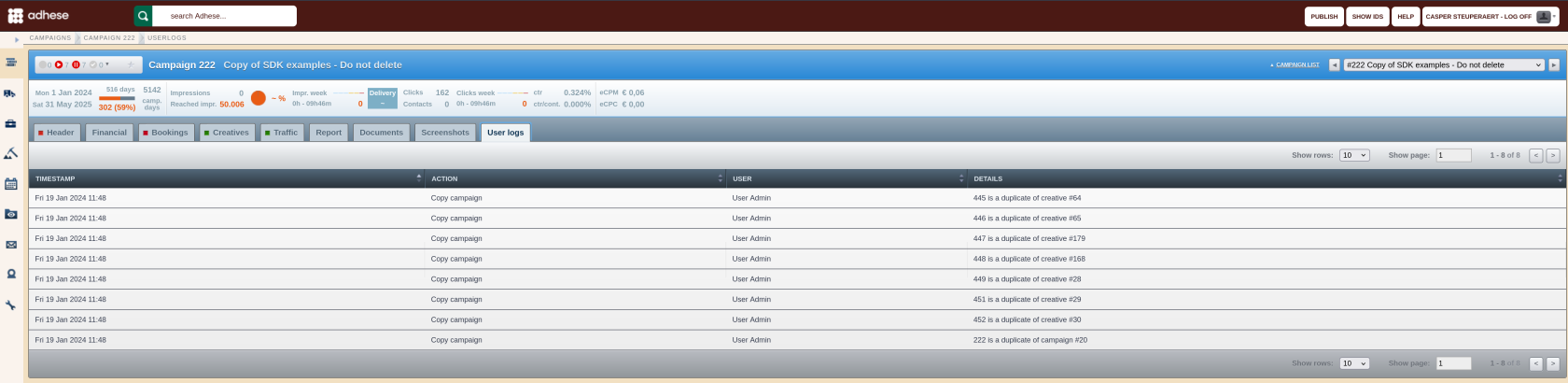
3. Click the *User logs* tab. The campaign's *User logs* overview opens. The *User logs* overview details each individual's action on a campaign.
[](https://documentation.adhese.org/uploads/images/gallery/2024-10/7LD0NADteHMh2kti-schermafdruk-van-2024-10-29-09-47-07.png)
# Booking user logs
To consult the user logs of a booking:
1. Go to the *Campaign* overview and click *Campaigns* in the Adhese navigation menu on the left.
2. Click the *campaign* of which you want to consult the *Booking* user logs.
3. Click the *Bookings* tab.
4. Click on the *booking* for which you wish to view the logs.
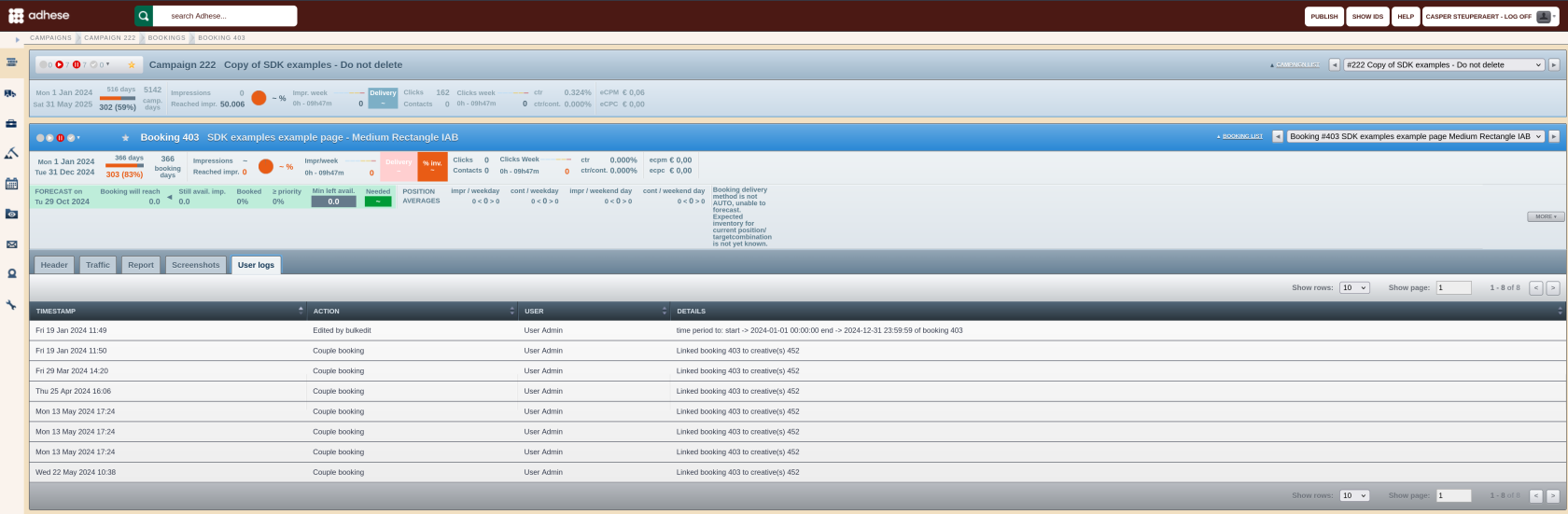
5. Click the *User logs* tab. The booking's *User logs* overview opens. The *User* *logs* overview details each individual's action on the booking.
[](https://documentation.adhese.org/uploads/images/gallery/2024-10/x5HNWEjWfAjEUS1J-schermafdruk-van-2024-10-29-09-47-38.png)
# Creative user logs
To consult the user logs of a creative:
1. Go to the *Campaign* overview and click *Campaigns* in the Adhese navigation menu on the left.
2. Click the *campaign* of which you want to consult the *Creative* user logs.
3. Click the *Creatives* tab.
4. Click on the *creative* for which you wish to view the logs.
5. Click the *User logs* tab. The creative' *User logs* overview opens. The *User logs* overview details each individual's action on the creative.
[](https://documentation.adhese.org/uploads/images/gallery/2024-10/nbbTcmW0I7vpBnPt-schermafdruk-van-2024-10-29-09-48-31.png)
## User and campaign logs
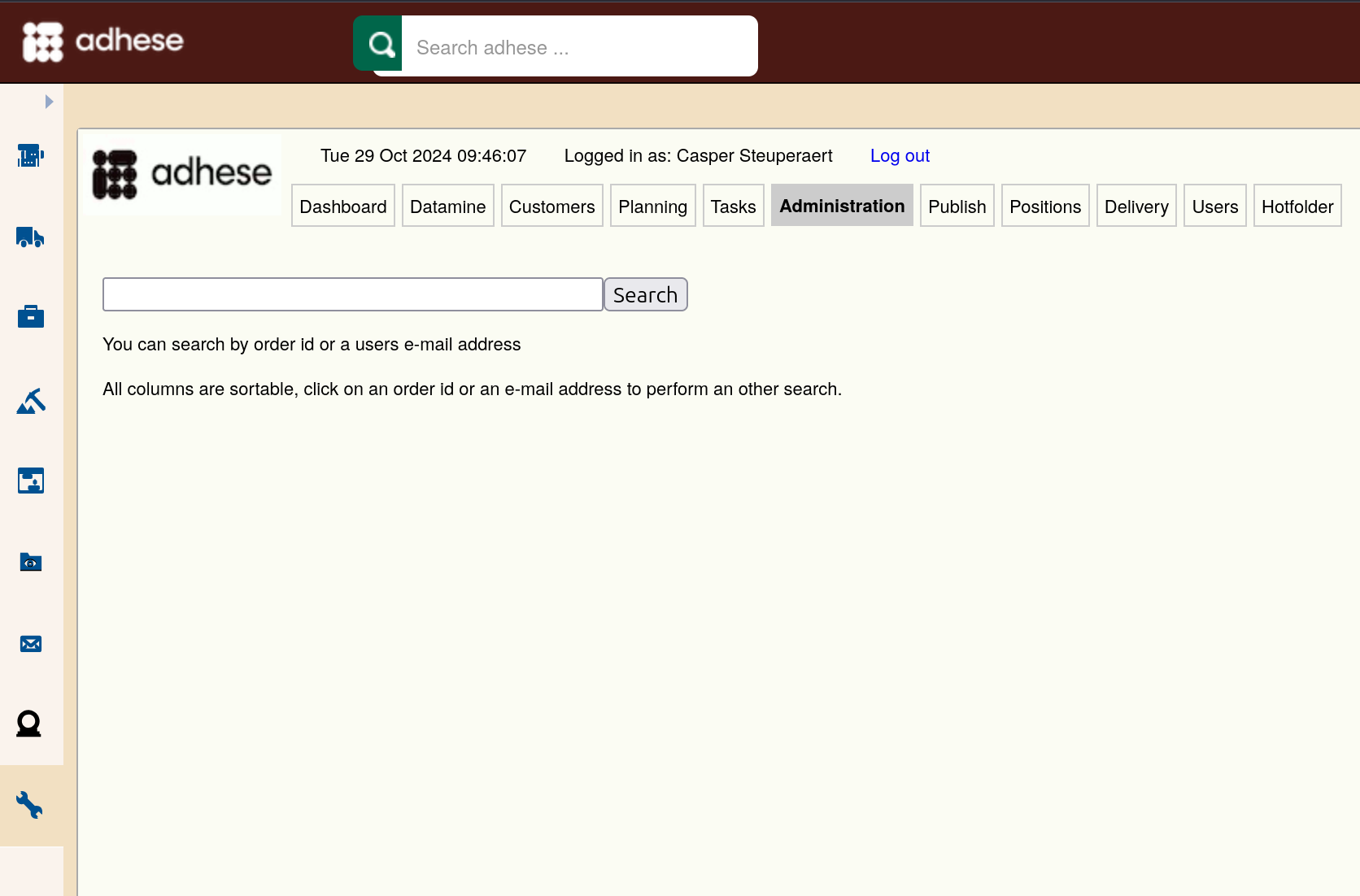
The *Users and campaign logs* screen in the *Admin* tab allows searching for logs from a specific user or campaign. Enter a campaign ID or a user's email address in the **Search** bar and hit the *Search* button.
[](https://documentation.adhese.org/uploads/images/gallery/2024-10/pJSuH5vCqwgluCFP-schermafdruk-van-2024-10-29-09-46-27.png)
# Browser debugging
Most - if not all - browsers contain dev tools where you can look up requests, data, code and check for errors.
# Network panel
The network panel will show all resources that are downloaded or uploaded the moment you visit a website. The most common use cases for Adhese users are:
- Making sure the necessary ad request(s) are being executed
- Inspecting the properties of an individual request, such as its HTTP headers, content, size, ...
- Inspecting the different positions that are being requested
- Inspecting the target data that is send together with the request
- Inspecting the ad response
- Making sure the user sync request is executed (not applicable to every setup)
- Making sure the impression, viewability and other custom trackers are executed as expected
Locating the Adhese requests could be done by filtering on the Adhese domain ([account].adhese.com). Many implementations however use custom first party domains instead which makes this more difficult.
### Locating the ad requests
As documented on the [request API page](https://documentation.adhese.org/books/integration-setup/page/request-api-json-endpoint-old) , there are 2 main endpoints that are used for requesting ads. They have the same use case but one is for GET requests and the other for POST requests.
Both of these endpoints can be found by filtering the requests on '**/json/**'. For GET requests all data will be part of the URL path itself while for POST requests all that data can be found under 'Payload'.
### Locating the track requests
Tracks can be found by filtering on '**/track/**'. We have 3 types of track requests:
1. Impression tracks: [domain]/track/[ad id]/sl[slot id]/...
2. Viewability tracks: [domain]/track/[ad id]-Adhese_IABview/sl[slot id]/...
3. Custom event tracks: [domain]/track/[ad id]-[custom value]/sl[slot id]/...
### Locating the user sync request
The user sync request can be found by filtering on 'user-sync.adhese.com'. The full URL is 'https://user-sync.adhese.com/iframe/user_sync.html'.
### Locating the pool requests
All materials and scripts are hosted on the pool domain which can be an Adhese domain (pool-[account].adhese.com) or a custom first party domain. The materials can be found by filtering on **'/pool/'** while scripts can be found by filtering on '**/tag/**'.
More information about this panel can be found on https://developer.chrome.com/docs/devtools/network (Blink), https://firefox-source-docs.mozilla.org/devtools-user/network_monitor/index.html (Gecko) and https://webkit.org/web-inspector/network-tab/ (Webkit)
# SDK implementations
Implementations that run on the Adhese SDK have 2 extra options for debugging.
### URL parameter
By adding "?adhese\_debug=true" to the URL of the page you can tell the SDK to print Adhese related messages in the browser console.
[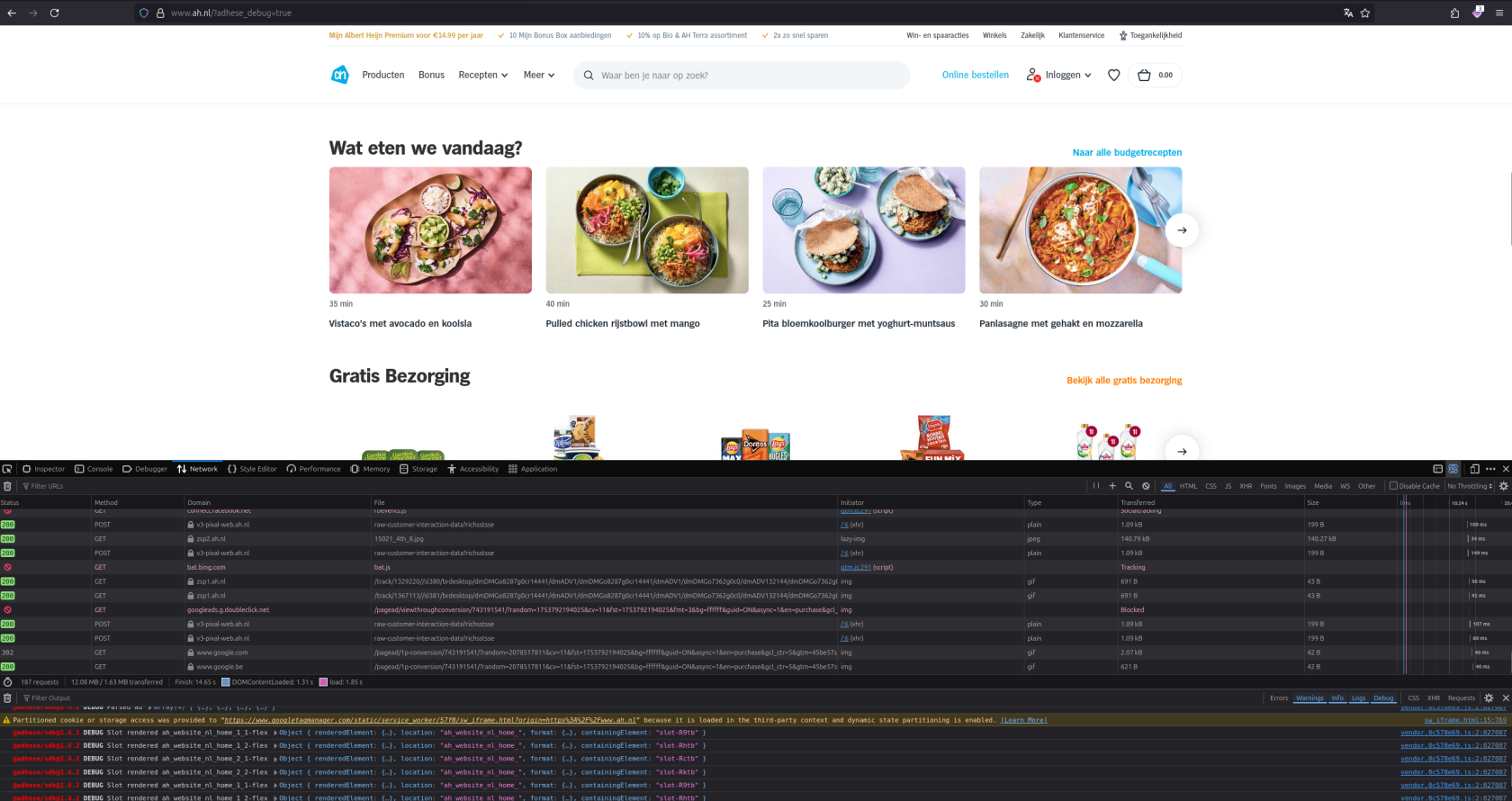](https://documentation.adhese.org/uploads/images/gallery/2025-07/Ph2v6JyhBEOxeTtt-schermafdruk-van-2025-07-29-14-30-28.png)
### Devtools
The SDK contains a devtools panel that can be used to show placement & banner data. These tools are however not enabled by default. To enable it please take a look at [https://adhese.github.io/sdk\_typescript/plugins/devtools.html.](https://adhese.github.io/sdk_typescript/plugins/devtools.html)