Passswords need to conform to the following criteria: - Minimum length: 16 characters - Maximum Length: 64 characters - Uppercase characters: >= 2 - Lowercase characters: >= 2 - Numbers: >= 2 - Special characters: >= 2
If you have forgotten (or want to change) your password: 1. Open your web browser and enter the URL of your company's Adhese account, for example `https://yourcompany.adhese.org`. The *Adhese login* screen opens. [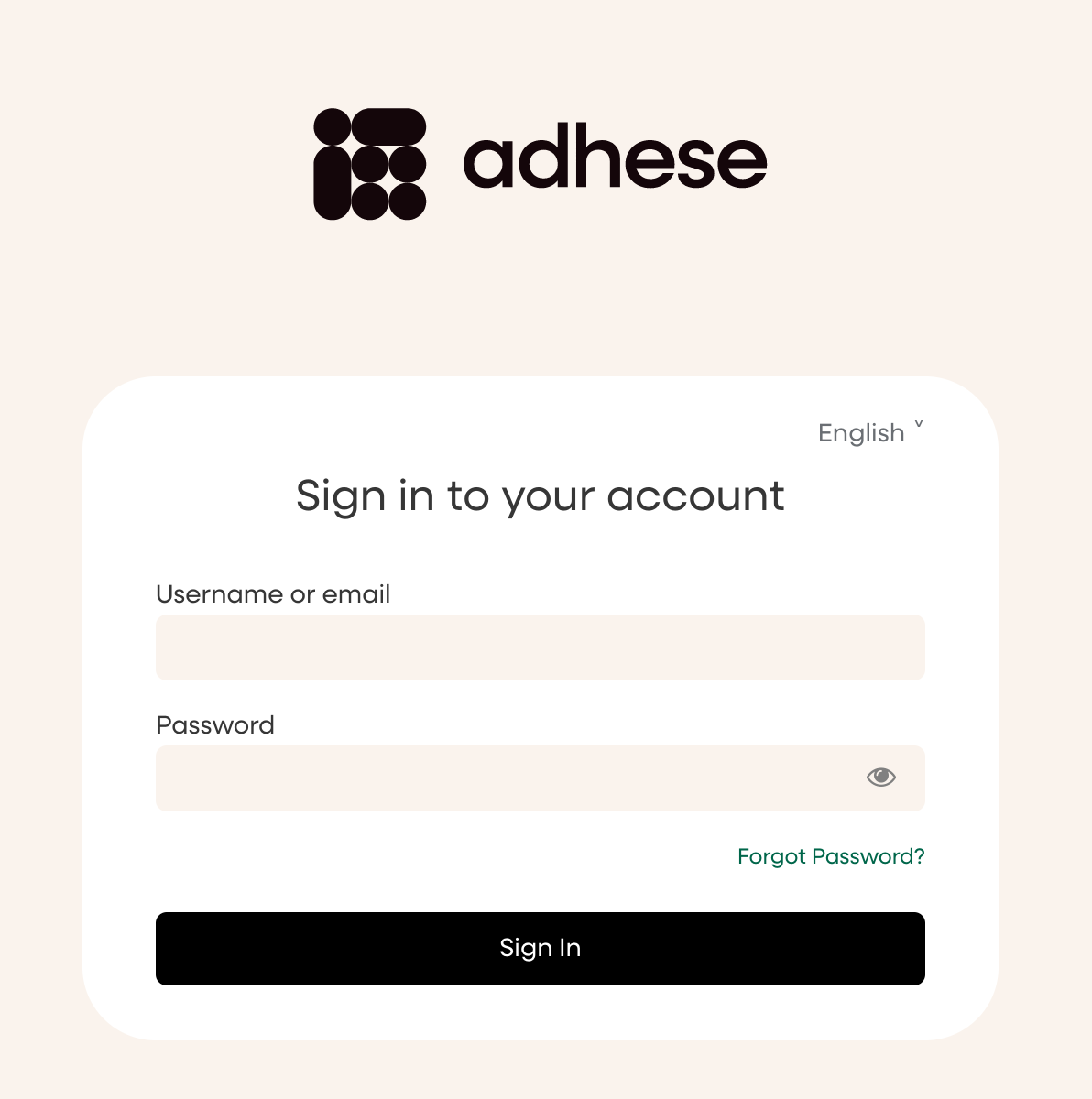](https://documentation.adhese.org/uploads/images/gallery/2024-06/VH0AjvR7CFzBBZk9-schermafdruk-van-2024-06-10-14-07-57.png) 2. Click the *Forgot password?* link. 3. Enter your username or email address in the **Username or email** field.[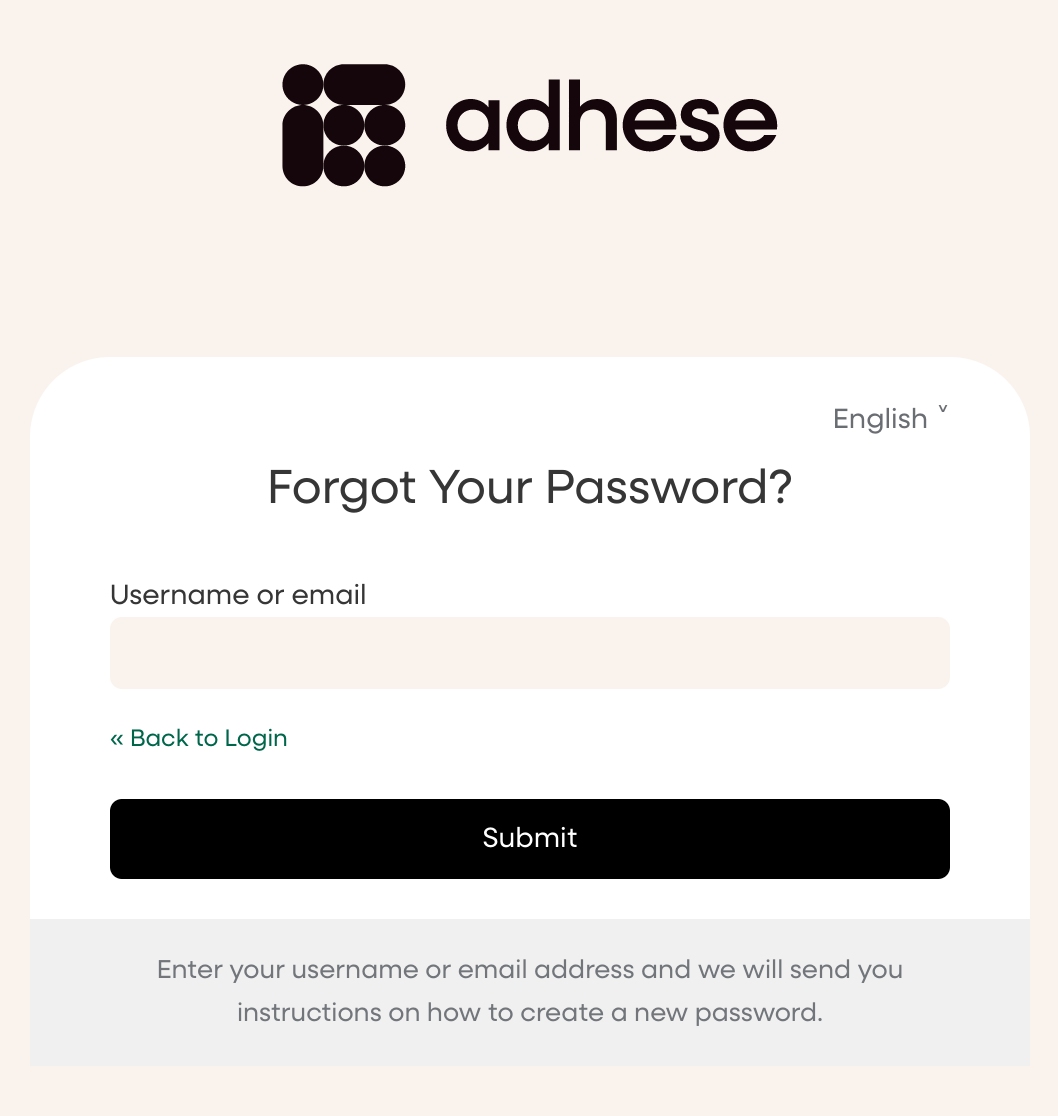](https://documentation.adhese.org/uploads/images/gallery/2024-06/tCfl4VtoCOJnbsHi-schermafdruk-van-2024-06-10-14-08-21.png) 4. Click the *submit* button. 5. Adhese automatically processes your request and sends an email with a URL to reset your password. [Contact Support](https://documentation.adhese.org/books/introduction/page/adhese-support) if you do not receive any email. 6. Click the URL in the email. You get the following screen: [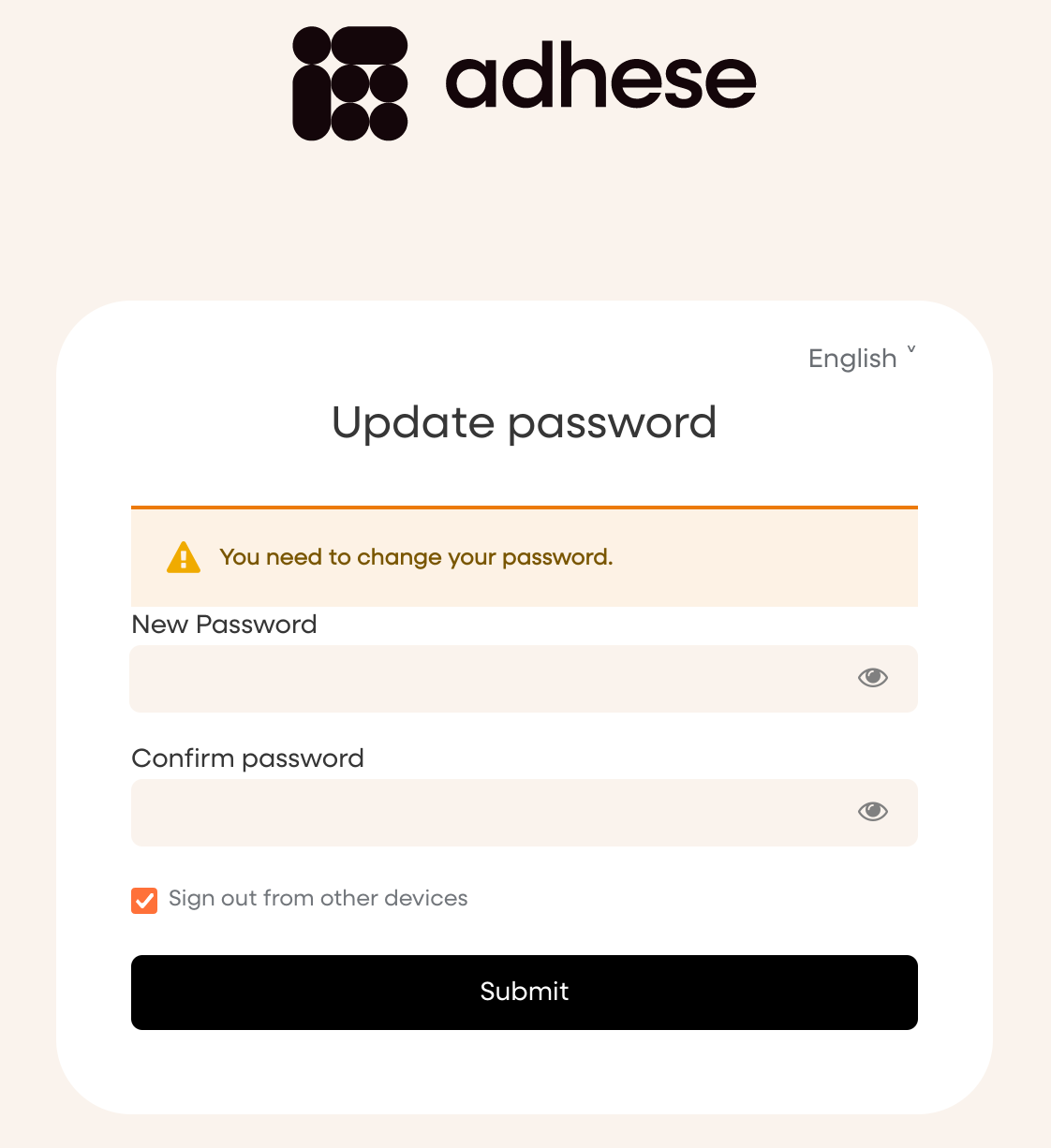](https://documentation.adhese.org/uploads/images/gallery/2024-06/QEKaXlvx9zQ4EXaL-schermafdruk-van-2024-06-10-14-14-21.png) 7. Enter a new password in the **New password** field. 8. Repeat the password in the **Confirm password** field. 9. Click the *Submit* button: your password is modified. 10. Log in with your new password. # User management for adminsPasswords must meet the following criteria: - Minimum length: 16 characters - Maximum Length: 64 characters - Uppercase characters: >= 2 - Lowercase characters: >= 2 - Numbers: >= 2 - Special characters: >= 2
This page describes the workflow for creating and editing users in Adhese.It is important to log in via Keycloak to create and edit users and send password reset links. Do not use legacy login methods.
### Users Users are the people who perform tasks in Adhese. The *Users* screen shows the users who have access to your Adhese account. [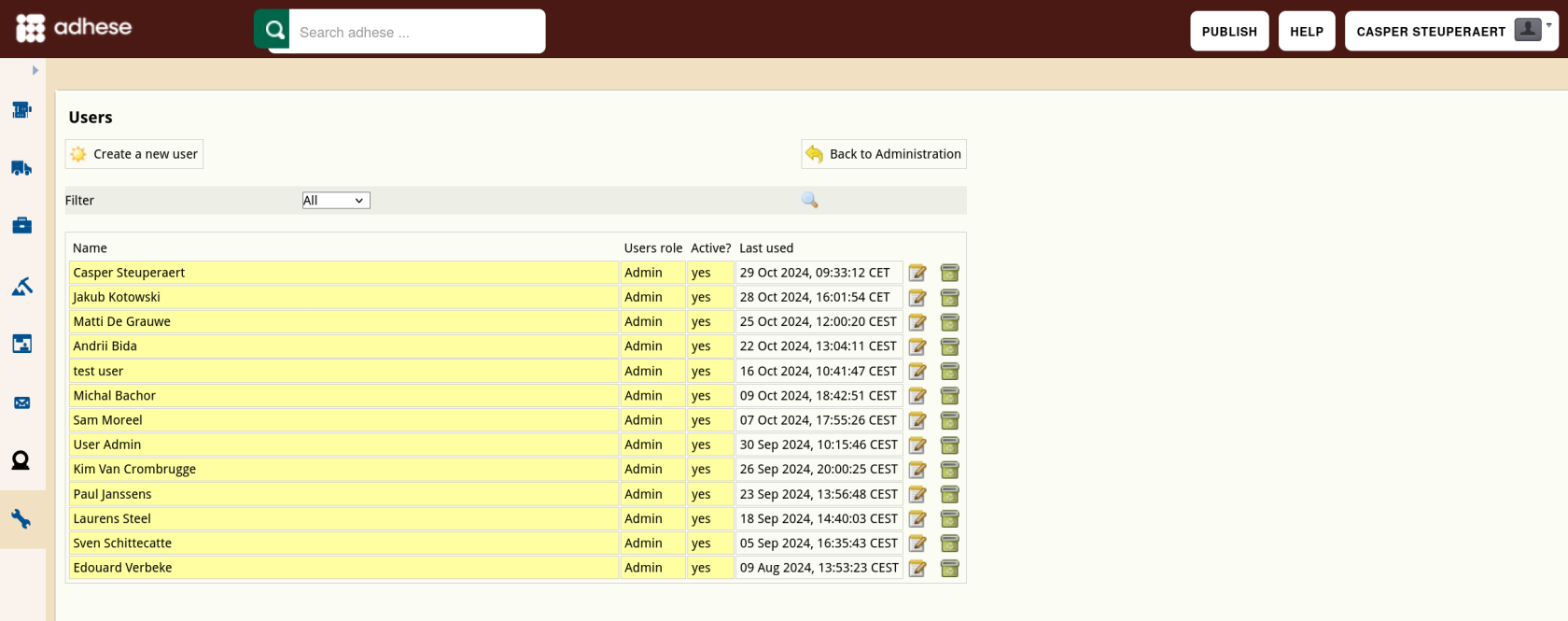](https://documentation.adhese.org/uploads/images/gallery/2024-10/sFXNlSRIb8TiU2wm-schermafdruk-van-2024-10-29-11-52-40.png) The *Users* screen presents a table with four columns: 1. The *Name* column presents the name of the user. 2. The *Users role* column displays the role of the user within Adhese. 3. The *Active?* column specifies whether the status of the user is active or not. 4. The *Last used* column indicates when changes were made to the user account or when the user last logged in. To [create a new user](https://documentation.adhese.org/books/user-management/page/user-management#bkmrk-creating-a-new-user-1), click the *Create a new user* button. To [edit a user](https://documentation.adhese.org/books/user-management/page/user-management#bkmrk-edit-a-user), click the name of the user to modify or use the edit icon [](https://documentation.adhese.org/uploads/images/gallery/2024-06/KGGVOuwcbfg9KISx-edit.png). ### User levels Administrators can define **user groups** or **user** **levels**, such as administrators, salespersons, or traffickers. Each group has its own set of access and usage rights for Adhese. [Contact Support](https://documentation.adhese.org/books/introduction/page/adhese-support) if you wish to create a new user level or edit an existing one. ### Creating a new userPlease use a valid email adress as a username. Custom usernames are not supported.
To create a new user: 1. Click *Admin* in the left navigation menu: the *Administration* screen opens. [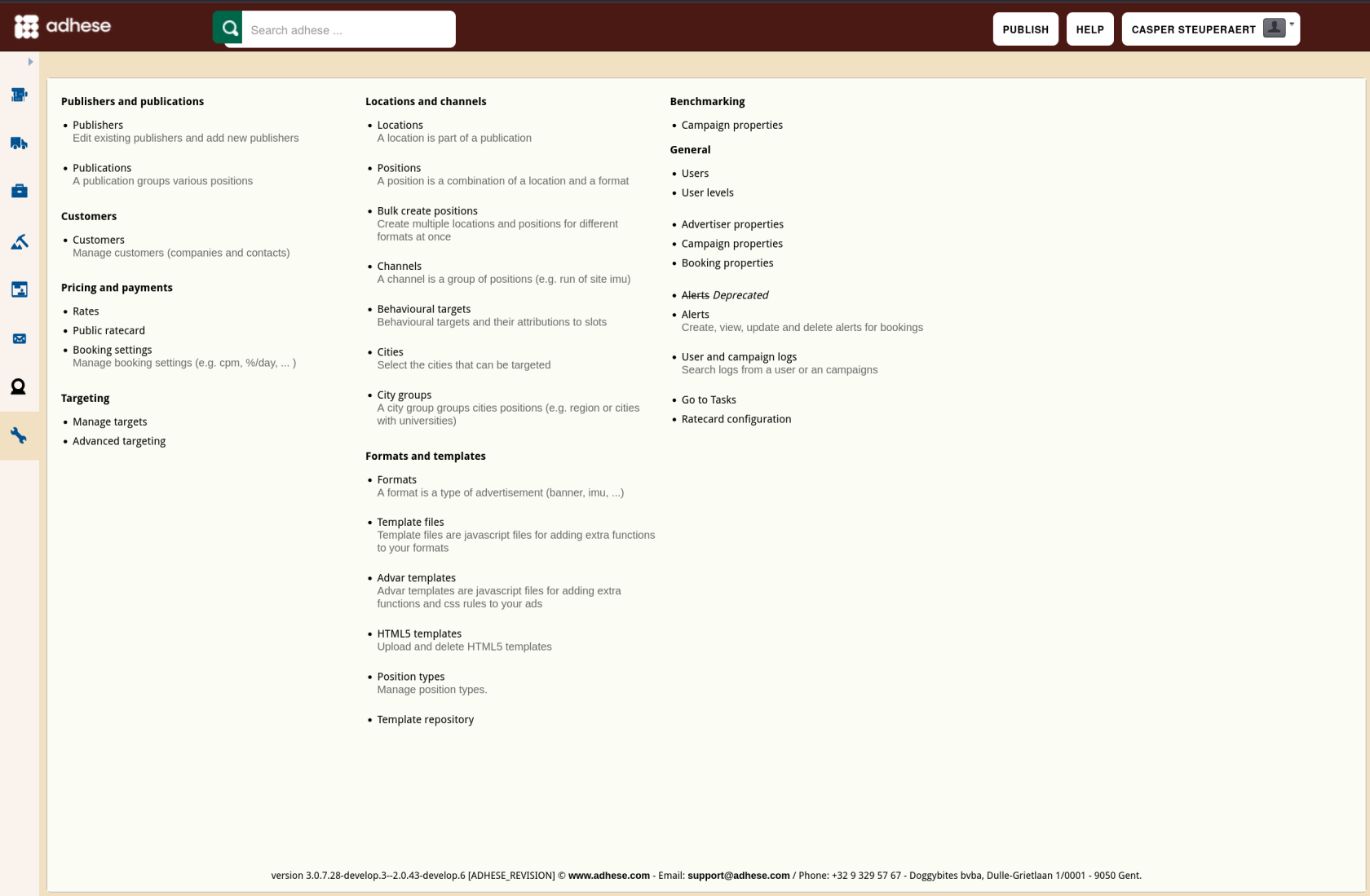](https://documentation.adhese.org/uploads/images/gallery/2024-10/R8URdY0MlupFAmGJ-schermafdruk-van-2024-10-29-11-52-14.png) 2. Click *Users*. The *Users* screen opens. [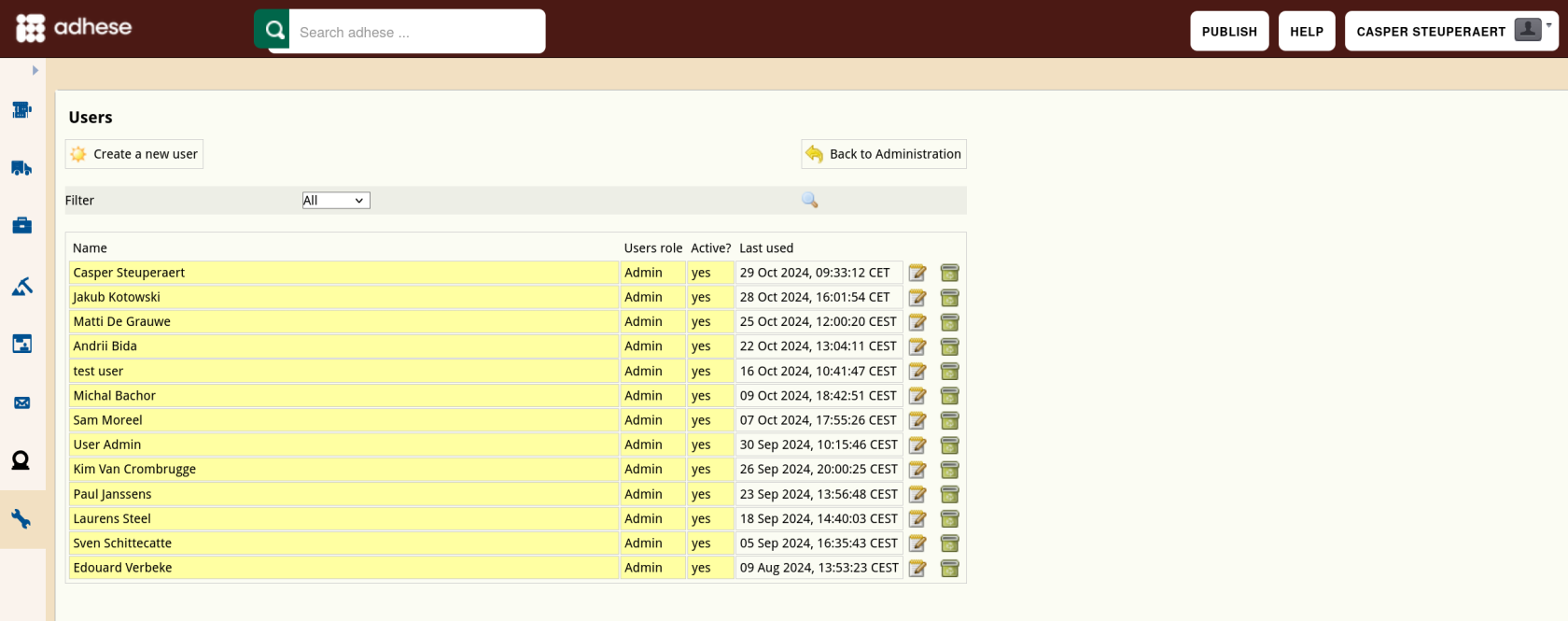](https://documentation.adhese.org/uploads/images/gallery/2024-10/VyBvh6roSRRM1kNM-schermafdruk-van-2024-10-29-11-52-40.png) 3. Click the *Create a new user* button. The *Create a new user* screen opens. [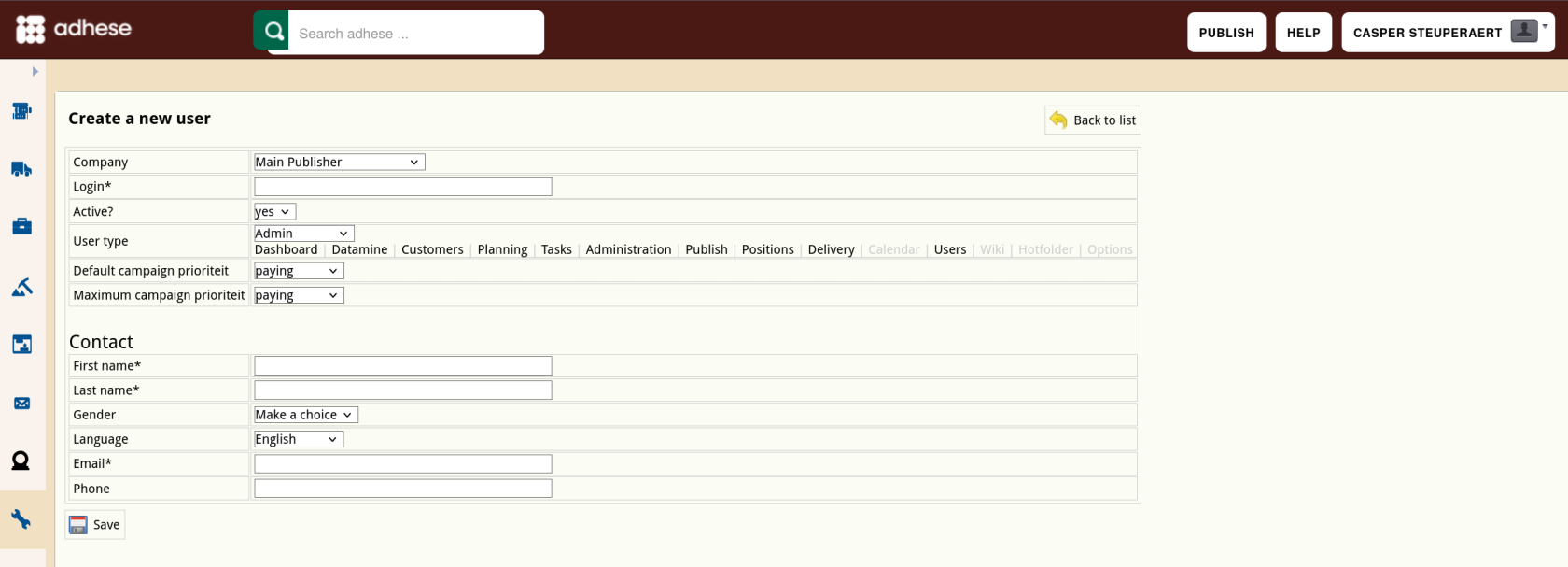](https://documentation.adhese.org/uploads/images/gallery/2024-10/gVd46p3uHvdFYDEe-schermafdruk-van-2024-10-29-11-53-01.png) 4. Define the following details for the new user: - Select a publisher in the **Company** drop-down. This property determines for which publishers and/or sub-publishers a user can create a campaign. Accordingly, the *Campaign* overview will only show the campaigns from the relevant (sub)publishers. - Choose a username in the **Login** field. - (Pick a password in the **Password** field. By default, for new users you keep this field empty so they can pick their own passwords) - (Determine whether the user's status is active in the **Active** drop-down.) - Select a user level in the **User type** drop-down. - (Select the user's default campaign priority in the **Default order priority** drop-down. The default order priority is the default value of a [priority](https://documentation.adhese.org/books/campaign-management/page/campaigns#bkmrk-priority) when you are creating a campaign. The default value is the highest available priority.) - (Select the user's maximum campaign priority in the **Maximum order priority** drop-down. For example, a user can book a campaign at any priority if you set the maximum priority value at *paying*. However, if you set this value *in-house*, the user can only book campaigns at the *in-house* priority level or a lower priority like *stopper*. The default value is the highest available priority.) - Enter the first name of the user in the **First name** field. - Enter the last name of the user in the **Last name** field. - (Optional) Select the gender of the user in the **Gender** drop-down. - Select the language of the Adhese interface in the **Language** drop-down. The following languages are available: English, Dutch, and French. - Enter the user's email address in the **Email** field. - (Optional) Enter the user's phone number in the **Phone** field. 5. Click *Save*.Options between () should be left at the default value unless there is a good reason to change it at account creation.
After having created a new user, we'll send a password reset link to that user so they can set their own password for their account: [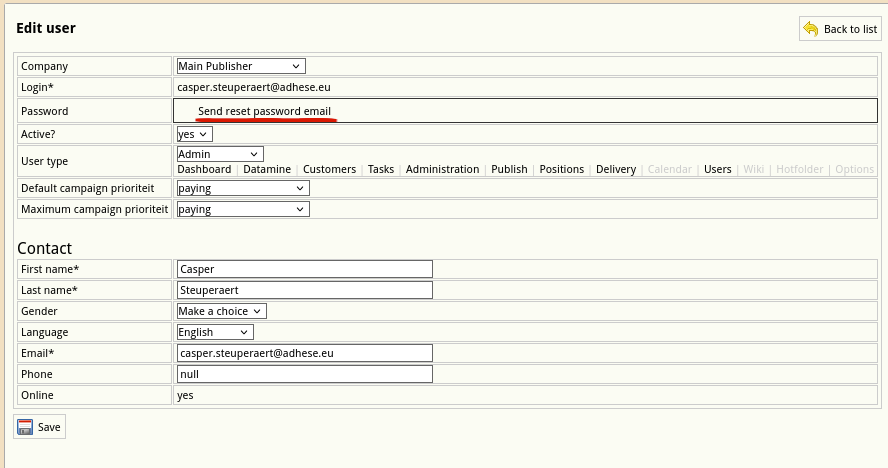](https://documentation.adhese.org/uploads/images/gallery/2025-04/ZG3u47uO7FI1KpCs-schermafdruk-van-2025-04-01-15-52-11.png) ### Edit a User To edit a user: 1. Go to the *Administration* screen. Click *Admin* in the left navigation menu. 2. Click *Users*. 3. Click the edit icon  or the user's name for the user you want to edit. The *Edit user* screen opens: [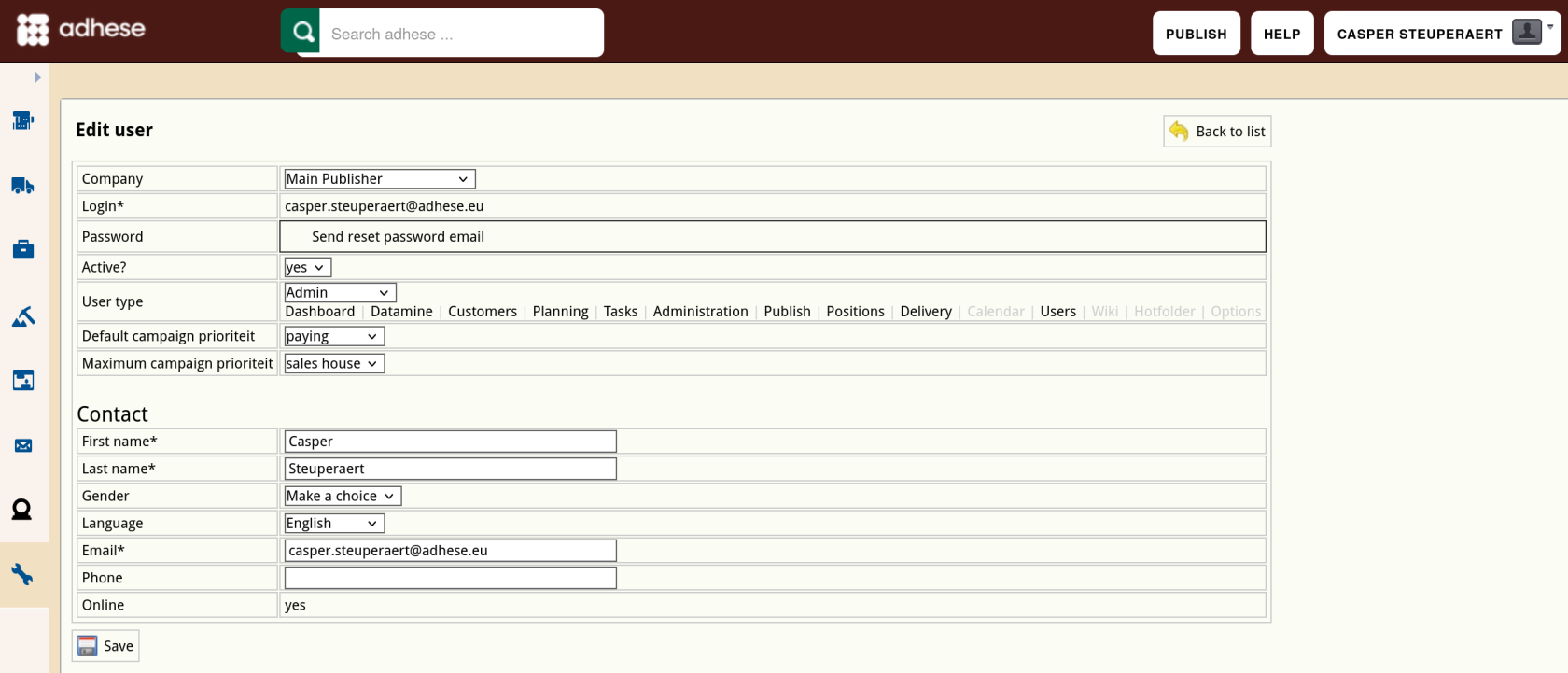](https://documentation.adhese.org/uploads/images/gallery/2024-10/h5gM4MwQsa8EKj2K-schermafdruk-van-2024-10-29-11-53-29.png) 4. Change any of the user's details. 5. Click *Save*. The changes are visible after the user logs out and logs back in. Users with a prefix in their *Login*\* field under *Edit User* are managed externally and not by Adhese directly. ### Deactivate or delete a user Before you delete a user, you should first consider changing its status from active to inactive. To deactivate the status of a user, refer to [Edit a User](https://documentation.adhese.org/books/user-management/page/user-management#bkmrk-edit-a-user) and change the **Active** field from yes to no in the Edit User screen. To thoroughly delete a user: 1. Go to the *Administration* screen. Click *Admin* in the left navigation menu. 2. Click *Users*. 3. Click the delete icon [](https://documentation.adhese.org/uploads/images/gallery/2024-06/4s7Fq4iHDKLMKJEV-delete.png) for the user you want to remove. 4. Click *OK* to confirm you are sure you want to remove this user. ### Troubleshooting users If a user can't be updated, removed, or password reset, and the system keeps throwing errors when you try, the user must be deleted from the Keycloak admin panel and re-created in the Adhese UI's admin screen. Information on how to do this can be found [here](https://documentation.adhese.org/books/user-management/page/managing-users-via-keycloak).