
Gateway configuration
Wikan
Wikan is a web-based application that is used to modify the configuration of the Adhese Gateway.
You can access Wikan at:https://[customer].adhese.org/tools/cubeui/mappings
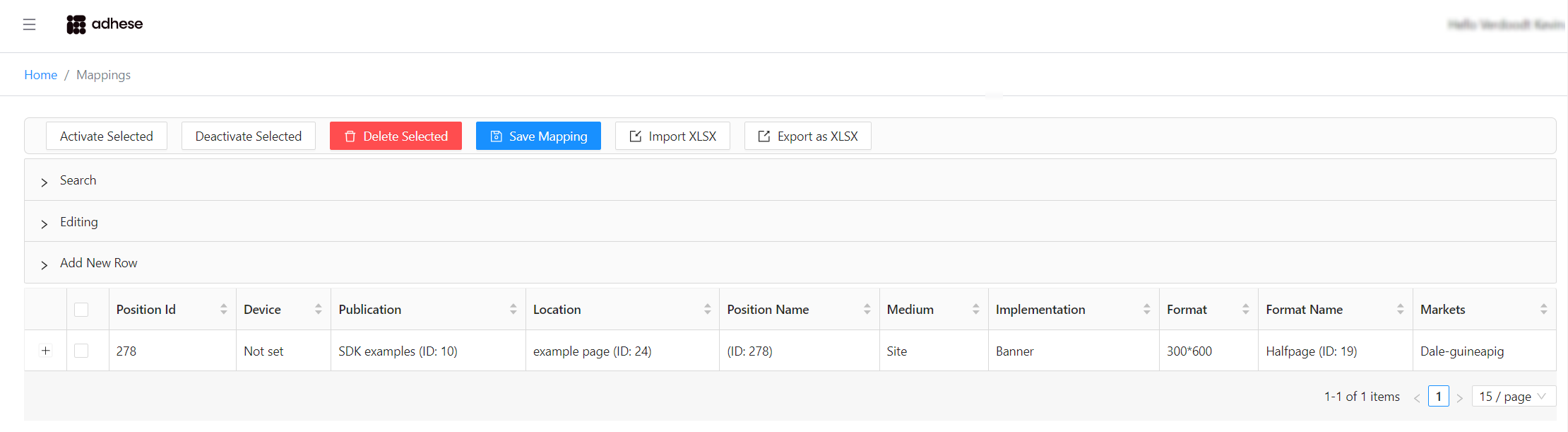
Searching and filtering
Click the light grey bar labeled Search to expand the search form:
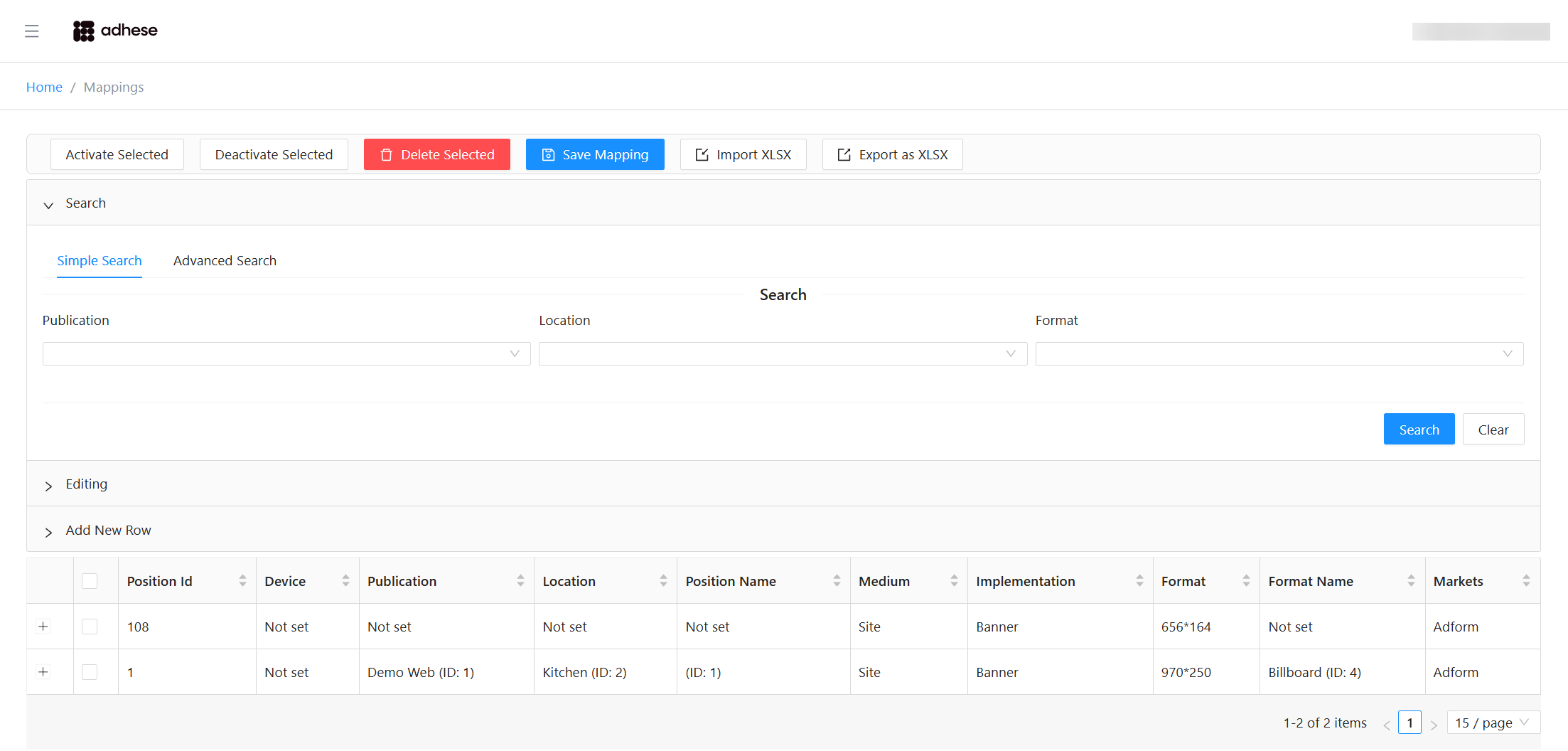
You can performperform:
To filter the table, fill in anyone ofor themore fields and click Search. Empty fields are ignored.
In Advanced Search,Search:
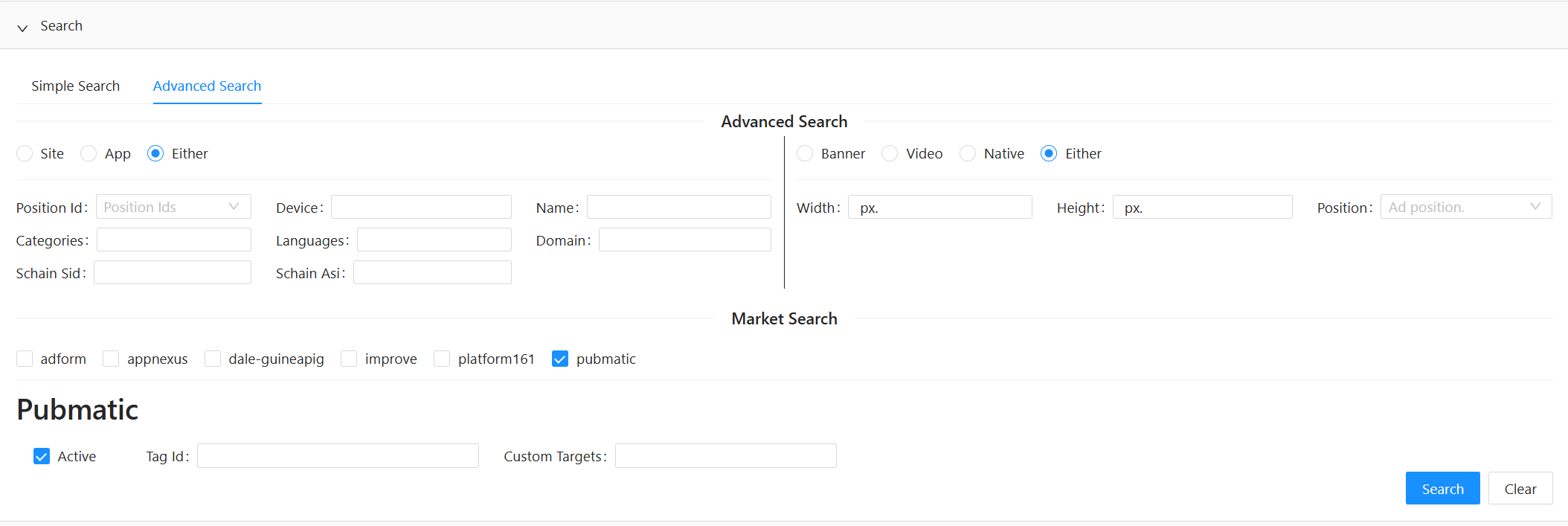
Click Search to apply your filters.
Click Clear to reset all fields and remove the current filter.
Editing rows
Click the grey bar labeled Editing to open the Editing form
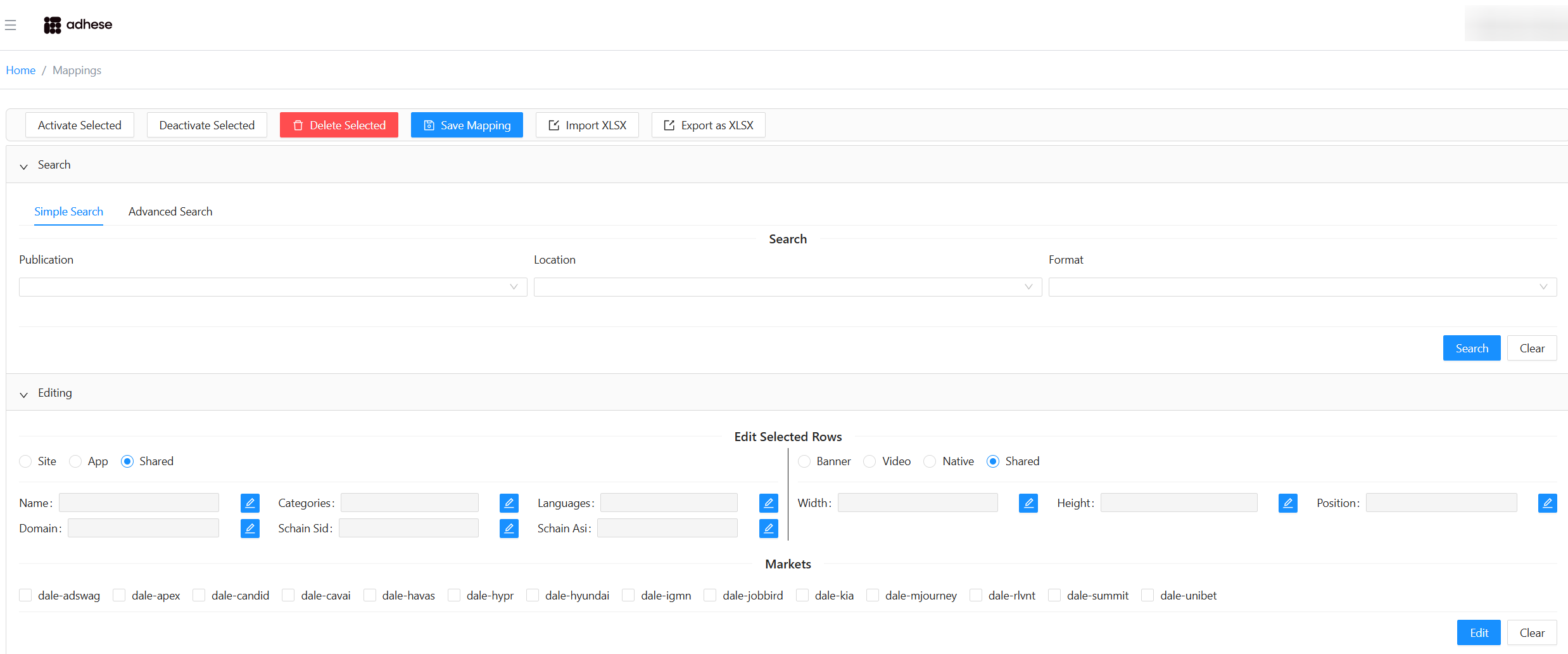
All fields are disabled by default (shown in grey). ClickEnable a field by clicking the blue toggle button on the rightnext to enable a field.it.
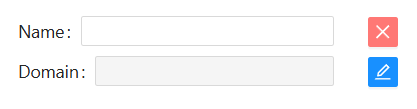
A disabled field is ignored duringwhen editing.applying This means:edits:
- If the field already has a value, it will remain unchanged.
- If the field is empty, it will not be overwritten with an empty value.
This distinction prevents accidental clearingdata ofremoval.
You can addalso enable market‑specific formssections by enablingselecting their checkboxes.checkboxes

Editing multiple rows
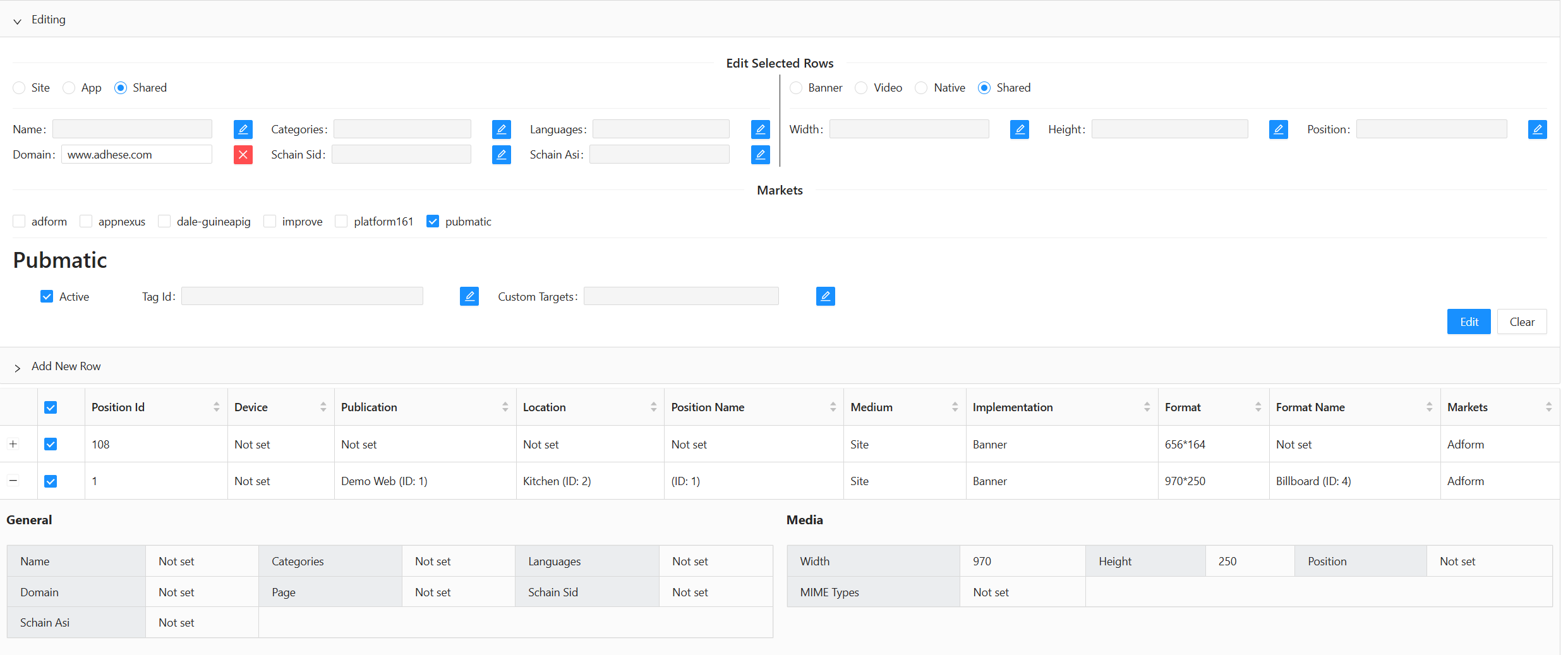

You can also edit
Editing a single row
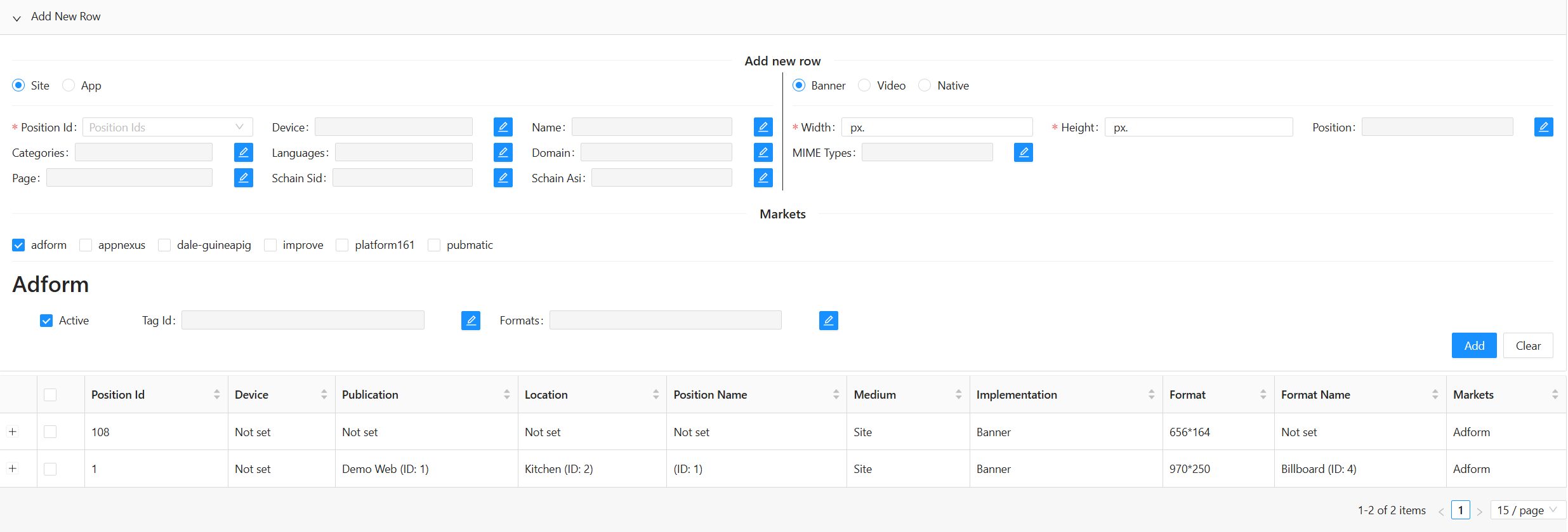
Expand the row
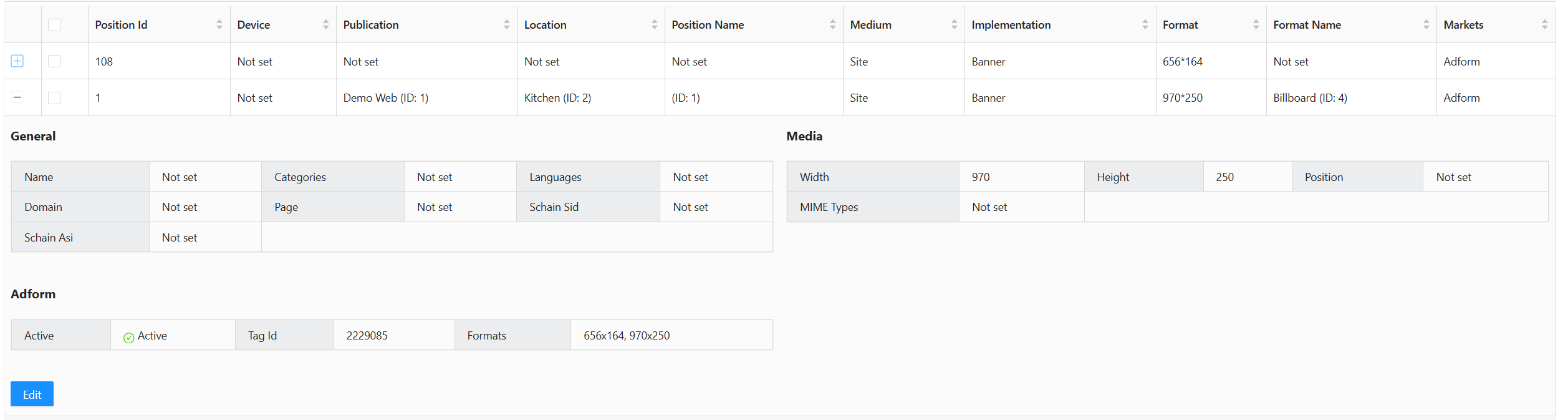
Click the Edit button and for instance now change the name field
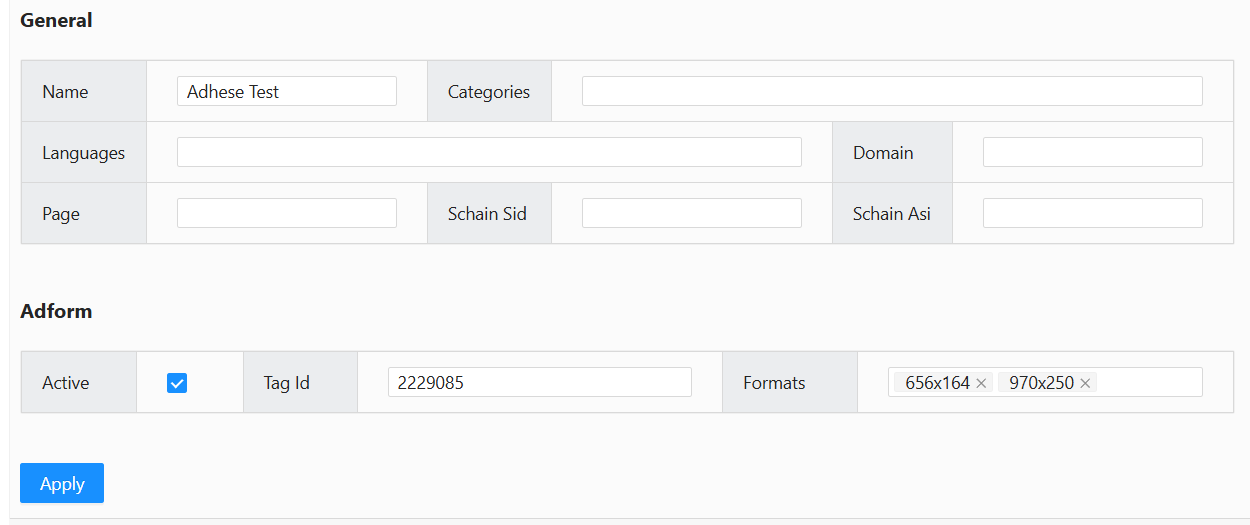
Once you click apply the changes will take effect
Please
Saving noteand thatPublishing applyingChanges
This

The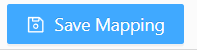
Publish
After yousaving, needclick to do is to
You
Filla in the requiredshort description and click onPublish.
This final step deploys the publishchanges button.to Thisproduction willand triggerends theyour publishWrite towardsMode production.session.
Adding rowsRows
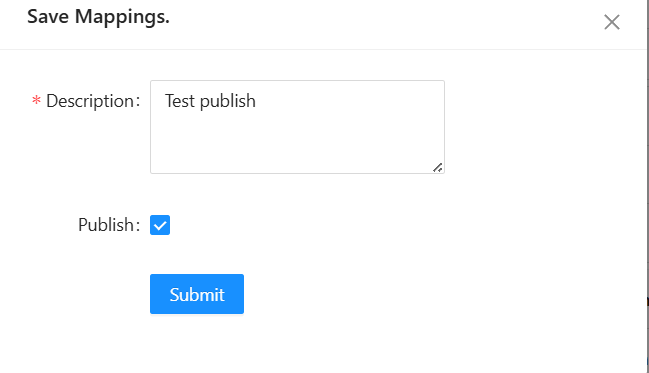
Click the black bar labelled Add New Row. The Add New Row formsection, opens:to open that section.
Similar to the Editing form, most
However:
Width and Height are required
After making all necessary edits, click the Apply button to add the row to the model:
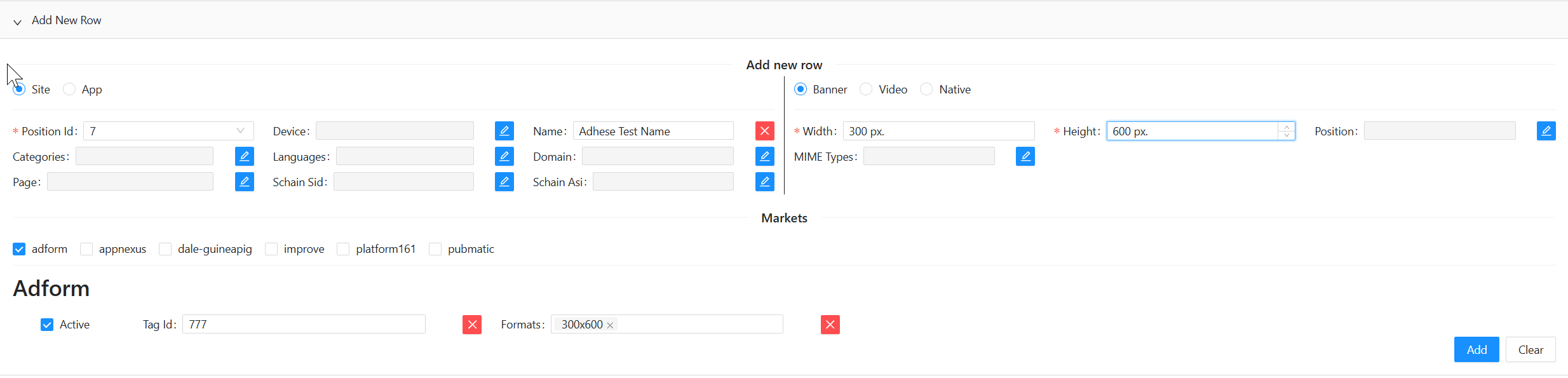
After completing the form, click Apply. A pop-upconfirmation notification will appear once the row has been successfully added.appear.

Save your changes
To permanently save your changes, click the Save Mapping button in the top-middle of the Wikan UI.
Please note: this does not publish your changes to production, it only saves your progress.

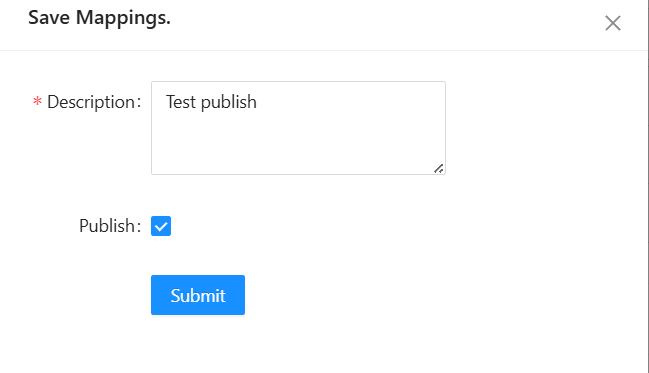
Publish your changes
As your final step, you need to Publish to push your changes to the cloud. To push your changes, you need to be in Write mode and click the Publish button on the top right; this will publish the changes and end your Write mode session.
Importing and exportingExporting mappingsMappings
Export
ToClick importExport as XLSX to download all mapping data into Wikan in bulk, use the import function. Alternatively, you can export the data and edit it as a spreadsheet.
The exported format matches the structure used for importing.
Exporting mapping data into a spreadsheet format.

Click the Export as XLSX button to download all your mapping data as an XLSX spreadsheet.
Import
TheClick spreadsheet will be formatted identically to the one used for importing. You can use it as a starting point for importing mappings.
Uploading the spreadsheet file to Wikan
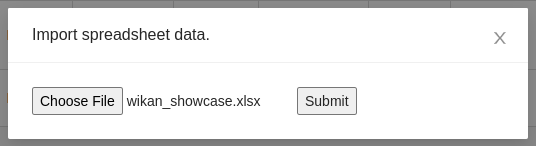
Click the Import XLSX, select your file, and click Submit.
If the menu.import succeeds:
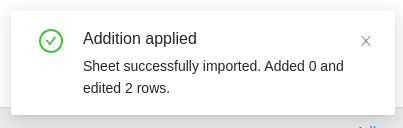
A notification in the bottom‑right shows the number of changes made.
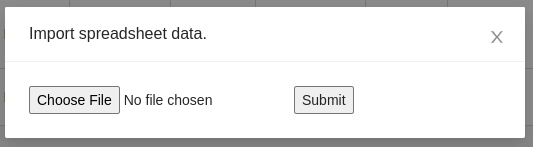
Select the spreadsheet file and click Submit:
If the operation is successful, the system will add new rows and update existing ones. A notification in the bottom right corner indicates the number of new rows added and the number of existing rows updated.
Spreadsheet Fields and Examples
Below is a non-exhaustive list of the fields in an import/export spreadsheet.
|
\*\*Field name\*\* |
\*\*Type\*\* |
\*\*Example\*\* |
\*\*Key\*\* |
|---|---|---|---|
|
Position Id |
Integer |
55 |
profile.sl |
|
Device |
String |
desktop |
profile.dt |
|
Name |
String |
Dominos |
site.name, app.name |
|
Categories |
String Array |
IAB1-4,IAB2 |
site.cat, app.cat |
|
Languages |
String Array |
fr,nl |
site.wlang, app.wlang |
|
Domain |
String |
test.com |
site.domain, app.domain |
|
Page |
String |
test.com/product |
site.page |
|
site\\\_or\\\_app |
String |
site |
|
|
banner\\\_or\\\_video |
String |
video |
|
|
Width |
Integer |
300 |
imp.banner.w, imp.video.w |
|
Height |
Integer |
600 |
imp.banner.h, imp.video.h |
|
Position |
Integer |
4 |
imp.banner.pos, imp.video.pos |
|
banner MIME Types |
String Array |
image/jpg,image/gif |
imp.banner.mimes |
|
video Delivery Methods |
Integer Array |
4,5 |
imp.video.delivery |
|
video Protocol Ids |
Integer Array |
3,4 |
imp.video.protocols |
|
video MIME Types |
String Array |
video/mp4,video/flv |
imp.video.mimes |
|
video Min Duration |
Integer |
3 |
imp.video.minduration |
|
video Max Duration |
Integer |
30 |
imp.video.maxduration |
|
video Linearity |
Integer |
1 |
imp.video.linearity |
|
\*\*All market instances share the following fields. Replace <market instance> with the appropriate market instance and its name.\*\* |
|||
|
<market instance> active |
Boolean |
true |
|
|
<market instance> site/app\\\_id |
String |
3485929 |
site.id, app.id |
|
<market instance> banner Formats |
Format Array |
300x240,400x200 |
imp.banner.format |
|
\*\*The following fields are specific to certain market instances.\*\* |
|||
|
<market instance> Custom Targets |
Multimap |
value1=result2,value2=placeholder |
|